Beranda · · · ·

New How to Install IIS (Internet Information Services) in Windows Server By Patricbensen

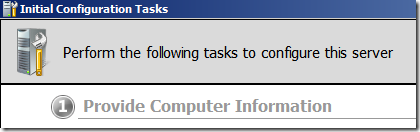
initialconfigtask

Windows Server is the leader in terms of operating system unit and revenues. According to Wikipedia, Internet Information Server is a Web Server application on the Internet created by Microsoft for use with Windows. It is the most used Web server after Apache HTTP Server.

It provides a reliable, manageable, and scalable Web application application infrastructure.

IIS is not turned on by default when Windows is installed.

How to activate the Internet Information Services

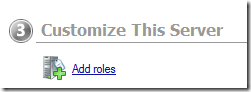
Once the Initial configuration Task Window is ready, go to the Add roles option.

addrole 

If not loaded, you can access this using the Server Manager window

servermanager

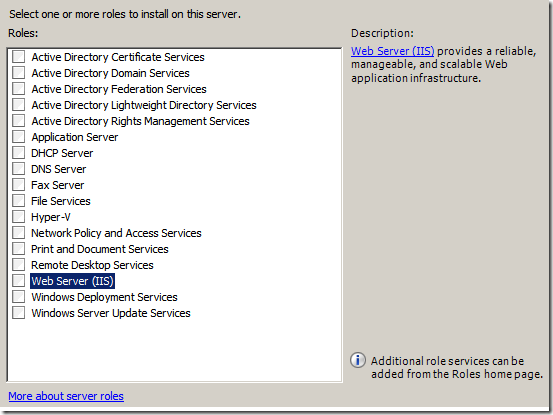
Select to check the “Web Server (IIS)” option and follow the Wizard instruction.

webserver

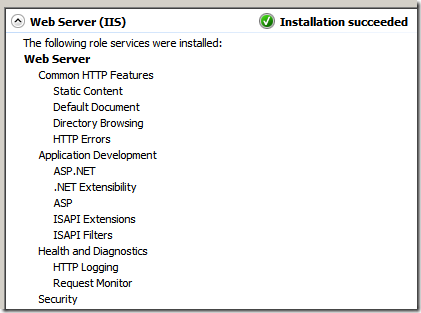
It’s really fast and easy!

finished

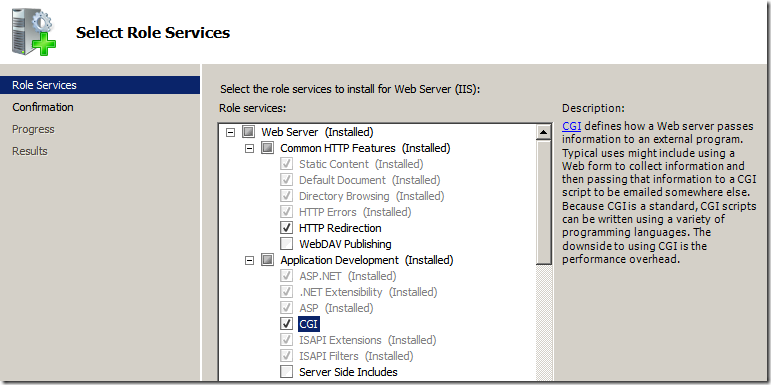
Once the Web Server Installation is finished and you want to add more features, go to the “Add Role Services”

editaddfeatures_services

and Select the Role Services that you want to add e.g. CGI

editaddfeatures

Click the Install option.

install

That’s it!

New How do I use an external GPS receiver with my phone? By Patricbensen

Contributed by John J. Herzog

One of the Android apps that blind and visually impaired users especially enjoy is WalkyTalky by the Eyes-Free Project. When the app is on, users hear street addresses as they walk past buildings and houses. If the phone has a good internal GPS receiver, this app makes independent travel much easier, but if the device has a buggy internal receiver, as is the case with the Samsung Epic, feedback is nonexistent or obviously inaccurate.

For users who are not hearing spoken feedback or reliable information from WalkyTalky and other navigation apps, I highly recommend the use of an external Bluetooth receiver with an app called Bluetooth GPS Provider by mobile-j.de. This combination of hardware and software greatly increases the accuracy of the GPS and even, as in my case, the amount of auditory feedback delivered.

Bluetooth GPS receivers are available through eBay and electronics stores like Radio Shack and Best Buy. I have the Holux m 1000. Other members of the Eyes-Free users list recommend the i-Blue 737 and the Qstarz 818, which have a newer chip set and reportedly get you within 10 feet of a location. Whichever device you choose, be sure to read the manufacturer's documentation for instructions on operation and maintenance.

To use the external receiver with your phone, do the following:

1. Install Bluetooth GPS Provider by mobile-j.de from the Android Market. Note that the first time you run the app, you may not hear any speech. I had to press the back button to open the main screen.
2. Pair your Bluetooth receiver with your phone through Settings/Wireless and Network.
3. Start the Bluetooth GPS Provider application. The main screen presents three options: Start, Stop, and Choose Receiver.
4. Click on Choose Receiver In Provider, then scroll to and click on the Bluetooth device you paired with your phone.
5. Click the Start button in Provider. If you get a message about allowing mock locations, do that. The app opened the appropriate option in my phone's settings so I was able to check the item. If you have to allow mock locations manually, go into Settings/Applications/Development.
6. Hit Home on the phone. Don't hit Back, or you quit Provider and turn off any feedback.
7. Launch WalkyTalky from the home screen. I heard the address of the house I was near almost as soon as I turned it on.
8. Enable internal GPS if prompted. WalkyTalky may nag you to turn on internal GPS. If you leave the Destination field blank, this does not happen, so you can just use WalkyTalky with your Bluetooth GPS and Provider; however, if you enter a destination, WalkyTalky prompts you to turn on your internal GPS for route information. Don't worry, the external receiver is the one that actually provides the data to your phone. The prompt for turning on internal GPS is a glitch in WalkyTalky.
9. Quit WalkyTalky when you're done.
10. Turn off Bluetooth GPS Provider.
11. Go into the Bluetooth GPS application and hit the Stop button. This prevents Talkback from repeating that there is a bluetooth gps problem when you turn off your receiver.

That's all there is to it. If you're having trouble using WalkyTalky and other GPS apps, it may be that the GPS receiver in your phone is the problem. That is the case for me, and though keeping and charging an external device is yet another thing to remember, using a Bluetooth receiver with a simple Market app is easy and preferable to inaccurate or missing voice guidance.

New How do I work around the accessibility issues in Touchwiz with Android 2.2? By Patricbensen

Contributed by John J. Herzog

Unfortunately, the upgrade to Android 2.2 has broken many accessible applications and features of the Samsung Epic. This is largely due to the Touchwiz user interface (UI), which is responsible for modifying key apps. After using my phone for a couple of days, I have found issues with Messaging, Call Log, Contacts, Caller ID, music player, GPS, my user defined home screen, and the My Apps area of the Market. Other apps may be affected as well. In this post, I explain the accessibility drawbacks in each of these key apps and describe workarounds to help you get a useable phone.

Messaging on the Epic with 2.2

Problem:

In the stock text messaging app, it is hard to send a message to a person when there is no pre-existing conversation. When you open the app, you are placed in an edit box, and Talkback says, "to," to indicate that this is where you enter a phone number or contact name. While you can still write in this box, you can no longer type the first few letters of a contact's name, then scroll down the list of available matches with the arrow keys. If you try, you get an error stating that you have entered an incorrect address, and that the recipients will not get your message. For me, a person with over fifty contacts in his phone, this bug is a showstopper.

solution:

Download an app called Go SMS by Go Dev Team. It is available from the Android Market and is free to use.

Go SMS is almost identical to the stock messaging app. There is an unlabeled button at the top of the screen; clicking on it allows you to compose a new message. The typing boxes have labels and work normally.

When you launch go sms, focus is in the box where you specify who the message will go to. In this case, you can type the first few letters and use your arrows to scroll through a list of matches. Just hit enter when you find the contact you want, and the text is filled into the message box.

After you finish filling in the recipient, hit the down arrow to get into the message body and type your text. This behaves appropriately as well. Then to send the message, hit the right arrow from here to move to an unlabeled button, which sends the message as it does in the stock messaging app.

Other areas of Go SMS also behave similarly to the stock messaging app. For instance, when you launch Go SMS and use your arrows, you can browse through your conversations with friends. Clicking on a conversation allows you to either send a message to that person or reread all of the prior messages in the thread. There are no unusual quirks here.

Note: If you open the Go SMS from a status bar notification, the New Text Message alert does not clear automatically. To clear it, you must either go into the stock messenger or clear the notification manually from the status bar.

Call log on the Epic with 2.2

Problem:

The stock call log is largely inaccessible. Whenever you click on the call log, you are presented with a list of items that does not speak to you. You can hear a click every time you move, but you do not get any information about who called you, what time the call took place, and so on.

But if you hit enter on any of the items that do not speak, Talkback announces the number for that call log entry, and you are placed in a list of all calls made between you and the number in question. This is inconvenient for two reasons. First, you have to click on each item that does not speak to find out which call it refers to. Seconde, if you make many calls to a particular number, many of the items that do not speak take you back to the same list, so you have to move up and down the list of all calls ever made between you and that number, instead of having a quick overview of individual calls that you can read in sequence.

Solution:

Download an app called Go Contacts by Go Dev Team. It is available from the Android Market and is free to use. The application contains two components, which are both useful to have: Go Dialer and Go Contacts.

When you launch go dialer, you are placed in a list of calls. As you move down the list, Talkback announces each phone number. By pressing the menu key, you get to determine what types of calls are shown to you. For instance, I can click on the option that shows Missed Calls only. There are three other options: Incoming Calls, Outgoing Calls, and All Calls.

One drawback of this application is that it arranges your calls alphabetically. In other words, if you have a missed call from Bob Smith, it appears in the list before your missed call from Doug Jones. This is true even if Doug was the most recent missed call. This is really annoying but I cannot seem to find a way around it for the time being.

When you find a call you want to work with, you can short-press or long-press on the entry in the list. If you short-press enter, the phone dials the number so you can return the call. If you long press enter, you get several options. One is to delete this call from the call log. I choose this often so as not to forget who I called back and who I didn't. Other options are to add this caller to contacts or to create a new contact for the caller. All of these options are accessible and present no problems for Talkback.

While Go Dialer is helpful, you may run into a few accessibility snags. When first opening the app, be sure not to hit the up-arrow. This takes you out of your call log, and into a dialing area of the app. It contains the keys on the number pad, and you can move from button to button using the arrow keys. However, from this dialing screen, you cannot get back into your list of calls. To return to the call log, up-arrow to the top of the screen, and click on the Dial item, which is actually a tab, and should bring you back into your call log. If this fails, go back up to Dial, right-arrow once, then left-arrow again. If all else fails, just exit the app and restart it.

Note: If you open the Go Dialer call log from a status bar notification, the Missed Call alert does not clear automatically. To clear it, you must either go into the stock messenger or clear the notification manually from the status bar.

Contacts on the Epic with 2.2.

Problem:

It is not possible to add a new contact from the stock call log. The stock call log includes an option for adding an entry to contacts by hitting the menu key and choosing add to contacts. This places you in a list of your existing contacts. The next logical step is to arrow to a New Contact button, click it, and start an entry with the phone number from the call log. However, this is the step that is inaccessible as there is no New Contact button that can be reached with the arrow keys. Navigating above the contact list takes you to a search box, where you type the name of a contact you are looking for, and moving to the bottom of the list doesn't produce anything either. So your only real option is to add the number to an existing contact.

Solution:

Download an app called Go Contacts by Go Dev Team. It is available from the Android Market and is free to use. The application contains two components, which are both useful to have: Go Dialer and Go Contacts.

I usually access Go Contacts through Go Dialer because these apps work together. In Go Dialer, I arrow through the items in the call log. Calls associated with contacts are listed alphabetically, with other calls at the top of the list. When I find the phone number I want to add to contacts, I long press the enter key on it. I get a menu of options, including one for adding a new contact. I click on this option, and then edit the contact info as I did in the stock Contact app of 2.1. All the fields are labeled and behave appropriately with Talkback.

caller ID on the Epic in 2.2

Problem:

The option to have caller ID spoken is no longer available. Samsung has removed it. I consider this one of the most annoying accessibility regressions of the Epic. Previously, I could have the Epic announce the name of the caller in place of the ring tone itself.

Solution:

Download an app called Call Announcer by Codean software. It's available from the Android Market in both free and licensed versions; I'm using the free version.

After Call Announcer is installed, I simply go into the app, and check the setting Enable Callback Announcer. This lets the app speak the name of the caller over the ringtone. A quieter ringtone works better; otherwise, the voice may be drowned out by the tone itself. I use the system default which is called Luminescence. Note that, if you put the ringtone to silent, the free version of Call Announcer does not speak the caller ID information.

Music Player on the Epic with 2.2

Problem

In the stock music player, you can scroll through a list of sound files and click on individual items, but you cannot control playback once the music starts. When playback begins, focus moves to a screen with unlabeled buttons. You can find out what some of them do by clicking on them, but this method of trial and error isn't completely helpful since some buttons take you out of the screen and none seems to stop the current song from playing. I was able to stop playback only by using the task manager to kill the app. Also, in the window that is shown while a song is played, the seek control does not respond to the left and right arrow keys, so you cannot rewind or fast-forward within a song.

Solution

Download an app called Android Music by JRTStudio. It is available from the Android Market and is free to use. According to the app description, it is identical to the stock Gingerbread music player.

The app opens on a song list. Arrowing up and down moves focus through the items in that list. Arrowing left and right moves focus to the Artist, Album, Song, and Play List tabs, from which you can also arrow up and down. Clicking on a title plays the song, and all the buttons on the play screen are labeled.

Internal GPS on the Epic with 2.2.

Problem:

The internal receiver continues to have problems getting a fix on satellites. For example, when using Walkytalky with the Epic's internal GPS, Walkytalky does not announce the addresses you are passing by, and it does not alert you to upcoming turns, as the GPS accuracy can be off by 3 to 4 meters and usually more.

Solution:

Use an external GPS receiver with an app called Bluetooth GPS Provider by mobile-j.de. It is yet another replacement app available from the Android Market and is free to use.

By default, android phones do not let you connect with bluetooth gps receivers. Here is a brief overview of the steps needed to run bluetooth gps provider with the Epic. For more detailed information, refer to the post on http://patricbensen.blogspot.com/2011/03/how-do-i-use-external-gps-receiver-with.html">using GPS receivers with Android phones:

1. Install Bluetooth GPS Provider from the market.
2. Do not start the app yet.
3. Go into Settings, Applications, then Development. Check the Allow Mock Locations box, and press Back several times to exit Settings.
4. Click on Bluetooth GPS Provider to start the app. Be sure that your receiver is on, and select it from within the app. In the future, you can just open Bluetooth GPS Provider, and click Start. Once the Start button has been pressed, do not click the Back button; if you do, you close the application. Instead, hit the home button to move to your home screen, then to Walkytalky, leaving Bluetooth GPS Provider running in the background. Walkytalky now gives you appropriate information as you use it.
5. Turn off Bluetooth GPS Provider when finished. Go into the Bluetooth GPS application and hit the Stop button. This will prevent Talkback from repeating that there is a bluetooth gps problem when you turn off your receiver.

User Defined Home Screen on the Epic with 2.2

Problem:

You can set the eyes-Free Shell as your default, but the phone keeps going back to TW Launcher, which is part of Touchwiz. This, however, doesn't happen with Mobile Accessibility. http://patricbensen.blogspot.com/2010/09/how-do-i-set-or-change-default-home.html">I follow the steps to set Eyes Free Shell as the default home screen, but when I restart the phone or when I long-press Back, TW Launcher opens, and pressing the Home button doesn't open the Eyes Free Shell. I have to go through the process of setting the Eyes Free Shell as my default again.

Solution:

Download an app called HomeSmack by TeslaCoil Software. It is available from the Android Market and is free to use.

Unfortunately, there is no fix beyond telling the phone you want the Eyes-Free Shell to be the default home screen. What HomeSmack does is offer an easy way to change the default home screen, letting me reestablish which one I want to use without my having to dig through the settings. Nevertheless, my Epic insists on defaulting to TW, and nothing I do changes that.

My Apps Area of the Market on the Epic with 2.2

Problem

It's not possible to access the My Apps area in Market, using the keyboard. When you open the Market app and press Menu, My Apps is one of the available options. Pressing the physical enter key on this option returns focus to the list of apps on the Market main screen; it does not open the My Apps list. Since the Epic doesn't also have a selector, there is no alternative hardware key to activate My Apps, and the soft d-pad of the Talkback keyboard isn't available because My Apps appears on a menu screen.

Solution

There is no alternative app for this problem. The solution is to guess where the option is on the screen and tap it with your finger.

The menu options (Search, My Apps, Settings, and Help) appear across the bottom of the screen. Whenever the physical keyboard is open, the phone is in landscape orientation, so these options are on the screen above the number row.

To find My apps, touch the number 5 or 6 on the physical keyboard; then slide your finger directly on to the screen from there. I'm not at 100 percent, but I find it most of the time.

conclusion:

The Samsung Epic with 2.1 was a fine choice for a screen reader user. Since its upgrade to froyo (2.2), I no longer recommend it to a blind user. Many of the critical apps do not work well with Talkback or Spiel. Messaging, managing your call log, adding contacts, checking caller ID, listening to music, using GPS, maintaining the user defined home screen, and accessing My Apps in Android Market are all near impossible without replacement apps from the market. Furthermore, if you use alternative applications to read texts and respond to missed calls, the system notifications alerting you of these events do not clear automatically. If you really must have an Epic, be sure you are a user who is comfortable using the android market to find and install apps; otherwise, I recommend either Mobile Accessibility from Code Factory or a different phone altogether.
New Android Overview By Patricbensen

http://patricbensen.blogspot.com/">patricbensen.blogspot.com

Android

Android™ delivers a complete set of software for mobile devices: an operating system, middleware and key mobile applications. 

Open

Android was built from the ground-up to enable developers to create compelling mobile applications that take full advantage of all a handset has to offer. It was built to be truly open. For example, an application can call upon any of the phone's core functionality such as making calls, sending text messages, or using the camera, allowing developers to create richer and more cohesive experiences for users. Android is built on the open Linux Kernel. Furthermore, it utilizes a custom virtual machine that was designed to optimize memory and hardware resources in a mobile environment. Android is open source; it can be liberally extended to incorporate new cutting edge technologies as they emerge. The platform will continue to evolve as the developer community works together to build innovative mobile applications. 

All applications are created equal

Android does not differentiate between the phone's core applications and third-party applications. They can all be built to have equal access to a phone's capabilities providing users with a broad spectrum of applications and services. With devices built on the Android Platform, users are able to fully tailor the phone to their interests. They can swap out the phone's homescreen, the style of the dialer, or any of the applications. They can even instruct their phones to use their favorite photo viewing application to handle the viewing of all photos. 


Breaking down application boundaries

Android breaks down the barriers to building new and innovative applications. For example, a developer can combine information from the web with data on an individual's mobile phone — such as the user's contacts, calendar, or geographic location — to provide a more relevant user experience. With Android, a developer can build an application that enables users to view the location of their friends and be alerted when they are in the vicinity giving them a chance to connect. 

Fast & easy application development

Android provides access to a wide range of useful libraries and tools that can be used to build rich applications. For example, Android enables developers to obtain the location of the device, and allows devices to communicate with one another enabling rich peer-to-peer social applications. In addition, Android includes a full set of tools that have been built from the ground up alongside the platform providing developers with high productivity and deep insight into their applications.

New Android 2.3.3 Gingerbread ROM for Samsung Galaxy S Leaks By Patricbensen

http://www.tech-exclusive.com/wp-content/uploads/2010/12/Android-2.3.jpg


http://patricbensen.blogspot.com/">patricbensen.blogspot.com

The official Android 2.3.3 Gingerbread update for the Samsung I9000 Galaxy S is out - well, unofficially. We’re still expecting the official update but you could download and install this one right now, at your own risk, of course.

The ROM is version XXJVK and works on the international Galaxy S, the Samsung I9000. Android 2.3.3 brings the API level to 10 and improves Bluetooth, graphics, media framework and speech recognition.

Here’s a video that shows off the new ROM running on the Samsung I9000 Galaxy S, including a whole bunch of benchmarks.


ROM running on the Samsung 19000 Galaxy S video

The firmware is a leaked official ROM, but there are still risks involved in installing an unofficial, unsupported software on your phone.
If you do want to install it on your Samsung Galaxy S, you should start with these instructions and watch the step-by-step installation video. The ROM can downloaded from here (there are versions with and without a boot loader). You might want to wait for the official update, it should arrive soon (or not, you never know).

Here's Youtube Video Link for Install:

Installation Video


How to install in theory and snap format:

How to install


New Network Folder Not Available in Browse for Folder Window By Patricbensen

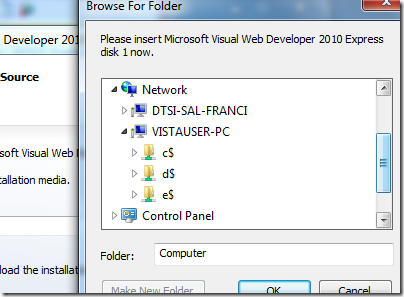
networksharedfolders 

Alright, I encountered this problem when installing SQL using Web Developer Express edition and I’m going to have some quick solution to the problem using the command interpreter.

There has been some problem in your user-rights, probably not yet configured in the computer you are connecting to, your Windows 7 network automatically use the IP version 6 configuration and IPv4 has wrong 32-bit integer value.

notavailable 

Go to your run Window (Win+R) and launch the command interpreter (cmd.exe)

Once the tool is open (cmd.exe), use the command

net use {drive} \\{computer name or IP address}\{shared folder}

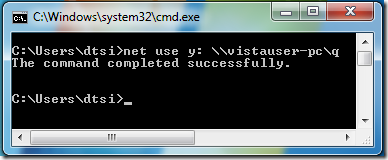
Here’s an example below where the driver letter is y:, the computer name is vistauser-pc and the shared folder is Q.

netuseq3

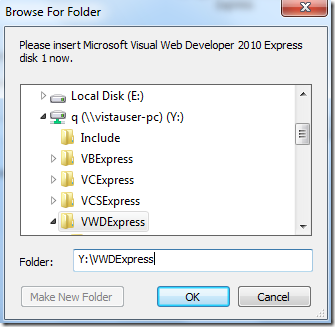
Now, you can browse the network folder.

available

If you can’t still see the folder, you can type the path manually as shown above.

Thanks for reading this article!

New Blogger.com Updated with New Features in 2011 By Patricbensen

Most popular blogging platform on web Blogger.com has planned to update with new features in year 2011. Blogger has announced the few new features for it's blogging software and which will be available for million of Blogspot users in Year 2011.

New Added Features of Blogger

1. Blogger to Update with new dashboard design with latest web technology like Google Web Toolkit

2. New Content discovery features which will showcase the related content on blog topics

3. Easy dashboard interface

There are also some other features which will be updated soon. Wait and see for New Blogger in Year 2011.


New How To Use Spice M9000 Projector Through Mobile ? By Patricbensen

This new  Spice M9000 mobile has bundle of features including new Projector. This is useful in viewing TV and movies through mobile.......[Read For Features of Spice M9000]

Check out how to use this new features in Spice M9000 Mobile Phone ?

How To Use Projector in Spice M9000 Mobile Phone ?

M-9000 is provided with an inbuilt projector, which enable its users to view images, videos and documents. Access the menu/sub-menu/images/videos/document in the phone which you want to view through the projector.

Now long press the side button to switch on the projection mode.


Support and Contact

You can visit www.spice-mobile.com for additional information, downloads and services related to your Spice handset.

To check for your nearest SPICE service center, you can visit www.spicemobiles.com/support-services .

For further assistance or queries, you can call on SPICE customer care number 1800-300-77423 (toll free) or mail at customercare@spicemobile.in or product@spicemobile.in.

To know the address of your nearest Spice service station please SMS- SPICE SERVICE to 56300.

New Spice Popcorn Projector M9000 Price, Specificaions and Features By Patricbensen

Spice has launched a very special and totally new conceptual mobile phone in Market. Model of this spice phone is M9000 Popcorn. This phone has unique feature of Projector which could be  very beneficial for business need and for entertainment.

This spice popcorn projector M9000 mobile has features like TFT display of width 2.4 inches, 3.2 mega pixel camera with Night Vision, Wide screen video recording and multi shot image capturing.

On entertainment side features it has had analogue TV along with built in projector. With the help of this analogue chip one can view any TV channels for free. This wide projector can be used for  TV streaming, movies and presentations.

How To Use Spice Mobile Projector in M9000 : Learn Here

Features and Specifications of Spice M9000
Color - Black
Dimensions(in mm) - 119.2 * 50.3 * 17.35
Weight(in gms) - 123g
Network(MHz) - 850/900/1800/2100
Analog TV
3.2 MP Camera & Video Player
WAP/GPRS/EDGE/JAVA
Talk Time - Up to 3.5 hrs
Stand by Time - Up to 300 hrs
Battery Power (in mAh) 1200 mAh
Projector Phone
Multi SIM
Analog TV
Document Viewer
Videos on Demand
Quad band
6 cm, 262K QVGA Screen
3.2MP Camera
FM with recording
MP3
Video Recorder
Video Player 3gp, mp4, avi, flv, rm & rmvb
1200 mAh Battery
GPRS, EDGE
JAVA
Stereo Bluetooth 


Price of Spice M9000 Popcorn : Rs 6990

You may check for details at : spice website here

Tags : spice mobile, spice, spice popcorn, spice popcorn price, spice popkor, Spice Popcorn Projector M9000 Price, Spice Popcorn Projector M9000, Spice Popcorn Projector M9000 specifications, Spice Popcorn Projector M9000 features, Spice Popcorn Projector M9000 price

New Creating DMZ configurations on Amazon EC2 By Patricbensen

This post tries to address an approach to replicating corporate-style DMZ configurations using Amazon EC2 components.

Conventional (non-cloud) Network configuration for hosting internet facing applications
Most internet applications are deployed on servers placed in secured demilitarized zones.
A DMZ's main function is to restrict the extent of an attack should systems be compromized.
Typically, there would be a main firewall that allows traffic from the internet only to web servers on a particular port. Subsequent to that there could possibly be firewalls that isolate application servers, database and reporting servers etc.

An example of this configuration is shown below. It consists of a Web DMZ hosting only web servers accessible from the internet via port 80. The application servers are placed after the second firewall and cannot receive traffic from any other source other than the web servers. The traffic is only restricted to port 8009 and only in one direction. The database servers are behind the third firewall and can only receive traffic from the application servers on port 3128.
For monitoring and management, all machines in the network have been allowed access on port 22 from machines internal to the company.


Cloud Network configuration for hosting internet facing applications

The first thing to realize is that a Security Group is quite similiar to a firewall configuration specifying the allowed protocol (tcp/udp), port/port range, traffic direction and source network. The only real difference is that Security Groups currently only support the ALLOW sematics (not the DENY), but this is quite sufficient as we shall see.

Once a Security Group is created, it can be associated to a server instance. In reality, the Security Group/s have to be specified for an instance before it can be instantiated.

They say that a picture is worth a thousand words, but I don't think that includes code.
The following depicts the configuration of Amazon's EC2 Security Groups to replicate the above DMZ configurations.


The simplest approach to achieve this is as follows:
  1. Map each DMZ to a Security Group
  2. Create the Security Groups in EC2 using the ec2-add-group API
  3. Authorize access (port, port-range, direction, source group/CIDR) using the ec2-authorize API
  4. Create instances using these security groups

Example: Web DMZ, App DMZ and DB DMZ

//create groups / zones
ec2-add-group web-dmz -d "Web DMZ"
ec2-add-group app-dmz -d "Application DMZ"
ec2-add-group db-dmz -d "Database DMZ"

//Allow admin access to all the servers
ec2-authorize web-dmz -P tcp -p 22 -s 0.0.0.0/0
ec2-authorize app-dmz -P tcp -p 22 -s 0.0.0.0/0
ec2-authorize db-dmz -P tcp -p 22 -s 0.0.0.0/0

//Allow access to the site from anywhere on the internet
ec2-authorize web-dmz -P tcp -p 80 -s 0.0.0.0/0

//Allow access from Web DMZ to Application DMZ on port 8009 only
ec2-authorize app-dmz -o web-dmz -u xxxxxxxxxxxx -P tcp -p 8009

//Allow access from Application DMZ to Database DMZ on port 3128 only
ec2-authorize db-dmz -o app-dmz -u xxxxxxxxxxxx -P tcp -p 3128

//Create instances and assign them to DMZs
ec2-run-instances ami-cef405a7 -z us-east-1d -t t1.micro -g web-dmz
ec2-run-instances ami-cef405a7 -z us-east-1d -t t1.micro -g app-dmz
ec2-run-instances ami-cef405a7 -z us-east-1d -t t1.micro -g db-dmz

New How do I listen to Kindle books on my Android Phone? By Patricbensen

Contributed by Fenton Smith

I explain here how blind people can remove the DRM from Kindle books for use on Android and other devices. These instructions are permitted only for personal use so that people with disabilities can have the same level of access to ebooks as is already available to the sighted.

Certain legal ramifications should be kept in mind. While the Department of Justice has said that it will take no action against those who break DRM to make file content accessible to people with disabilities, the DOJ has also said that it will take legal action if people sell, give away or loan such files outside their immediate households. Also, carelessness with respect to the rights of authors and publishers may cause the DOJ to rethink its stand and Amazon to plug this hole in its DRM.

Given all of this, I recommend against doing the work for other blind people, even if they buy the original source from Amazon. Instead, I suggest pointing them to tutorials like this one, which describe the tools and procedure for setting up an environment that allows them to make their purchases accessible for themselves.

Gathering the Tools

A number of tools are needed to support this process or help set up the environment. All are listed at the end of this article along with links to sources, and all are free.

The first item is the EBook DRM removal Kit.

This is a Torrent file. I used BitTorrent for the download. The file contains zip and rar files. Both can be unpacked by 7zip.

The file is a set of instructions, Python scripts and related executables for removing the DRM from Kindle and other file types. The basic DRM removal doesn't require a python interpreter, but the scripts for topaz file handling do require python 2.6 or 2.7.

The second item is the Kindle for PC with accessibility plugin from Amazon. The K4PC gives you access to the files you purchase and brings them to your PC. The files will appear in your “My Kindle Content” directory, which is created during installation, and they will have an .azw (Amazon.com wrapper) extension.

Note that this version of Kindle for PC requires that you have a screen reader installed. The Amazon page describing this version of K4PC includes a list of shortcuts for the accessible Kindle Application and a list of screen readers known to work with it. If you are using a screen reader that is not listed, download the program, install it, and check to find out if it works anyway. If it doesn’t, contact Amazon to tell them which one you are using and request that they add it to the list of compatible screen readers.

The third item is Calibre, a set of tools for translating ebooks from one format to another.

Note that the torrent does contain the installation executable for Kindle for PC, but that version is not accessible. Instead, use the special version directly from Amazon.

Removing the DRM from the File

The DRM remover package documents several methods for using the programs and scripts it contains. The one I chose is this:

1. Create a special SKindle directory on the hard drive, where the My Kindle Content directory is also located. This is usually the system drive c:. I created the SKindle directory on my c:\ drive, but you can put it anywhere else on the drive.
2. Create two sub directories in the SKindle directory. Their names are Input and Output.
3. Into the SKindle directory, copy LZSkindle4PCv1_1.exe and skindle.exe, each of which is found in different subdirectories of the Torrent.
4. copy the .azw file from your “My Kindle Content” directory into the input directory in SKindle and execute LZSkindle4PCv1_1.exe. This is the step that actually removes the DRM from the Kindle book.

Three outcomes are possible:

• No conversion is done since the file is an unencrypted mobi file. The file remains in the input directory.
• The file is converted, the version without DRM appearing in the output subdirectory.
• The file version without DRM appears in the output file with a changed extension.

The goal is the first or second option. The third is a problem as it represents the case of a topaz ebook. The set of scripts do include python scripts for dealing with topaz books, but the results are said to be unsatisfactory. Since most Amazon books are mobi, I'll leave the handling of topaz books until I need to attempt to read one.

Note: While the DRM removal tools were running, I noticed that K4PC uses both the user account name on the PC and the serial number of the disk drive as part of the encryption. That means these scripts will work only if you log onto your computer using the same user account (login name)that was used when the book was downloaded from Amazon and that the SKindle directory must be on the same physical drive as the “My Kindle Content” directory.

Converting the Kindle File to Epub

Now that you have a mobi book with no encryption in either the input or the output subdirectory, you need to convert it into an ePub for use on your Android or other reading device. Use Calibre to do this. The steps are as follows:

1. Create a directory named Calibre in the root directory of the drive that contains the SKindle and “My Kindle Content” directories.
2. Copy the .azw file with the DRM removed into the Calibre directory.
3. Use the notepad or your favorite text editor to create the following batch file:

Note that these are separate commands and should appear on different lines of the batch file. Also note that the assumption here is that the “My Kindle Content” directory will be on the C drive. This is the normal case, but advanced users can move it to another drive, in which case, the drive letter in the following needs to be changed.

cd c:\calibre\

ebook-convert "[book name].azw" .epub

Exit

4. Save this file as Calibre.bat in the Calibre directory.
5. If you need to edit the batch file, either open Notepad directly and use the file menu to open, or right click on the batch file name in Windows Explorer and select Edit from the context menu.
6. Execute the file by left clicking on the batch file name in Windows Explorer.

Notes:

• In this tutorial, when a modified command line is specified, the idea is that you modify the line in the batch file. Running the command line outside its’ normal context does not produce the desired result.
• The phrase “[book name]” and the brackets around it should be replaced with the base name (the file name without the extension)of the Kindle book you want to process. In other words, before running the batch file, you need to substitute "[book name]" with the actual name of the book so the line reads something like this:

ebook-convert "Dracula.azw" .epub

Dividing the Book into Chapters

While Calibre normally correctly identifies chapter headings, there may be instances in which it fails to do so or in which the book has no identifiable chapter headings. If this is the case, you can do a little extra work to add them yourself, converting the file to .rtf and using Word to insert chapter breaks:

1. Use the notepad to open the Calibre.bat file and change the output file type in the second line from epub to .rtf so that it reads:

ebook-convert "[book name].azw" .rtf

2. Save the modified batch file.
3. Execute Calibre.bat by doing a left click on the file name in the Windows Explorer.
4. Open the resulting document in word and either mark chapters or insert headings every 10 to 15 pages.
a. To find existing chapters, use Find (ctrl+f) to locate the word "chapter" or some other word or character that seems unique to chapter headings in the book.
b. To insert arbitrary chapter breaks, Use Edit/GoTo (or ctrl+g) and enter a page number about 10 to 15 pages ahead of your current position, do a skim of the area where you land to find a suitable point for a chapter break, and insert text like "Chapter ##."
c. Once the existing chapter has been found or an arbitrary break has been inserted, highlight the title text and press alt+ctrl+1 to make it a heading at level 1 . Then repeat the process throughout the book. Note that pressing alt+ctrl+1 to alt+ctrl+6 turns highlighted text into a heading at levels 1 through 6.
5. Use the caliber batch file to convert the modified rtf file back into an epub after all chapter breaks have been marked or inserted.
a. Open the caliber.bat file with the notepad or right click the file name in the Windows Explorer and select “edit.”
b. Alter the second line to read:

ebook-convert "[book name].rtf" .epub

c. Save the batch file and exit notepad.
6. Left click on the caliber.bat file in Windows Explorer to run the batch file, resulting in a conversion of the file from rtf format to an epub book.

Moving the Converted File to the Phone

Now that the DRM has been removed and the book is an ordinary ePub file, the only step left is to copy it to the phone's SD card. The usual procedure is to connect the phone to the PC with the USB cable provided, mount the SD card/turn on USB Mass Storage Mode, and copy the files from the computer to the SD card. If a reader is already installed on the phone, a directory named Books is on the root of the SD card. That is the directory where ePub files are to be copied. Once the ebook is in that folder, you are ready to enjoy your book with an accessible reader like Moon Reader+ Pro.

Trying an Alternate Method

Notice that Calibre was used for three different processes, altering the associated batch file for each specific process. Another approach is to create three batch files, one for each purpose. That is, the batch files would have names like “Amazon-epub.bat,” “amazon-rtf.bat,” and “rtf-epub.bat.”

Another simplification is to always use the same file name for every book processed. Thus, you would always use the file name “book” with the appropriate extension in each of the batch files. The following outlines such a process:

• Copy the desired book from “My Kindle Content” to SKindle/input.
• Run LZSkindle4PCv1 to remove the DRM.
• Copy the file from either SKindle\output or SKindle\Input, depending on the case, into c:\calibre.
• Change the file name to “book.azw” in the c:\calibre directory. You can edit file names in the Windows Explorer by hitting the F2 key while the file name is selected and then type a new name.
• Use the base name “book” in all subsequent processing.
• When the epub is finished, change its name from “book.epub” to reflect the content (e.g., “Margaret Mitchell, Gone With the Wind.epub”).

This modified approach lets you perform the needed processing on many books without needing to modify the batch scripts for each book.

To summarize, blind and visually impaired users can legally remove DRM from Kindle files to access the content as long as they do so for their own personal use. The actual file conversion process is easy and straight forward. The hard part is finding information on removing the DRM. It's available on the web for people without disabilities, but it's scarcer when the tool set to complete the process needs to be accessible too. It took me a good deal of research to find a tool set that works for blind people. I am sharing what I've found with other Android users to keep them from reinventing the wheel.

Now that I can access them, I'm looking forward to Kindle books. My first choice for reading material is still Bookshare, but due to the time it takes me to download from BARD (an hour or more at my download speed), my second choice will probably be Amazon via my Android.

Tool sources

The following are referred to in this tutorial. Hyperlinks have been included in the text for your convenience, but URLs are listed here in case you wish to keep them in your records.
BitTorrent
Source: www.bittorrent.com/btusers/download

7zip
Source: www.7-zip.org/

DRM remover
Source: www.demonoid.me/files/details/2483622/004261412868/

Python
Source: www.python.org/getit/

Calibre
Source: calibre-ebook.com/download

Kindle for PC with Accessibility Plugin
Source: www.amazon.com/gp/feature.html?ie=UTF8&docId=1000632481

Accessible Kindle for PC shortcuts list
Source: www.amazon.com/gp/help/customer/display.html/ref=hp_pcaccess_accessshortcuts?nodeId=200608290&pop-up=1

New Add t1.micro support to ElasticFox By Patricbensen


A lot of people, including me depend on the ElasticFox firefox plugin to interact with Amazon Web Services and its easy to see why. It has GUI support for almost everything that you'd need to interact with AWS.
However, it seems that, as of today, ElasticFox has yet to add support for the t1.micro instances that Amazon introduced recently.

Well, I just couldn't stand waiting for the latest release, and if you're just as impatient, you might want to try the following:

  1. Check out the elasticfox code from svn:
    svn co https://elasticfox.svn.sourceforge.net/svnroot/elasticfox/trunk elasticfox
  2. Open up
    trunk\src\chrome\content\ec2ui\newinstancesdialog.js
    in your favorite editor. Go to line 247 and add the following:
    if (this.image.rootDeviceType == "ebs") {
    typeMenu.appendItem("t1.micro", "t1.micro");
    }
Now, its time to build the code into a plugin.
Download and install the firefox extension developer plugin
Open Firefox. Go to Tools->Extension Developer->Extension Builder, browse for your working directory and hit 'Build extension'.
You can then drag this resulting .xpi file into the browser window to install the plugin

You should now be able to select a t1.micro instance for a corresponding valid AMI

New By Patricbensen


Distributed Caching Using Ehcache on Amazon EC2

This post elaborates the setup of Ehcache to enable distributed caching in JEE applications. It also contains a specific Ehcache configuration for use in applications deployed on Amazon EC2.

Ehcache, since its takeover by Terracotta®, has evolved to incorporate enterprise features like ‘search’, BigMemory in the Ehcache DX, EX and FX product editions.
However, you can still achieve a high degree of distributed caching by just using the ‘core’ Ehcache library.

This post focuses on a minimalistic approach to incorporate distributed caching into an application. Deployment approaches that involve a large number of instances in a cluster/farm and require cache interactions to participate in JTA-transactions are not covered here. Distributed Caching that caters to these requirements can be achieved using a Terracotta Server Array (TSA).

There are 4 available mechanisms that can be employed to realize a distributed and replicated cache using Ehcache:
RMI                    – Default remoting mechanism in Java
JGroups             – Requires adding JGroups to the application stack
JMS                   – Requires a Messaging System Provider
Cache Server     – Realized using a Terracotta Server (/Array)

This post will cover the use of Java’s default remoting mechanism – RMI.

Configuring an application for Distributed Caching
Enabling distributed and replicated caching in a Java/JEE application is surprisingly simple using Ehcache. The procedure involves 3 steps:


  1. Download Ehcache (core) from http://ehcache.org
  2. Place ehcache-core-xxx.jar, slf4j-api-xxx.jar, slf4j-log4jxx-xxx.jar into the library folders of your application (e.g. classpath, WEB-INF/lib)
  3. Place the Ehcache configuration file (ehcache.xml) in the application classpath (e.g. classpath, WEB-INF/classes)

Ehcache Configuration File (ehcache.xml)
The configuration file, which configures Ehache’s Cache Manager, must have the following elements to enable distributed caching:


  1. A CacheManagerPeerListenerFactory
  2. A CacheManagerPeerProviderFactory
  3. At least one Cache configuration containing:
    1. A CacheEventListenerFactory
    2. A BootstrapCacheLoaderFactory

Configurations for environments with no multicast limitations:
Using RMI as the replication mechanism, a simple configuration of the Cache Manager would be as follows:
<?xml version="1.0" encoding="UTF-8"?>
<ehcache xmlns:xsi="http://www.w3.org/2001/XMLSchema-instance"
xsi:noNamespaceSchemaLocation="ehcache.xsd"
updateCheck="false" monitoring="autodetect"
dynamicConfig="true" name="my cache">

<cacheManagerPeerListenerFactory
class="net.sf.ehcache.distribution.RMICacheManagerPeerListenerFactory"/>

<cacheManagerPeerProviderFactory
class="net.sf.ehcache.distribution.RMICacheManagerPeerProviderFactory"
properties="peerDiscovery=automatic,
multicastGroupAddress=230.0.0.1,
multicastGroupPort=4446,
timeToLive=32"/>


<cache name="cache1"
maxElementsInMemory="100"
eternal="true"
overflowToDisk="false">

<cacheEventListenerFactory
class="net.sf.ehcache.distribution.RMICacheReplicatorFactory"/>
<bootstrapCacheLoaderFactory
class="net.sf.ehcache.distribution.RMIBootstrapCacheLoaderFactory"/>
</cache>
</ehcache>


This configuration file can be copied into all deployments of the application that need to be part of, and have access to the distributed cache.

Configurations for environments with multicast limitations:
If the application is deployed within an environment where multicast is not allowed or not available (like Amazon EC2) then the following configuration can be used:
Example configuration on machine 1 [server1]:
<?xml version="1.0" encoding="UTF-8"?>
<ehcache xmlns:xsi="http://www.w3.org/2001/XMLSchema-instance"
xsi:noNamespaceSchemaLocation="ehcache.xsd"
updateCheck="false" monitoring="autodetect"
dynamicConfig="true" name="my cache">


<!-- For Non-Multicast supported environments [for server1] START -->
<cacheManagerPeerListenerFactory
class="net.sf.ehcache.distribution.RMICacheManagerPeerListenerFactory"
properties="port=40001,
remoteObjectPort=40002,
socketTimeoutMillis=120000"/>

<cacheManagerPeerProviderFactory
class="net.sf.ehcache.distribution.RMICacheManagerPeerProviderFactory"
properties="peerDiscovery=manual,
rmiUrls=//server2:40001/cache1"/>

<!-- For Non-Multicast supported environments [for server1] END -->

<cache name="cache1"
maxElementsInMemory="100"
eternal="true"
overflowToDisk="false">

<cacheEventListenerFactory
class="net.sf.ehcache.distribution.RMICacheReplicatorFactory"/>
<bootstrapCacheLoaderFactory
class="net.sf.ehcache.distribution.RMIBootstrapCacheLoaderFactory"/>
</cache>
</ehcache>


Example configuration on machine 2 [server2]:
<?xml version="1.0" encoding="UTF-8"?>
<ehcache xmlns:xsi="http://www.w3.org/2001/XMLSchema-instance"
xsi:noNamespaceSchemaLocation="ehcache.xsd"
updateCheck="false" monitoring="autodetect"
dynamicConfig="true" name="my cache">


<!-- For Non-Multicast supported environments [for server2] START -->
<cacheManagerPeerListenerFactory
class="net.sf.ehcache.distribution.RMICacheManagerPeerListenerFactory"
properties="port=40001,
remoteObjectPort=40002,
socketTimeoutMillis=120000"/>

<cacheManagerPeerProviderFactory
class="net.sf.ehcache.distribution.RMICacheManagerPeerProviderFactory"
properties="peerDiscovery=manual,
rmiUrls=//server1:40001/cache1"/>

<!-- For Non-Multicast supported environments [for server2] END -->

<cache name="cache1"
maxElementsInMemory="100"
eternal="true"
overflowToDisk="false">

<cacheEventListenerFactory
class="net.sf.ehcache.distribution.RMICacheReplicatorFactory"/>
<bootstrapCacheLoaderFactory
class="net.sf.ehcache.distribution.RMIBootstrapCacheLoaderFactory"/>
</cache>
</ehcache>

If there are more than 2 servers in a replication group, then additional servers can be specified in the ‘rmiUrls’ property using a pipe character ‘|’ as the delimiter.

This configuration relies on manual peer discovery and requires the enumeration of all machines participating in the distributed cache to be specified.
Another important point to note is that if the machines are separated by firewalls then the RMI remoteObjectPort needs to be specified (as shown in the example above) and firewall configurations would need to be made accordingly.

For the above configurations, create your servers/virtual machines in a security group and authorize the group to itself (this allows all virtual machines in the group free access to each other).

ec2-add-group ehcache -d "ehcache replication ports”
ec2-authorize ehcache -o ehcache –u [aws account id]

If this is not possible and each virtual machine has its own group then allow ports 40001 and 40002 between the groups (you can read http://patricbensen.blogspot.com /2011/03/creating-dmz-configurations-on-amazon.html">this post for details on how to do this).

New Android Users Can Now Explore Their New Phones Independently By Patricbensen

Keyboard Tutor is a new Android app from the eyes-free project that can help you locate and learn about the keys on your physical keyboard, and any other physical buttons on your phone. Just start the app, and press any button to hear a description of that button spoken.


You can download Keyboard Tutor from the android market.

New Nokia E7 Price, Specification and Reviews By Patricbensen

Nokia has launched it's new model for Global customer i.e. NOKIA E7. This model has almost all good features including 3G and latest wi-fi positioning.

It has new AMOLED Capacitive touchscreen display screen of 4" with Qwary Pad keyword. In real sense there is no much diference between NOKIA E7 and E8 except Camera Quality.

Features of NOKIA E7
  • 3G HSDPA, Wi-Fi positioning, GPS Integrated GPS, A-GPS receivers
  • Display Screen Size 4 Inch
  • Camera Size 8 MP
  • Camera Supports Dual LED flash capture high-resolution photos and HD video
  • Screen Type ClearBlack AMOLED touch screen
  • Body made of anodized aluminum
  • Very slim size of 13.6 mm
  • Loaded with 4-row QWERTY tilt-slider keypad
  • Surround Sound with latest Dolby Digital
  • Real-time push emails with Mail for Exchange
  • Get fast, secure intranet access with the built-in VPN.
  • Easy to use Microsoft with its Support for Microsoft Exchange
  • Microsoft Communicator Mobile is pre installed
  • Ovi Maps with free lifetime GPS navigation and voice guidance
  • Social networks – Facebook, Twitter, and Instant Messengers are fully integrated
  •  8 MP with LED flash at rear
  • Symbian 3 OS
  • 16 GB internal memory (extended upto 32 GB)
Price : Nokia E7 Price is approx Rs. 34999/-, Booking has been started.

Tags : nokia e7 price,nokia e7 price,nokia e7 review,nokia e7 release date,nokia e7 pre order,nokia e7 specifications,nokia e7 order,nokia e7 pricen rupees,nokia e7 photo gallery,nokia e7

New Apple iPad Announces Price Discount on Phones By Patricbensen

Apple India has  announced approximately Rs 3,000 (about $75) price cut  on each model of iPad.

With the launch of iPad 2 Apple has announced a $100 price cut on iPad in the US also.

Price of Apple iPad

. 16GB Wi-Fi: Rs 24,500 (earlier price: Rs 27,900)

* 16GB 3G+Wi-Fi Rs 31,900 (earlier price: Rs 34,900)

* 32GB Wi-Fi Rs 29,500 (earlier price: Rs 32,900)

* 32GB 3G+Wi-Fi Rs 36,900 (earlier price: Rs 39,900)

* 64GB Wi-Fi Rs 34,500 (earlier price: Rs 37,900)

* 64GB 3G+Wi-Fi Rs 41,900 (earlier price: Rs 44,900)  

*  iPad 2 (16GB, WiFi version)  Rs 35,900 since time for iPad2 not launched but it is available on eBay.

New How do I Develop an Accessible App? By Patricbensen

If you are reading this blog for the first time, you are probably a developer wondering how to make your app more accessible to screen reader users. This post explains how you can test your app for accessibility, what you can do to make it more usable by blind and visually impaired people, and where you can find more information to help you develop accessibly.

Understanding Android Accessibility

When developing for Android, you must keep three things in mind:

1. The touchscreen is not accessible, so blind and visually impaired users find and activate controls using the d-pad or trackball.
2. Web views are not accessible, so blind and visually impaired users can not read information presented in this format, unless it is web content that can be accessed via the user default browser, in this case the Ideal Web Reader.
3. End users have very basic control over the information that is spoken, so long explanatory screens aren't helpful because the information generally cannot be repeated or spoken in its entirety.

Testing for Accessibility

To find out how accessible your app is for eyes-free users, simply turn on accessibility, activate a free screen reader, and try to use your own app without looking at the screen. Odds are you'll be sailing a stormy sea.

To turn on accessibility, do the following:

1. From the Android Market, install a free screen reader. Current options are Talkback and Spiel. Choose one.
2. Go into Settings/Accessibility, and check Accessibility and your screen reader.

The phone should start talking within a second or two. If it doesn't, you may need to install a free TTS library like SVox Classic or ESpeak.

Developing with a Screen Reader in Mind

Google has published a set of best practices for designing for accessibility. These boil down to a few key concepts:
• The UI should be navigable using a directional controller.
• Widgets should provide content descriptions.
• Custome views should deliver appropriate accessibility events during user interactions.

The list of suggestions below is based on issues end users encounter regularly:

1. Image-based controls should have appropriate content-descriptions; otherwise, eyes-free users hear "image button," without getting information about what the button is for.
2. All on-screen controls should be reachable via the trackball/d-pad or the Menu key; otherwise, eyes-free users cannot find or use them. This includes the Accept and Decline buttons of the initial screen.
3. Controls without implicit text (e.g., text inputs, radio buttons with separate labels, etc.) should also have contentDescriptions set; otherwise, eyes-free users can not complete complex input scenarios, as they will hear only "edit" or "checkbox," without having any information about how to populate the edit field or what checking or unchecking the box does. There is currently no way of associating static labels with inputs
. A workaround is to make the labels themselves focusable, but it's better to simply set the contentDescription of controls to the same value as the text that labels them.
4. Text alternatives should be available for information presented as embedded web views; otherwise, eyes-free users hear, "web view," and nothing else. Embedded web views are not spoken by the screen reader.
5. Apps that open the browser (to display a recipe, lyrics, shopping site, news article, etc) should open the user's default browser; otherwise, eyes-free users hear, "Web view," and nothing else. The stock browser is currently not accessible,, so blind and visually impaired users access the web via the Ideal Web Reader.
6. Explanitory text, like help screens and tutorials, should be short, no longer than the text displayed in the app description of the Market application on the phone; otherwise, eyes-free users do not hear them in their entirety. Two notepad apps that display text accessibly are uNote and OI Notepad.

Finding More Information

For more information, you can refer to a code lab created by some engineers on the eyes-free team. It goes over more advanced concepts. But this code lab is probably overkill for a developer who, like you, already has designed an app and just wants to make it accessible.

For help with specific issues, you can post to a developer group for programmers with eyes-free accessibility in mind.

Checking an App's Accessibility Rating

To find out how accessible eyes-free users think your app is, visit the Android Access website and look your app up. The site is a venue for blind and visually impaired Android users to rate apps for general accessibility and to share tips and workarounds for problems, like unlabeled buttons or inaccessible features.

To let end users know about your most recent accessibility improvements, post to the Eyes-Free users list or tweet @AccessAna, who will be happy to let other users know.

New How do I tether my computer using PDAnet? By Patricbensen

Contributed by John Herzog

PDAnet by June Fabrics Software is an application that enables you to tether your android phone to your computer. This is convenient when you need an internet connection as you are out and about. No rooting of the phone is required, and the app is both entirely accessible with Talkback and compatible with android 2.1 and 2.2.

I discuss using PDAnet with Windows. The Mac version does not appear to be accessible and I explain why later in this article.

Installing PDAnet

PDAnet involves some setup both on your phone and on the laptop or netbook you will be using.

First, install the app on your phone. To do this, use your handset to open the android market. In the search box, type "pdanet" without capitals or spaces. Scroll to PDAnet by June Fabrics software and install it as you would any other application.

Next, on your computer, go to the June Fabrics Software website and download PDAnet for your PC. There are two components to this program, and both are included in the installer. One of them enables your computer to surf the net, and the other is the PDAnet SMS agent. It is possible to send text messages from your computer when your phone is connected, but I cannot comment on whether the SMS agent is accessible or not because I have not used it.

Once setup has finished downloading, run it as you would any other windows program. The various screens, such as the license agreement, are pretty straight forward. There are, however, a couple of things to keep in mind as PDAnet is being installed onto the Windows machine:

1. Setup is going to ask you for your phone manufacturer. Make sure you choose the right one from the list, as all phones rely on different drivers. Installing the wrong one may leave you unable to use PDAnet, or may freeze the computer. If you have an older phone, you may have to find the USB drivers on the carrier or manufacturer website.
2. Setup may hang on the installing-USB-driver screen. If this happens, hit alt tab to check for additional screens. In my case, there was a security warning from Windows 7, saying that the driver was unsigned and therefore untrusted. I had to click Install Anyway for the setup process to continue. I also had to click a similar screen later in the setup process.

As installation progresses, the computer presents a screen with instructions for completing the USB driver setup. It tells you to unplug the phone from the computer if it is connected. It also instructs you to go into your phones settings and turn on USB Debugging mode. On the phone, this setting is found in Settings/Applications. Press the selector on USB Debugging and then again on ok when the phone warns that this option really shouldn't be turned on if you're not a developer. Plug the phone into your computer. After a while, the USB driver finishes installation, and PDAnet is ready to use.

I use NVDA as my screen reader. I knew setup was finished when it placed me in a read only field. I wasn't able to read anything in it, but an alt+F4 got me past that screen.

Using PDAnet:

Now that PDAnet is installed, fire it up and test the internet out. This is simple to do.

1. Connect the phone to the computer with the USB cable.
2. Make sure PDAnet is running on the computer, but don't click the connect icon in the system tray yet.
3. Launch the app on the phone. To do this, choose applications from the Eyes Free Shell, MA, or another home screen. hit p, and if necessary scroll to PDAnet. Open it by pressing the selector.
4. Check the phone to know what to do next.
a. The app may open on a screen with a few options. These include Start USB Tethering and Start Bluetooth DUN. You can connect either via bluetooth or USB to your computer for the tethering functionality. If this screen is the one that opens, select the option you want and hit enter to browse the web with firefox, internet explorer, or chrome.
b. Alternatively, the app may open on a screen showing two buttons. One of them is Stop PDAnet, and the other is unlabeled. I cannot comment on what the unlabeled button does. If this screen opens, you don't need to do anything else on the phone side, but you do have to click connect on the PC. To do this, go into the system tray. Arrow to PDAnet, press the Applications/Context key to pull up a list of options, and press enter on Connect to the Internet. If you are using windows 7, the network wizard asks questions at this point (e.g., type of network--home or public). After you get through the wizard, you should be able to browse the web with firefox, internet explorer, or chrome.

Note: I have not gotten the Bluetooth connection to work myself, so cannot comment on it.

Disconnecting PDAnet:

When you finish using the internet, disconnect your computer from it. I find that if I do not do so, my phone's battery goes down slightly, even though it is plugged into USB.

1. Start with the PC. Go back to your system tray, and find the PDAnet icon. Hit the applications key, and arrow to the Disconnect option, pressing Enter.
2. Next, on your phone, hit the Stop PDAnet button on the applications screen. If the phone has gone to sleep, you will have to unlock the screen first.
3. Finally, use Safely Remove on the PC to properly disconnect the phone.

Pointing out a Few Odds and Ends:

1. USB Debugging may need to be turned on and off if you want to use other features of your phone. I like to watch movies from my storage card, but the option to move files to and from the phone is not available with debugging turned on. To change this, I simply go into Settings/Applications, and uncheck the box that says allow USB tethering. Then I remember to turn this back on before using PDAnet again.
2. Sorry Mac users. PDAnet does not appear to be accessible. The program utilizes icons on the menu bar, similar to Sound Flower. Voiceover does not see the icons on the menu bar, and these must be clicked to connect to the internet. There does not appear to be a workaround, though I will admit that I have not played with the mac application thoroughly.
3. PDAnet is free, but there are limitations. To remove them, you must pay for a license. The most noteworthy limitation is that in the free version, you do not have access to secure web sites. These are addresses that start with https and require a login. The good news is that you get a 14 day trial of the unlocked program. This will help you decide whether you really want it or not. The licensing skeme is pretty liberal. You get a license for your phone, so you can install PDAnet on as many computers as you wish. As long as they are used with the same phone, your unlock code should work on multiple laptops, netbooks, etc.

I hope this information is helpful.

New Android Access Lets Users Review Apps for Accessibility By Patricbensen

The following was posted to the Eyes-Free list today by J.J. Meddaugh of A T Guys.

A T Guys is pleased to announce a new website for the accessible Android community. Android Access offers information, ratings, and accessibility reviews for dozens of accessible Android applications.

Users can
• Post reviews of apps they've tried.
• View tips and tricks submitted by others.
• Learn more about how to get started with the Android operating system.
• Stay up to date with the latest news and features.

We are thrilled to bring this free service to the Android community, and look forward to your comments, suggestions, and submissions.

Click here to visit Android Access.

New Have Fun Learning CSS By Patricbensen

Cascading Style Sheets (CSS) is a style sheet language designed for the look and formatting of web pages written in HTML.

Sample design


Cool right?

I’ve been busy learning several introductory topics and technologies from Asp.net, CSS, Ajax, Microsoft AJAX and Javascript for three weeks now. I already had some background for the languages designed for engineering purposes but for website design – none.

I’m going to share some of my experiences along the way.

Open your Notepad or you can use the free Visual Web Developer Express Edition and try learning CSS…


Default HTML Code

<html>
<head>

</head>
<body>

</body>
</html>

You can insert the CSS code between the <head> … </head> and <body> … </body> section

<html>
<head>

<style type="text/css">
div.im
{
margin: 3px;
border: 1px solid #000fff;
float: left;
}
div.im a:hover im {border: 3px solid #96cf23;}
</style>

</head>
<body>

</body>
</html>

The CSS code for adding border, margin and floating the images left

div.im
{
margin: 3px;
border: 1px solid #000fff;
float: left;
}

Adding a hover effect once the mouse is located on top of the image

div.im a:hover im {border: 3px solid #96cf23;}

In the <body> … </body> section, lets try using the CSS code using an image.

Default syntax for Image with specified ID, Height and Width

<img src="star.jpg" id="1" height = "90" width = "100"/>

Finalized code

<html>
<head>

<style type="text/css">
div.im
{
margin: 3px;
border: 1px solid #000fff;
float: left;
}
div.im a:hover img {border: 3px solid #96cf23;}
</style>

</head>
<body>

<div class="im"><a href="#"><img id="1" src="http://windowsforus.com/y3/star.jpg" width="110" height="90" /></a> </div>

<div class="im"><a href="#"><img id="2" src="http://windowsforus.com/y3/star.jpg" width="110" height="90" /></a> </div>

<div class="im"><a href="#"><img id="3" src="http://windowsforus.com/y3/star.jpg" width="110" height="90" /></a> </div>

<br clear="all" />

</body>
</html>

Thanks for reading the article!