Beranda · · · ·

New How to Setup Samsung Galaxy S Advance as a WiFi Hotspot By Patricbensen

I must admit that me being always connected to the internet nowadays is a must. I pretty much consume a lot of web content everyday that if I don't get to check my personal emails, check some local news or probably my social networking accounts would be like skipping a meal or deprived of sleep. I don't have internet connection at my workplace though since management feels it's anti-productivity so I always have my portable 3G modem handy...and there are also times wherein I forget to bring it. Good thing though is that I have my Android smartphone with me which has wifi tethering capabilities to share it's 3G internet connection basically on any wifi capable device.

Here's how to setup your Android smartphone to do wifi tethering or simply turn it into a portable hotspot. The screen shots that I have are from my Samsung Galaxy S Advance with Gingerbread version 2.3.6. Navigation may vary depending on your device and OS version:

1.  Tap on the Settings icon (I always have mine on the home screen) then Wireless and network


2. Tap on Mobile networks then tick the check box for Use packet data to enable your phone to connect via 3G through your local wireless provider


3. When you see that you are connected to the internet via the notification icons at the top of your screen, go back one step then select Portable WiFi hotspot settings. It will give you a little info regading this feature. Just hit "Ok" and proceed to select Configure portable WiFi hotspot


4. Assign your SSID & password for you to recognize your WiFi signal and to be able to connect later on.


 5. Just hit "Ok" on the next screen and tick the check box Portable WiFi hotspot to use your phone as a portable 3G WiFi router.


There you have it! Your Android smartphone is now configured to share 3G connection via WiFi. All you need to do is turn it on when you need to use it. Always bear in mind that your local carrier's data charges apply. We don't want you using up your load credits or shocked by your phone bill.

New How it all began... By Patricbensen

I had a long talk with a friend of mine today on how to actually go about things in your life when you want to achieve what you desire and he gave me this superawsome photo which made no sense whatsoever :D but then he explained it to me and I found out that most of the things i've been doing and the time i've wasted trying to work on things would have been saved if i had understood the image.

Ahh.. am not going to go into entire explanation but a short snip of out chat should be good enough
Mr. XYZ: if u look at a million black hat videos
listen to lot of pplz
read 3137 paperz u already have 10 ideas
and like all
so u got to use the pic on each of the ideas
EG: so if its android api hooker developement,u got to start the pic top left
Why Android api hooker?
if that answered?
rather think...Why am I doing any of this? whats my goal?
then kuch answer comez
then What? - android hooker
How? - How to implement this?
with what? - what t00lz? etc etc which u know zilch abt
The problem is u and me and a lot of ppl ignore 1st 2 phases
and jump to 3 and 4
u got to hit 1,2,3,4
1 2 3 4
1 2 3 4
again and agian PER PROBLEM until..until the answer is...fuck I hate ths...or this is NOT a solution u stick with that problem  
else loop
n u always in a circle

See this makes sense :D .. i wonder why did i not think of it ;) .. ohh well the guyz awsome ... just like his thinking :D .. So am just gonna follow the diagram and see how it goes ;)

Last time i tried something like this was when i started with Mobile security.. I had the "why" and found the remaining 3 parameters well in time and did pretty well if i look back at it ;) .. so from now on i'll try and apply this "cycle" to most of the things i do and hopefully i can save in on some time and efforts in the long run.

Oh btw not setting any deadline for any of the topics i take or any topic i cover in this blog because i have not always been too fond of deadlines and i feel it lowers your thinking capabilities when you actually try to balance time and quality .. oh well .. i suck at maths so i'd rather not try and make a complete time plan anywayz :D

New Introduction By Patricbensen

Hey I am Dinesh and this is a small blog where i'll document my day to day journey just in case i end up doing something worth to be proud and happy of later in my life and want to look back at how i've improved from what i started off. Currently working at ??? ... but ahh this is not a blog i've written to advertise myself so am gonna stop the introduction right here ;)

Ok...so am not much of a writer but, i've always liked to document things I do. Always had this stupid habit of writing down key notes on topic which i work on .. to remember them later.. but darn.. always misplaced the Word file :D so ended up losing most of it by the time I moved on to a different topic :D .. so so thought its time to make something online which i'd have access to even when am travelling.

So... Here goes !!! \m/

New Display and Always Show Menus like File, Edit, View and Tools at Windows and Internet Explorer By Patricbensen

If your already accustomed with the standard Menu bar - File, Edit, View and Tools, and you don’t know where to look for the options, here’s how to display and use the menus like old times at Internet Explorer and Windows Explorer.

To display the menu bar temporarily

Open the Internet Explorer or Windows Explorer and Press ALT.

Permanently display the menu bar at Internet Explorer

rightclick_menubar

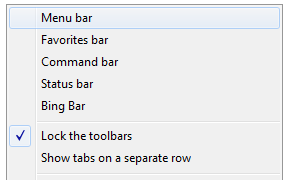
Right click any portion of the topmost area of IE and choose menu bar.

Folder options - Windows Explorer Menu Bar

folderoption

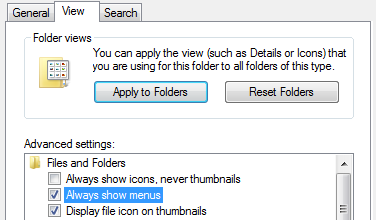
“Always show menus” tweak at Folder options can do the job well, It’s easy – press Alt + O to access while the explorer is active or has focus. Also, you can access the window through Start Search by typing “folder option” and afterwards, go to View Tab, and click to check the option and press the apply button.

Registry Locations

The registry setting is by case to case basis, find the registry folder as shown below:

Internet Explorer 9 at Windows 7

HKEY_CURRENT_USER\Software\Microsoft\Internet Explorer\MINIE

Internet Explorer 8 at Windows Vista

HKEY_CURRENT_USER\Software\Microsoft\Internet Explorer\Main

Windows Explorer

HKEY_CURRENT_USER\Software\Microsoft\Windows\CurrentVersion\Explorer\Advanced

Look for AlwaysShowMenus name and put 1 to display the menu bar and 0 to hide.

That’s it! Thanks for reading the article!

New Fullscreen when using Internet Explorer Browser By Patricbensen

At the airport, when you are waiting for your plane - the departure place have kiosks or computer stations connected to the internet for browsing. Usually, you’ll noticed that the browser configuration are full screen. 

Let’s see how and what registry setting was done to activate the feature.

Go to the registry folder below and find the registry data string “fullscreen”

HKEY_CURRENT_USER\Software\Microsoft\Internet Explorer\Main

registry

FullScreen = yes (to activate) and no (disable the feature)

valuedata

You just need to edit the value data and your done.

It’s really cool as one of the RegDevelop application features especially if seen on wide screen lcd’s and tablets.

Keep on reading!

New How To Enable Assistive Touch on iPhone By Patricbensen

Ever since I had been using IOS devices, one major concern that I had was that the home button is the mostly used button on the iphone, ipod touch and the ipad so most likely it's gonna be the first one I'm going to break due to usage. I asked friends and searched the web to get an application that would alleviate the wear and tear on such devices thinking there was something out there but little did I knew that there was a built in function for that. It's the enabling of the Assistive Touch or having a "virtual home button". Here's how:

1. Tap on the Settings icon then hit General


2. Now tap on Accessibility, then Assistive Touch and turn it on 


3. Now you should be able to see a virtual button with a white-colored circle somewhere at the side of your screen. When you tap on it, you'll be given options as to what actions you want to do


Now you don't have to always push the home button just to close applications or go back to your main screen.  With this virtual button you' be able to preserve your device's physical one.


New Show All Folders at Navigation Tree View By Patricbensen

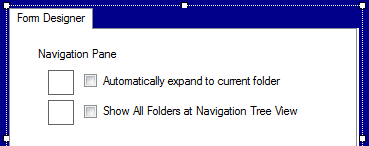
A few hours ago, we take up and study how to automatically expand the navigation pane folder as you browse your files and folders, now, let’s tackle how “Show all folders” works. It’s a little bit confusing that’s why I took some screenshots for all of you to see.

showallfolders

The left side portion is the default settings of Windows 7 and the right side happens when the option is checked.

It’s done, let’s go to the registry folder and find the registry settings done to execute option:

HKEY_CURRENT_USER\Software\Microsoft\Windows\CurrentVersion\Explorer\Advanced

NavPaneShowAllFolders = 1 (activated) or 0 (disabled)

The NavPaneShowAllFolders Value name is responsible for the option.

Anyway, add the registry function as one of your Regdevelop tools or apps. Cool?! you just need to input the registry folder as shown above and its value name and data configuration.

formdesigner

Keep on reading!

New How To Do Disk Cleanup in Windows 7 By Patricbensen

Earlier I've posted how to do the disk cleanup for for an older OS. Now here's the "how to" for Windows 7.

1.  Click Start > All Programs > Accessories > System Tools > Disk Cleanup. If you have several drives or partitions, you may be prompted to specify which drive you want to clean.

2.  After Disk Cleanup has calculated how much space you can free, in the Disk Cleanup for dialog box, scroll through the list of  Files to delete.


3. Clear the check boxes for files that you don't want to delete, and then hit OK. If you want more options, such as cleaning up System Restore and Shadow copy files, under Description, click Clean up system files, then click the More Optionstab

4. When prompted to confirm if you want to delete the specified files, hit Yes.

Again after a few minutes, the process will complete it's cycle and the Disk Cleanup dialog box will close. Just  like that, your computer should be cleaner and better performing.

New How To Do Disk Cleanup in Windows XP By Patricbensen

Sluggishness or slowing down of your computer could be related to your hard disk drive.To have it running smoothly again, we can free up space since it can identify and safely delete files you no longer need. If you're still a Windows XP user, you may want to try these steps:

1. Click Start > All Programs > Accessories > System Tool >  Disk Cleanup. If you have several drives or partitions, you may be prompted to specify which drive you want to clean.


2.  In the Disk Cleanup for dialog box, scroll through the list of the Files to delete.


3. Clear the check boxes for files that you don't want to delete, and then click OK.

4. When prompted to confirm if you want to delete the specified files, click Yes.

Go through the process and after a few minutes, it completes the cycle and the Disk Cleanup dialog box closes.  Now your computer is cleaner and should be performing better.


New How to Reset and Connect to a Network with Wireless Security Key By Patricbensen

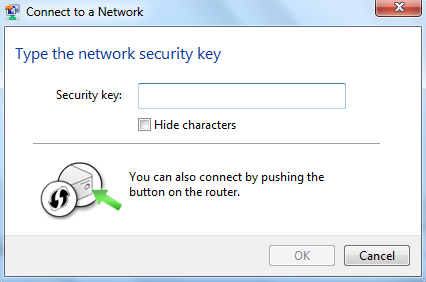
There is no guarantee for complete security on a wireless network. There are things that you can do in order to minimize security risks when you connect to a wireless network such as requiring a password or network security key.

However if you can’t connect, here's a quick tip to restore or reset the original configuration incase you forgot the key for the network.

The trick is very easy, you just need to find the Reset button of the router to restore back the initial settings.

 network_security

Afterwards, find the operation manual and input the initial Username and Password: Usually the username is Admin and no password to login.

At Wireless networks if protected, the information being sent is usually encrypted and protects your computer from unauthorized access.

Thanks! Keep on reading!

New Downloading Office Professional Plus 2013 Preview with Product Key included By Patricbensen

Microsoft work on Office applications that started several years ago is now one of the most important products up to date. Saving a lot of paper works, speeding up all the business transactions and jobs in different levels.

Want to try the next version of Microsoft Office? Here’s the direct download links:

Make sure that you login to your hotmail account first, you have a download manager or any download optimization software and use the Right-click and Save As portion of the mouse:

32-bit version of the Software

64-bit version (needs hardware compatibility)

If the Right-Click doesn’t work – Click the link and allow Akamai download manager to download or re-download the file.

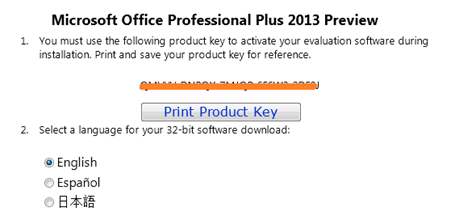
For the serial key and registration, proceed with this link.

productkeyprint

Microsoft Office is one of the core products of the company. It became the defacto standard because of its popularity, here’s a quick definition.

Microsoft Word is a word processor – one of the main products of the bundled software replaces the need of countless paper works. It replaces typewriters too fast.

Microsoft Powerpoint is a popular presentation software capable of creating slideshows with many visual effects.

Microsoft Excel is a spreadsheet software that focuses on tabular data and analysis based on facts (inputted data).


Thanks for reading the article!

New How To Troubleshoot : PC Not Turning On By Patricbensen


It happens sometimes that whenever you need to use your PC it doesn’t turn on or boot up. In cases like these, you can do some quick checks to initially diagnose what seems to be the problem. Listed below are the usual scenarios:

  1. It doesn’t turn on and there’s no power. Check for adequate power source. Your power cables should be connected properly and firmly at the back of your computer and into the electric socket. If your computer cables are connected to a surge protector make sure it is turned on and connected to a known working electrical outlet as well.
  2. It doesn’t boot up but LED lights are up and you can hear the internal fans running. It’s possible that there are loose connections inside your computer. It’s also possible that your hard drive isn’t working properly.
  3. It has power but doesn’t boot up and you hear beeping sounds coming from within the computer, recall if you’ve encountered power surges, improper restarting of the PC or if there was an additional part added prior to current use. It is possible that there’s hardware conflict or failure and needs further troubleshooting.
  4. If you suspect that there is a problem with the computer’s power button, power supply or any other component, contact your local technician for further diagnosis.

New How To Do Security Wipe on Blackberry 9700 By Patricbensen

We perform factory resets, formats or security wipes to our mobile devices whenever we encounter problems, shaky performance or simply to clean the phone system. Before doing the security wipe, better backup the important files and contacts from your phone and when you're good to go, here's how to do it on the Blackberry 9700:


1. Press the Blackberry Menu Button , select Open Tray then navigate and select the Options icon


2. In the Options screen, scroll down to Security then select Security Wipe


3. In the next screen, you'll be asked what data objects you want to erase. Just tick the check box of what ever you'll be wiping out. In this case, I just want to erase emails, messages and contacts. You'll need to also key in the word "blackberry" as added confirmation & security before hitting the Wipe Data button.


4. This is how it looks like while the security wipe is underway. When it's done , your phone will just reboot. Wait for it to finish as it may ask you some minor initial setup configurations since you're now starting from a fresh system. 

You're done basically. Just an additional thing would be is that if you want to transfer contacts from your SIM card to your phone if you did the security wipe with a SIM module inside. 

New How To Format Your Android Phone By Patricbensen

This is how to format or factory reset your android device. The screen shots provided were from my Samsung Galaxy S Advance when I did the factory reset procedure to clean up my phone memory. 

1.   Open your device's Settings then tap on Privacy


2. Since I didn't really have anything on my phone, i just proceeded with Factory data reset

3. Read the text on your screen just to make sure you understood what you're about to do then tick the check box for Format USB storage to clean everything then tap on the Reset phone button. If you have an unlock pattern (for security against unauthorized use) just like me, just unlock it to confirm the reset activity.

4. You'll get one more screen to confirm the reset. Just tap on the Erase everything button to begin the format.  

The phone will then perform the factory reset and it will also reboot itself. When it finishes restarting , your Android device will be clean and as good as new. You can then begin setting it up and install the apps that you want. 


New Where to find your AdSense Daily Average By Patricbensen

Google AdSense is an advertising solution to web developers and publishers that delivers text and image ads related to website content. The system is being run by Google and allows publishers to make money out of content sites - these advertisements can generate revenue on either a per-click or per-impression basis.

Here’s how to check the Daily Average depending on the range of date…

Login to your AdSense account and Go to the Performance reports Tab and you’ll see the graph depending on the range of date.

performancereports

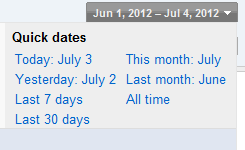
Click the date option located at right most portion of the tool and use  Quick dates to verify using the range of date or this month option and other things.

date

Then finally, your income per day will be shown in average. That’s it!

averages

Thanks for reading the article!

New How To Use The Find My iPhone App By Patricbensen

Here's how you can set it up in your iPhone, iPod Touch or iPad but first you need to have these:


Pre-requisites: 
1.You should have an Apple account
2. Find My iPhone app should have been installed
3. The target device should be connected to the internet via Wi-Fi or network provider's data connection


If all these are met then here's what we need to do:


1. Tap on your "Find My iPhone" app and it should tell you to log into your Apple account.


2. After you've successfully keyed in your log in credentials, you should be then taken to the main screen and   be able to view a map indicating the location of your device or whatever device you're tracking.


3. If you click on "Devices" at the top - left corner, you'd be able to see a listing of all your added devices. 


4. If you want to do some additional actions on your remotely tracked device, click on the right arrow and it will show you another window where you can do just that. 


Whether you lent it to a friend,  lost it, got stolen then you can do any of these actions. Pretty helpful especially stolen devices as you can remotely format it to protect confidential content.