Beranda · · · ·

New Why Samsung Galaxy Pocket's battery drain so fast? By Patricbensen

 Here are some tips to conserve your Samsung Galaxy Pocket's battery


1. As you noticed, if you are using your Google Maps Application or any other Maps Application, your Android Phone's battery drain so fast. It is because the GPS that makes it possible for your Maps Application to work accurately requires more battery. And even if your Maps Application is not running, once the GPS is ON, the battery still draining more than the normal.

So Turn On your GPS only when needed or when you are using the Maps Application.


2. Unchecked your "Background data" under
Settings - > Accounts and snyc -> Background data

If you did so, you will see a popup


What is Background data?
 It allows the applications to sync, send, and receive data at any time. Therefore, disabling the Background data will reduce the use of battery.


3. Turn On your WiFi only when needed.
All applications installed on your Samsung Galaxy Pocket that have a privilege to sync on your phone may send an updates or notification. 
 Also, your phone keeps on scanning available WiFi networks if this option is enabled. Turning off this option will save more battery.

4. Lowering the brightness level of your phone screen.
Go to your Settings -> Display -> Brightness
normally, lower than 50% brightness level is enough to use during day time.
and 35% brightness level is enough to use during night time. It's still up to you on what brightness level you want.

5. Turn On your Mobile data network only when needed.
Go to your Settings -> Wireless and networks -> Mobile networks
check Use packet data only when you want to internet using your mobile data connection. Unchecking this option doesn't mean that you couldn't receive SMS or calls.

6. Install battery saving application on your phone.
 I installed this app on my phone
https://play.google.com/store/apps/details?id=com.a0soft.gphone.aDataOnOff&feature=search_result
 I am not affiliate with that app, I just want to share what I have on my phone. You can search battery saving applications on play.google.com then read first what the users review for the app then based on what you've read, decide whether to install it or not.
 That application helps me to automatically turn ON/OFF my WiFi and Mobile data connection and other stuffs, which helps save the battery of my phone.


Why is Samsung Galaxy Pocket surface overheating?
The surface of your phone will overheat if you are using it for more than an hour or more. But there are instances that when you leave your phone unused, and then hold it afterwards, it felt hot. This is because at that moment your phone was continuously running and draining your battery.
 To prevent this to happen again, simply follow the 6-steps I have given at the top on how to conserve your Samsung Galaxy Pocket's battery

New Update your Samsung Galaxy Pocket's Google Map By Patricbensen

The latest Google Map for android phone as of today is version 6.12

here is the logo of version  6.12


As a default, your Samsung Galaxy Pocket has already a built in application for map which is google maps version 6.9.2

and here is the logo of version  6.9.2


You can download the latest version at play.google.com

I couldn't get the right keywords for this new version to appear on google play search list

so go directly here

https://play.google.com/store/apps/details?id=com.google.android.apps.maps

or you can open your existing google maps
click the

option key -> More -> Settings -> What's New

then you will be directed to the google play with latest version of maps, then click the "Install"

New How long does it take to completely charge Samsung Galaxy Pocket? By Patricbensen

It is not indicated on a "quick start guide" of GT-S5300 on how long does it takes to completely charge the Samsung Galaxy Pocket. I also visited the samsung.com for the full manual of this unit but it is not yet appears on the list.

The "Travel Adapter" ( the charger ) doesn't have an indicator too.

You can check your phone screen to know if it is still in charging state.
If it is, you will see a lightning sign inside a battery image.

You will here a tone once the charging is completed.

As I've observed, it takes to 3 HOURS for the Samsung Galaxy Pocket to be completely charge (if totally drained when charged).


New Firefox Browser for your Samsung Galaxy Pocket By Patricbensen

If you want to install Firefox on your Galaxy Pocket, the first thing that comes to your mind is to go to the PLAY STORE Application that is installed on your phone, type the word Mozilla or Firefox or both on the search box then you will see the Firefox logo. But once you opened it, you will see an information saying Your device isn't compatible with this version.

Another option for  you to install a firefox browser is through here

Open any of your existing browser on your phone.

go to this link

http://nightly.mozilla.org/

and at the bottom, you will see the box for Mobile


click the download icon for

Android (ARMv6)
21MB | apk

or you can access this link to be directed on the download link
http://ftp.mozilla.org/pub/mozilla.org/mobile/nightly/latest-mozilla-central-android-armv6/fennec-19.0a1.multi.android-arm-armv6.apk


after the download has been completed,
go to your My files -> download

click the fennec-19.0a1.multi.android-arm-armv6.apk

then click install, and wait until installing is done.

That's it. Hope it will help.

New Adsense: How to Compare your different websites earnings By Patricbensen

Google AdSense gives online publishers an opportunity to earn money through relevant ads on a wide variety of online content such as site search results and websites.

Through the new Adsense Sites Menu option, you’ll be able to compare each websites earnings. Here’s how…

At the first page, Click “View full reports” options…

viewfullreport

Once the next page is loaded, you’ll be able to see the Sites Menu option located at the left pane as shown:

Sitesdata 

The feature let’s you dig all your top websites earnings, summarizes them together and you’ll be able to analyze and create more steps for adjustments.

compare

Overall, Google Adsense let’s you earn money through valid clicks and impressions based on readers interest. Comparing each websites earnings is really important and it gives a room for improvement.

Thanks for reading the article!

New (Quick Tip) Speed up Windows Startup using Hybrid Shutdown By Patricbensen

Windows 8 performs a shutdown of the computer and prepares it for faster startup.

Here’s the command that windows uses upon shutdown:

Microsoft Windows [Version 6.1.7601]
Copyright (c) 2009 Microsoft Corporation.  All rights reserved.

C:\Users\hp>shutdown /hybrid /f /t 00

The Faster startup of Windows 8 helps your computer boot faster after shutdown. Windows 8 makes this happen by saving the information to a file upon shutdown. This is called a Hybrid Shutdown. When you login to your PC again, Windows uses the save information to resume your computer.

Thanks! Keep on Reading!

More References

http://patricbensen.blogspot.com/2012/10/turn-onoff-windows-8-faster-startup.html

http://blogs.msdn.com/b/b8/archive/2011/09/08/delivering-fast-boot-times-in-windows-8.aspx

New Command Line to Restart Windows 8 with Advanced Boot options Menu By Patricbensen

Windows 8 advanced boot option menu provides a quick configuration option and additional major features that overall give great options for users and administrators.

Here’s how to get into the advanced options after restart:

Microsoft Windows [Version 6.2.9200]
(c) 2012 Microsoft Corporation. All rights reserved.

C:\Windows\system32>shutdown /r /o /f /t 00

Choose an option Menu lets you select to Continue to use Windows 8, Use another operating system, Troubleshoot your computer with advanced options and just Turning Off your PC.

1chooseanoption

The Troubleshoot Menu has the Refresh and Reset options:

Refresh your PC – If your PC isn’t running well you can refresh it without losing your files.

Reset your PC – If you want to remove all your files, you can reset your PC completely.

troubleshoot

With the Advanced options from troubleshooting page, you’ll be able to access these Tools:

System Restore – Use a restore point recorded on your PC to restore Windows.

System Image Recovery – Recover Windows using a specific system image file.
Automatic Repair – Fix problems that keep Windows from loading.

Command Prompt – Use the Command Prompt for advanced troubleshooting.

Startup Settings – Change Windows Startup behavior.

advancedoptions

That’s it! Keep on reading!

New (Quick Information) How to Restore and Reset Internet Explorer configuration options By Patricbensen

ieoptions.reset.restore

What does Restore Advanced Settings at Internet Explorer do?

The feature resets Internet Explorer configurations to their initial settings as they were when you first installed the default options of Internet Explorer.

What does Reset IE settings do?

You should only use this if your Internet browser is in unusable state. This feature resets Internet Explorer to the condition it was in when you first installed the web browser. Although this setting will restore nearly every user setting made in Internet Explorer, it doesn't remove your favorites, feeds, registry patches or Group Policy settings.

Where to open and Restore the Advanced Settings or Reset Internet Explorer

toolsbutton Open your Web browser and Go to your Tools Icon

internetoptions.menu 

Click to launch http://patricbensen.blogspot.com /2012/10/how-to-launch-internet-properties.html" target="_blank">Internet options and at the advanced tab, the Restore advanced settings and Reset Button is located at the bottom part of the configuration window as shown.


Thanks for reading the article!

New How to launch Internet Properties through command line window By Patricbensen

ieoptions

Internet options lets you configure your Internet display and connection settings of Internet Explorer. Here’s how to access the configuration window through command prompt, run window and Search.

Command Prompt

Microsoft Windows [Version 6.2.9200]
(c) 2012 Microsoft Corporation. All rights reserved.

C:\Users\hp>inetcpl.cpl

or

C:\Users\hp>control inetcpl.cpl

Run Window (Win + R)

runwindow

Search

search

General Tab

The general tab lets you configure home pages, Internet Explorer Temporary files and Browsing History.

Security and Privacy Tab

The Internet Explorer Security tab is used to set and change configurations that can help protect your computer from potentially harmful malicious online codes.

Content Tab

The Content Tab includes AutoComplete and Feeds. AutoComplete stores previous entries on webpages and suggests matches for you. The Feeds and Web Slices provide updated content from websites that can be read in Internet Explorer and other programs.

Connections Tab

The Connections tab lets you setup internet connections and local area network settings (automatic configuration and proxy server).

Programs Tab

The programs tab includes Managing add-ons, HTML editing, Internet programs and File associations.

Advanced Tab

The Advanced tab contains settings for various Internet Explorer options and organized by category from this central location.

New How to disable Activation notices and balloons By Patricbensen

Turning Off activation notices and message balloons.

Although this registry option is not recommended, software licensing notices can be remove by adding a new DWORD value at Windows Registry named NotificationDisabled with a value of 1 to the registry.

The value name disallow all program licensing notifications, including balloons, wizards, and task dialog boxes.

Registry subkey: HKEY_LOCAL_MACHINE\SOFTWARE\Microsoft\Windows NT\CurrentVersion\SoftwareProtectionPlatform\Activation

Value Name: NotificationDisabled

0 = Activation notifications, wizards and balloons will be shown (by default activation notifications are enabled)

1 = All activation-related messages will be hidden (Not recommended)

Read more: Allow or disallow automatic online activation

Using Windows Registry Data for Regdevelop

Let’s create our own Tweakui-function application using the Windows Registry data above:

regdevelop

Drag and drop the checkbox control and configure the settings as shown:

RegKeyPath1

HKEY_LOCAL_MACHINE\SOFTWARE\Microsoft\Windows NT\CurrentVersion\SoftwareProtectionPlatform\Activation

Value_Name1

NotificationDisabled

ValueData1

0

ValueType1

DWORD

DeleteWhenUnchecked

False

RegKeyPath2

HKEY_LOCAL_MACHINE\SOFTWARE\Microsoft\Windows NT\CurrentVersion\SoftwareProtectionPlatform\Activation

Value_Name2

NotificationDisabled

ValueData2

1

ValueType2

DWORD

Once your done, you can test the program by clicking the Start button and Build Now button to compile the program.

testing

You’ll notice that it is normally checked or by default notification for activation is enabled.

That’s it! Enjoy!

New Open a specific page, set of web pages or home page tabs on Browser Startup (Registry included) By Patricbensen

Want to automate opening of your favorite websites everyday? Here’s how to open a specific page once your favorite web browser starts.

Google Chrome

Go on to your chrome settings and On Startup options, click to choose “Open a specific page or set of pages”.

chrome://chrome/settings/

settings.Onstartup

For the startup pages, you can create and add one or many depending on you as shown:

googlechromesettings.startuppages

Internet Explorer – internet options

For IE, its equivalent are creating home page tabs at Internet options, you just need to type each addresses on its own line as shown below:

homepagetabs.ie

Digging Windows Registry for Internet Explorer Patches

If you’ll examine each situation, IE patches the following registry folder so that when Internet explorer starts, It will just open each websites.

HKEY_CURRENT_USER\Software\Microsoft\Internet Explorer\Main

Start Page = http://www.google.com/

Secondary Start Pages = http://www.yahoo.com/

Create your own application that patches the Registry

regdevelop

Using the Windows Registry patches given above, we’ll be able to create our own application using http://patricbensen.blogspot.com /2009/04/regdevelop-not-just-for-programmers-but.html" target="_blank">RegDevelop that will patch the registry for the web address then afterwards, Internet Explorer will open the website once the browser starts.

Drag and drop one textbox and label control as shown and set the configuration options:

Registry settings for Textbox Control

RegKeyPath

HKEY_CURRENT_USER\Software\Microsoft\Internet Explorer\Main

ValueName

Start Page

ValueType

String

Label Control Settings

Caption

Internet Explorer - start your Browser with this specific address

Finally, press the Build Now button to use the software – That’s it!

http://patricbensen.blogspot.com /2009/04/regdevelop-not-just-for-programmers-but.html" target="_blank">RegDevelop is a development platform that let’s you create your own Tweakui-like software and applications for Windows Registry and other command-line utilities. Try the application – It’s fun!

Mozilla Firefox

With Firefox, starting the application with specific address on browser startup provides a similar user interface. Go to the options window by pressing Alt+TO and you’ll be able to set the startup page or home page as shown:

firefox

Cool? Thanks for reading the article!

New (Continuous Browsing) Start with tabs from the last session By Patricbensen

What if your working with your web browser and you want to continue  what you are doing next day or after your web browser exits. How will you save and reopen again your last browsing web-pages?

This quick tip is related to the previous article with Google Chrome to continue browsing of recently opened websites after the web browser exits.

Let’s launch the Internet Options by pressing Alt + TO while IE10 is open.

internetoptions 

As shown, at the Startup group click to choose “Start with tabs from the last session” – That’s it! you have activated re-opening of the last browsing session after your web browser exits next day.

The web browser will automatically save and re-launch or re-open the last session from your browsing history.

tabsprevious

Digging Windows Registry

Upon studying the registry values for the said option, Internet explorer patches Windows registry by default of 0 (It means the option for Continuous browsing is by default not functioning)

To enable, you can go to the following registry folder and put a data value of one (1) for the registry name Enabled.

HKEY_CURRENT_USER\Software\Microsoft\Internet Explorer\ContinuousBrowsing

Enabled = 1 or 0 (0 is default)

According to Microsoft and Google, Continuous Browsing: The setting re-opens the website pages that were open at the end of your last browsing session. Internet Explorer will also put back your browsing history session cookies and data.

Works with IE10 and above!

New Show Status Bar for Files and Folder using Folder Options, the Registry and RegDevelop By Patricbensen

The status bar displays the number of items at the current folder, number of selected files in Windows explorer and its overall file size.

statusbar 

Here’s how it works at Windows Registry and Folder options.

folderoptions

When the option is checked and unchecked at Folder options window, Windows registry changes its value. Here’s the registry folder located and what value is affected:

HKEY_CURRENT_USER\Software\Microsoft\Windows\CurrentVersion\Explorer\Advanced

ShowStatusBar = 1 or 0

The default value is 1 and when the option is checked – the status bar is shown or enabled and it gives a value of 1. When unchecked the ShowStatusBar registry value is set to 0 for the option and the Status Bar is hidden.

Creating the tweak option using Regdevelop

If your familiar with the program Tweakui, Regdevelop lets you create the same configuration options using Windows Registry.

regdevelop

Drag and drop the checkbox control into the form designer and use the details and pattern them to the registry information below.

Caption

Show the Status Bar

RegKeyPath1

HKEY_CURRENT_USER\Software\Microsoft\Windows\CurrentVersion\Explorer\Advanced

Value_Name1

ShowStatusBar

ValueData1

1

ValueType1

DWORD

DeleteWhenUnchecked

False

RegKeyPath2

HKEY_CURRENT_USER\Software\Microsoft\Windows\CurrentVersion\Explorer\Advanced

Value_Name2

ShowStatusBar

ValueData2

0

ValueType2

DWORD

Click the Start Button to test the program and afterwards, the Build Now Button to compile the application.

That’s it! Enjoy!

New How do I access Control Panel Items of my Windows 8 PC? By Patricbensen

At Control Panel, you’ll be able to change settings and customize the functionality of your computer.

desktop.rightclick

In this topic we’ll discuss different ways to access the Control Panel from old times to new ways. First, http://patricbensen.blogspot.com /2011/12/adding-context-menu-to-desktop-control.html" target="_blank">adding right-click menu items of Control Panel to your desktop as shown above is a great tip. Accessing everything to your control panel is very easy.

Just like old times

If you love the idea of just making sure the Control Panel icon is located or can be reach through your desktop, add the functionality by going to the Right-Click Menu of Desktop –> Personalization Menu –> and Change desktop icons as shown below:

cp_desktopicons

desktopicons

Next, if you want to access Control Panel through your Run Window, type: control.exe and press enter.

run

New ways to access Control Panel

winE

New ways to access the Control Panel begin by pressing Win + E and clicking the icon as shown above.

searchorsettings cp_settings

Another way is to move your cursor the right portion of the desktop or slide your menu, tap “Search” and type: “control panel”

Finally, you’ll be able to reach and touch the control panel through the “settings” menu as shown above.


That’s it! Reaching the Control Panel from old ways to new ways. Thanks for reading the article!

New Display the file size information in Folder Tips using Folder Options, the Registry and Regdevelop By Patricbensen

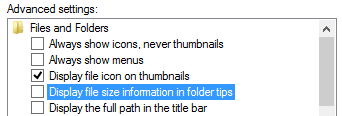
When you move the mouse cursor to a certain folder, by default,  windows displays the file size information as shown below:

display.filesize

Let’s study how its made using the folder option and Windows registry.

unchecked

We’ll unchecked the option at Folder Options window and you’ll see the results that the folders file size information was remove at the Info Tip.

donotdisplay.filesize

Windows Registry Location

HKEY_CURRENT_USER\Software\Microsoft\Windows\CurrentVersion\Explorer\Advanced

Registry Value Name: FolderContentsInfoTip

The default value is 1 and when the option was unchecked, it gives a value of 0 and 1 for the option is enabled.

Next, Let’s recreate the said tweak using Regdevelop for our own application using the values above:

regdevelop

Drag and drop the checkbox control into the form and change the configuration details and pattern them to the registry information above.

Caption

Display the File Size Information for Folders

RegKeyPath1

HKEY_CURRENT_USER\Software\Microsoft\Windows\CurrentVersion\Explorer\Advanced

Value_Name1

FolderContentsInfoTip

ValueData1

1

ValueType1

DWORD

DeleteWhenUnchecked

False

RegKeyPath2

HKEY_CURRENT_USER\Software\Microsoft\Windows\CurrentVersion\Explorer\Advanced

Value_Name2

FolderContentsInfoTip

ValueData2

0

ValueType2

DWORD

Click the Start Button to test the program and afterwards, the Build Now Button to finish creating the application using RegDevelop.

From the tip above, Regdevelop lets you create program in minutes using Windows Registry information. Create your own TweakUI program – Using the development tool Regdevelop Tweakui functions can be duplicated and enhance.

Thanks for reading the tip!

New Turn on/off Windows 8 Faster Startup By Patricbensen

Windows Fast startup is a configuration setting that helps your computer start up faster after shutdown. Windows 8 does this by saving system information to a file upon shutdown. When you start your computer again, Windows uses that system information to resume your computer instead of restarting it.

Notes
•The faster startup configuration setting doesn’t apply to Restart. You need to shutdown and then start your computer again for Windows faster startup to take effect.

•Windows Faster startup is turned on by default in Windows.

The Faster Startup Checkbox option can be found at Power option System settings. Here’s how to access the option via a User Interface.

Go to your power option by clicking the Power Plug icon and then Click More power options. Or use your Run Window (Win+R) and type: control /name microsoft.poweroptions

poweroptions

Once inside the power option window, at the left pane click “Choose what the power buttons do”

powerbuttons_do

System settings of power option window will be launch and you need to click or go for UAC verification inorder to edit the power settings: Change settings that are currently available as shown below

uac 

Control Panel\Hardware and Sound\Power Options\System Settings

At the bottom part, you’ll be able to enable and disable “Turn on fast startup” option

shutdownsettings

The Fast startup helps start your PC faster after shutdown. Restart is not affected.

Thanks for reading the optimization tip!

New Restrict changing of Wallpapers using Windows Registry and WinBubbles-Lite By Patricbensen

WinBubbles-lite is a light-weight and updatable version of WinBubbles. Any user can update the version easily using it’s development tool built-in into the application called regdevelop. The Registry editor (regedit.exe) is an application interface built-in editor at Windows use to edit keys at Windows Registry.

Here’s how to use the utility winbubbles-lite and the registry editor (regedit.exe) in preventing the changing of Windows Background or wallpaper.

Using WinBubbles-Lite

Open the application and scroll down until you see the option “Disable Changing of Wallpaper” at restriction group

winbubbleslite

Click to check the option and Press Alt-A to Apply or just click the Apply button. For effective outcome, Restart your computer to see the actual results afterwards.

If your an advance user and knows how Windows registry works, you can edit the tool and add more options by going to the IDE mode.

idemode

Using Windows Registry Editor (regedit.exe)

Open your registry editor (regedit.exe) and proceed with the registry folder below:

HKEY_CURRENT_USER\Software\Microsoft\Windows\CurrentVersion\Policies\ActiveDesktop

Once your inside the ActiveDesktop folder, find the NoChangingWallpaper and set the value to 1. If you can’t find the option just create the value using the DWORD option (Right-Click any vacant space and use the menu NEW then DWORD (32-bit) value and create the registry key as shown).

nochanging.regedit

NoChangingWallPaper set to 1

Finally, you can restart your computer afterwards.

For Windows 8, just restart Windows explorer at the task manager – http://patricbensen.blogspot.com /2012/10/effective-how-easily-patch-registry.html" target="_blank">Read here.

Windows Registry is a database that stores configuration settings, values and options at Microsoft operating system.

Thanks for reading the article!

New (Effective) How to easily Patch Registry entries and Group Policies to your computer at Windows 8 By Patricbensen

regedit.thumbnail

Windows 8 just got better in applying all the registry and Group Policies patches. There is now an option to effectively update all the tweaks easily via the task manager.

Normal Registry Patches: After changing something from group policy editor (gpedit.msc), patching some setting and adding value names and data for Windows registry - the registry settings doesn’t work in real-time.

Here’s how to access the said solution option:

Let’s launch the task manager by pressing CTRL+ALT+ESC. Find the “Windows Explorer.exe” application then right-click Restart the application as shown below:

restart

It will automatically apply all the settings and patches after restart.

Thanks for reading the quick tip!

New Prompt for a password when your computer wakes or resumes from sleep By Patricbensen

Adding password protection is when your computer wakes from sleep, no one can access your data without entering the correct password key to unlock the computer. Not requiring a password option is when your computer wakes from sleep, anyone can access your data because your computer isn’t locked.

Windows XP

Right-Click the plug icon located at your notification bar and Click to choose “Adjust Power” Properties.

taskbar

At the advanced Tab options group, you’ll be able to activate and deactivate the option “Prompt for password when computer resumes from standby”.

prompt

Windows Vista/7/8

Using command prompt to access the option easily

Microsoft Windows [Version 6.1.7601]
Copyright (c) 2009 Microsoft Corporation.  All rights reserved.

C:\Users\hp>powercfg.cpl,1

C:\Users\hp>

You’ll be able to set the option “Require a password on wakeup” directly through the advanced power options settings

advancedsettings

Another option to disable and enable Password on Wakeup is access the option through Power Options\System Settings

morepoweroptions

The require a password on wake link is located through the left pane of Power options window.

panel

Then, at the bottom part of the System Settings, you’ll be able to access the option to enable and disable Password Protection on wakeup.

systemsettings 

That’s it!