Beranda · · · ·

New Print screen for mobile By Patricbensen

Do you want to take a screenshots of your phone's screen?
It's easy using the application Screenshot by Kastor Soft

DOWNLOAD Screenshot


take note that Only ROOTED phones are supported.
(this app will works on Samsung Galaxy Pocket)


What does rooted phone mean?

It means gaining full access to your Android’s file system and control it as an administrator. 
Just like on your computer you have administrator account and other accounts with less privileges. Rooting a phone means gaining access to administrator account. The application can do all stuff which requires administrator privileges.


How to use Screenshot by Kastor Soft?

To capture the screen of your phone,
go to this app first.


You have an option to
shake your phone to take a screenshot.

check the box for Show notifications when screenshot is successful
so you know when the capture has been made.

then exit this app in any way and go to the place on your phone where you want to capture.

Shake your phone for 3 seconds.
Normally, 2 to 3 shake is enough (sideways).

You will hear a camera shot sound and you will see that the screen fade inwards once the screen was captured.


If you want to use this option other than shaking your phone,
you can do so by selecting first your desired delay before the shot is made, then click the camera icon.

After you clicked the camera icon, you will be directed to your home screen.

Once the delay time is reached, the application will now capture the present screen on your phone.


UPDATES

 Screenshot by Kastor Soft updates their software so I should give an update to this post.

As you can see on the picture at the left, The icons at the bottom are newly added features of this site.

On this latest version, you can now:


  1. Tap Around - To enabled this option, tap the hand icon at the fist column. Once enabled, you will be directed to the last window you have been other that the app itself. You will then notice a camera with a gear icon at the top left of your screen (See the image below).
    Tapping the camera icon will capture the current screen while tapping the gear icon will redirect you to ScreenShot App settings.

  2. Shake -  To enabled this option, tap the hand holding phone icon at the second column. Once enabled, you can shake your phone as a command to capture the current screen you are in.
  3. Tap Once - To enabled this option, tap the camera icon at the third column. This option is same as the 'Tap Around' except that, once you tap the camera icon, you will be directed to the last window you have been other that the app itself. You need to go back the ScreenShot App settings again to do the same task.

    New Free internet using SMART By Patricbensen

    Smart Communications is now introducing SmartNet Application that allows users to access their facebook and twitter account for FREE. Yes it's all free.

    This application currently supports SMART subscribers only. Non-SMART subscribers may visit www.smartnet.ph on the web or m.smartnet.ph for mobile.

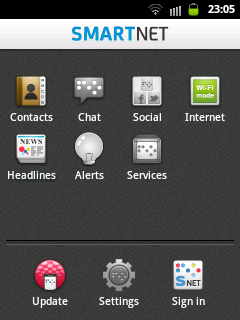
    To begin with, first you must have SmartNet Application on your phone.
    I suggest that you use the WiFi connection to download this app easily.

    DOWNLOAD SMARTNET


    The logo of SmartNet


    Once you open this app for the first time,
    you will see that the Chat, Social, Alerts, Services and Settings are in colored gray and there's nothing happens when you tap it. This means that all those items are not yet available.

    For those items to work, you need to Sign in first.
    Probably, this will be your first sign-in so you need to register.

    You must be a SMART subscriber for you to receive the verification SMS that they will send on your SMART SIM to be able to use this service.


    Once you logged into your account,
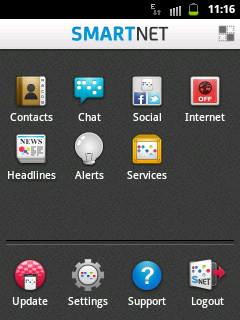
    Chat, Social, Alerts, Services and Settings
    will now look like this on the picture.

    Take a look at the top most bar, the WiFi icon is now replaced by this EDGE icon
    I turned off my WiFi connection and I am now using the SMART data network connection (EDGE) so I can demonstrate to you that this app will give you the privilege to access your facebook, twitter and yahoo account for FREE.


    How to use SmartNet?


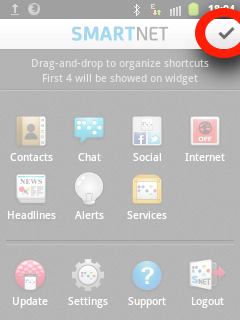
    Tap on this area to change the arrangement of the tools on the list.
    For example you want the Social to be in the position of Contacts, just drag the item to the location you want.


    Tap this Check icon once your done editing the items.


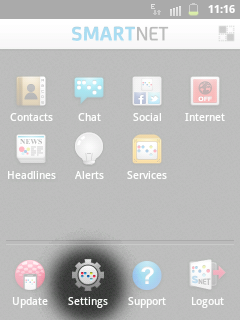
    To connect your facebook, twitter and yahoo account,
    tap on the Settings icon.


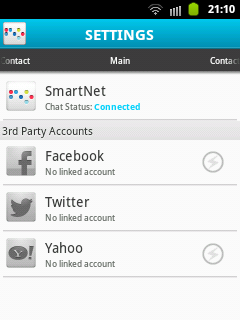
    Tap on the social site icon to connect your account.

    How to connect to facebook and yahoo chat? 

    To connect to facebook chat and/or yahoo chat, tap the thunder icon inside the circle .

    As you notice, twitter don't have this thunder icon because twitter don't provide chat on their site.

    Once your facebook or twitter chat is connected, the icon will looks like this


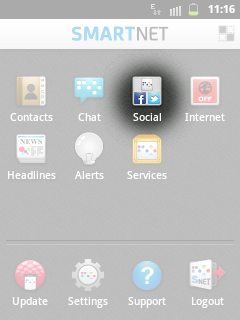
    To begin using your facebook and twitter,
    tap the Social icon.


    On your Feeds you have your
    SmartNet,
    Facebook (if you linked it),
    Twitter (if you linked it).


    just swipe your finger to rightwards or  leftwards to switch the feed from SmartNet, Facebook, or Twitter.
    This is how the facebook feeds look like!
    This is how Twitter feeds look like!


    To create post on your facebook wall, or to tweet on your twitter,
    tap these icons.

    If you tap the first icon, it automatically directs you to posting area.
    You will be directed here.

    Tap the facebook icon if you want to post it to your facebook wall, or tap the twitter icon if you want to tweet it to your twitter account, or you can tap both if you want to post it to your facebook and twitter account.

    If you don't tap any of the two, or whether you select the facebook or twitter or both, it will automatically post to your SmartNet wall.

    If Facebook and Twitter icon are in gray color, it means that it wouldn't be posted to that social network.
    If you selected this second icon,
    to create post, tap on the Share.

    New How to stop losing your prepaid load when you are surfing on the internet? By Patricbensen

    If you are using a prepaid SIM card and you have a regular load, and you want to surf on the internet using the WiFi connection, most probably, your load balance will be lessen if your mobile data  network is enabled.

    To check the current settings of your data networks,

    go to your Settings


    then tap Wireless and networks


    then tap Mobile networks


    if the Use packet data is checked,
    this means that you can use your mobile data network to connect to the internet.


    To prevent losing your SIM prepaid load while surfing using the WiFi connection, unchecked the Use packet data.


    enabled this only if you are registered to your network provider promo for internet surfing, or if you really want to use your SIM prepaid load to surf on the internet.

    New Google Map notification message: Please enable a My Location source in system settings. By Patricbensen


    If you open your Google Map
    and you are trying to tap the My Location.


    But then, you are seeing this information.
    Please enable a My Location source in system settings.

    And you don't know where to configure that settings.
    It's simple.

    Go to your Settings then


    tap the Location and security


    tap the Use wireless networks


    and last, tap the Agree.


    if you don't have a WiFi connection,
    you can't still see your My Location
    and you will see this notification


    another option you can use is your GPS
    check the Use GPS satellites
    Now, go back to the Google Map application to check if it is now working.

    New Why Samsung Galaxy Pocket screen is hard to swipe By Patricbensen

    Are you experiencing this problem?
    Do you know why this is happening?

    I've experienced this problem a day ago. Every time my phone sleeps and I need to unlock it, I'm having a hard time to find the right position on the screen and the exact pressure I need to give to swipe my finger on it.

    I asked myself, what is the last thing I did on my phone before this problem exist? As I remember, I installed this kind of software. So, to fix it, I uninstalled that software. But the problem is still there.

    The last option I made is to format my phone. 

    To format your Samsung Galaxy Pocket, go to your Settings


    then Privacy


    Check the box to Format USB storage


     then tap Reset phone


    tap the Factory data reset


    then tap Erase everything


    After that follow the next instructions you will encounter once your phone is already formatted.
    Then your  Samsung Galaxy Pocket screen will now back to it's normal function.
    I guess, my phone got a virus from anywhere else  that's why formatting it solves the problem.

    New LG 30 ltrs Convection Microwave Model-MC-8087 By Patricbensen


    HIGHLIGHTS

    Type Convection
    Capacity (Litre) 30
    Color Black
    Cavity Stainless Steel
    Control Type Tact Dial
    Auto Cook Menu 101
    Indian Auto Cook Menu 56

    GENERAL SPECIFICATION

    Microwave Frequency(MHZ) 2450
    Watts Microwave 900
    Watts Microwave (Consumption) 1350
    Watts Grill 1250
    Watts Convection 1350
    Watts Combination 2650

    COOKING FEATURES

    Intellowave Technology Yes
    Microwave Power Levels 5
    Increase/Decrease Function Yes
    Next Step Guide Yes
    Health Plus 6
    Two Stage Cooking Yes
    Indian Cuisine 6
    Combination Cooking Yes
    Child's Favourite 6
    Breakfast 6
    Snacks 6
    Sweets Corner 6
    Tandoor Se… 6
    Continental Menu 6
    Utility Corner 5

    ACCESSORIES

    Motorised Rotisserie Yes
    High Rack Yes
    Low Rack Yes
    Tawa Yes

    CONVENIENT FEATURES

    Turntable Diameter (mm) 324
    Cooking Completion Alarm Yes
    Control Type Tact/Dial Type Controls

    SAFETY FEATURES

    Child Lock Yes

    PRODUCT DIMENSIONS

    (W*H*D) mm 530*520*322

    New Sony Vaio Laptop E5117 [W/7] By Patricbensen


    OPERATING SYSTEM

    Operating System Genuine/ Windows® 7 Home Premium with Service Pack 1 64bit (English Version)

    ARCHITECTURE

    Processor Name Intel® Core™ i5-2450M Processor 2.50 GHz with Turbo Boost up to 3.10 GHz*1
    Chipset Intel® HM76 Express Chipset
    Cache Memory 3MB (L3 Cache)

    MAIN MEMORY

    Pre-installed/Max 4 GB (4 GB (SO-DIMM) x 1) DDR3 SDRAM*2 (upgradeable up to 8 GB*3)
    SO-DIMM slots DDR3 SO-DIMM slots (Unused Memory slot 1)
    Memory Speed 1333 MT/s

    HARD DISK DRIVE

    Hard Disk Drive 640 GB*4 (Serial ATA, 5400 rpm)

    OPTICAL DISC DRIVE

    Drive DVD SuperMulti Drive
    Maximum Reading Speed DVD+R: 8x(SL), 8x(DL) /DVD-R: 8x(SL), 8x(DL) /DVD+RW: 8x / DVD-RW: 8x /DVD-ROM: 8x /DVD-RAM: 5x / CD-ROM: 24x / CD-R: 24x / CD-RW: 24x
    Maximum Writing Speed DVD+R: 8x(SL), 6x(DL) /DVD-R: 8x(SL), 6x(DL) /DVD+RW: 8x / DVD-RW: 6x /DVD-RAM: 5x / CD-R: 24x / CD-RW: 10x

    GRAPHICS

    Graphics Accelerator AMD Radeon™ HD 7650M
    Dedicated Video Memory 2 GB DDR3

    DISPLAY

    Type 15.5 (39.37 cms) wide (WXGA: 1366 x 768) TFT colour display (VAIO Display, LED backlight)

    INTERFACE

    USB Hi-Speed USB (USB 2.0) port Type A Connector x 3, SuperSpeed USB (USB 3.0) with USB charge port Type A Connector x 1*5
    Network (RJ-45)Connector 1000BASE-T/100BASE-TX/10BASE-T x 1
    Display Output Connector Analogue RGB, mini D-sub 15 pin x 1
    Headphone Stereo, Mini Jack x 1
    Microphone Stereo, Mini Jack x 1
    HDMI In/Out Connector HDMI Out x 1
    Memory Stick Slot "Memory Stick Duo"("Memory Stick PRO" compatible, Not support for copyright protection)*6
    SD Memory Card Slot SD memory card(SDHC, SDXC compatible, Not support for copyright protection)*7
    DC IN x 1

    WIRELESS CONNECTION

    Wireless LAN Type IEEE 802.11b/g/n*8
    Wireless LAN Data Rate Maximum transmission speed: 150 Mbps*9, Maximum receipt speed: 150 Mbps*9
    Bluetooth Bluetooth® standard Ver. 4.0 + HS

    CAMERA

    Front Side Camera HD web camera powered by "Exmor for PC" (Resolution: 1280 x 1024,Effective Pixels: 1.31 Mega pixels)

    AUDIO

    Sound Chip Intel® High Definition Audio
    Speaker Internal, Stereo speakers
    Microphone Internal, Monaural microphone
    Audio Technology "Clear Phase", "xLOUD"

    KEYBOARD/INPUT DEVICE

    Keyboard 19.05 mm key pitch/1.7 mm keystroke, 103 keys, Backlit Keyboard
    Touchpad Touchpad (Gesture supported)

    BATTERY LIFE

    Bundled Battery VGP-BPS26 Lithium-ion battery: up to 2.5 hours of use*10
    Optional Battery VGP-BPL26 Lithium-ion battery: up to 5.0 hours of use*10

    SLEEP MODE

    Rapid Wake Rapid Wake + Eco

    SIZE

    Dimensions (WxHxD) 371.9 x 25.3-35.1 x 253.5 mm
    Weight 2.70 kg (Including the supplied battery)

    INCLUDED SOFTWARE

    AV Entertainment Media Gallery, Windows® Media Center, PowerDVD, Adobe Flash Player 11, TriDef 3D Ignition, TriDef 3D Photo Viewer
    Content Creation/Editing Adobe® Photoshop® Elements 10, PlayMemories Home
    Word Processor / Spreadsheet Microsoft® Office Starter 2010*11
    Tool Evernote for VAIO, Adobe® Reader® X
    Utilities VAIO Control Center, VAIO Gate, VAIO Gesture Control, WebCam Companion, Magic-i™ Visual Effects, Remote Keyboard*12, Remote Play with PlayStation®3*13, Remote Keyboard with PlayStation®3
    Utilities2 VAIO 3D Portal, Media Go,TrackID™ with BRAVIA*14
    Security Trend Micro™ Titanium™ Maximum Security 2012 60days*15
    Support VAIO Care, VAIO Care Rescue, VAIO Update, VAIO Transfer Support, Norton™ Online Backup 60-day Free Trial*15

    SUPPLIED ACCESSORIES

    AC Adaptor VGP-AC19V31 or VGP-AC19V35 or VGP-AC19V41 or VGP-AC19V59
    Battery VGP-BPS26*16

    New Sony Vaio Laptop E14112 [W/7] By Patricbensen


    BRAND

    Sony

    CATEGORY

    Notebook

    OTHER FEATURES

    Warranty 1 Year International Warranty
    Colour Black
    Hard drive size 320 GB
    Graphic card Intel® HD Graphics 3000
    Optical drive Dvd supermulti Drive
    Operating system Windows® 7 Home Basic
    Processor 2nd Gen I3 (2.40)
    Weight 2.4 Kg
    Screensize 14 Inch
    Ram 2 GB Ddr3

    WIRELESS CONNECTION

    bluetooth Bluetooth® Standard Ver. 4.0 + Hs

    CAMERA

    front Side Camera HD Web Camera Powered By "exmor For Pc" (resolution 1280 X 1024, Effective Pixels 1.31 Mega Pixels)

    AUDIO

    sound Chip Intel® High Definition Audio
    speaker Internal, Stereo Speakers
    microphone Internal, Monaural Microphone
    audio Technology Clear Phase", "xloud

    KEYBOARD/INPUT DEVICE

    keyboard 19.05 MM Key Pitch/2.0 MM Keystroke, 82 Keys
    touchpad Touchpad (gesture Supported)

    BATTERY LIFE

    bundled Battery Vgp-bps26 Lithium-ion Battery Up To 4.5 Hours Of Use*10
    optional Battery Vgp-bpl26 Lithium-ion Battery Up To 9.0 Hours Of Use*10

    SLEEP MODE

    rapid Wake Rapid Wake + Eco

    SIZE

    dimensions (wxhxd) 344 X 25.4-33.5 X 243.6 Mm