Beranda · · · ·

New Root any Android device manually like a Pro ! By Patricbensen

 Wanting to ROOT your Android phone but can't do because of no rooting guides or want to learn to root any device ? N'ayam Amarsh'e XDA Senior Member has made a great work-around for this last year and that deserves to be reposted !


Root any Android device manually

 You'll need:
 - ADB Drivers installed on your PC. If you don't have download from here : adbdriver.com
 - Root Kit Made By N'ayam Amarsh'e - Download From here.
 - Strength And Courage because Rooting Voids Your Warranty... If you have a Samsung device then don't worry, your warranty is gone forever... But if you own any other, maybe you can void it.

 Let's start:

 - Open The root kit by extracting The Rootkit using WinRAR
 - Enable ''USB DEBUGGING'' on your device
 - Connect your device to your PC
 - In the root kit open cmd.exe file ... (If you can't open cmd, go to C:/WINDOWS/SYSTEM32/ copy cmd.exe to your RootKit Folder)
 - In cmd window type the following command:

->adb devices       *Your device will get listed in the window if it doesn't check your adb drivers or if you have followed the steps properly
->adb push busybox /data/local/tmp

->adb push su /data/local/tmp

->adb push Superuser.apk /data/local/tmp

 If you succeed move on...

 - Now you need Root Shell Type :

adb shell

 Note that you see a "$" sign in the command prompt. That means you are not in ''su'' shell.

 - Next run the following commands in the shell to change permissions and get some limited privileges for the Superuser files:

->chmod 6755 /data/local/tmp/su 

->chmod 755 /data/local/tmp/busybox

->chmod 644 /data/local/tmp/Superuser.apk

 Note: The names of the files are case sensitive!

 - Done? Now you need to open a copy of linux which has nautilus... So enter your linux (I recommend using ubuntu 11.4) and type in the terminal (ctrl+alt+T)

->sudo nautilus

 This will open nautilus with root privileges.
 You can just boot it from USB so no hassle of installing it... http://www.cyberciti.biz/tips/downlo...y-narwhal.html
 Having your device connected with USB to PC switch it off and put it in download/recovery mode.

Having error:  Device Offline? See solution here.

 - In The exploring window navigate to:

/data/local/tmp

 - And move/cut ''su'' and ''busybox'' to:

/system/bin

 - From the tmp Folder you went earlier, move/cut ''Superuser.apk'' to:

/system/app

 - Now reboot you Android device... Congratulations ! You're now ROOTED !

 You want an easiest way to root your Android phone?
 See: http://patricbensen.blogspot.com /2015/03/root-your-android-phone-easily.html" target="_blank">Root your android phone easily

New Three (3) always habits to prevent your facebook account from being hacked By Patricbensen


1. Always unchecked the keep me logged in box before signing in. Highly recommended, when you are using computers in cyber cafe’s, friends and classmates. To be safer unchecked it even in your own PC.
2. Always log out your facebook account?


3. Always erase your browser’s history and cookies. 


 Facebook account hacking is rampant now a days, if you follow these habits it will not make your facebook account invincible from hacking but at least it is now harder for them to do so.

New 2nd Gen Moto E Released with Quad Core Processor and Dual Camera: Review By Patricbensen

2nd Gen Motorola Moto E
          After the succeeded sale of the Motorola Moto E, the Company released its second generation with 3G connectivity recently. The 2nd Gen Moto E is now available major e-commerce websites. Expert opinion of our technical wing the device is graded 8 out of 10
          The new E will be in two versions - 3G and 4G. The Moto E 2nd Gen offers a brilliant 4.5 inch display with 540 x 960 pixels display resolution. As compared to the old 4.3 inch display, it is more commendable and advanced. The 3G version handset runs on the 1.2 GHz Snapdragon 200 quad core processor while the 4G version has the 1.2 GHz Snapdragon 410 quad core CPU. Both smartphones have advanced inbuilt graphic acceleration with decent PPI. Also the new model has much better 8 GB inbuilt storage against 4 GB of the earlier Moto E model. However, the new model has 1 GB RAM and a 32 GB micro SD card slot as the older one. There is 5MP primary camera on the rear which can record videos at 720p HD and a VGA front facing camera for video chatting. 
          According to the official words from the Company, the device will be rolled out in 50 countries which consist Europe and Asia along with North America and Latin America. However, the device has just entering in the smartphone market and now available in selected major retailer outlets only. 

New Moto E 2015 Vs Old Moto E

  • Processor: The new Moto E has an upgraded processor From Dual Core 1.2 GHz Qualcomm Snapdragon 200 to Quad core 1.2GHz Snapdragon 410 64 bit SOC.
  • Storage:  Internal storage capacity now 8GB instead of the old 4GB. Both the device has the same Expandable storage which is up to 32GB via micro-SD Cards.
  • Display: The New Device’s screen size increased to 4.5 inch instead of 4 inch in the original Moto E. However, there is no change in the screen resolution.
  • Battery:  Here is a huge different between the new one and the old. The new Moto E is powered by a standard 2390 mAh battery. But the old Moto E had only 1980 mAh battery. 
  • Camera: Both versions equipped with 5MP auto-focus primary camera on the rear. But only the new Moto E has ability to 720p HD video recording. The new Moto E has an addition of a front facing fixed focus VGA camera. There was no secondary shooter on the old Moto E.
  • Connectivity: The new Moto E 2015 comes with 4G capability.  


The New MOTO E Specification

  • Network technology: GSM/HSPA/LTE
  • Dimension: 129.9 x 66.8 x 12.3 mm 
  • Weight: 145g
  • Display type: IPS LCD capacitive touchscreen, 16M colours
  • Resolution: 540 x 960 pixels  
  • Internal memory: 8 GB, 1 GB RAM 
  • Camera: 5 MP, 2592 х 1944 pixels, autofocus 
  • Battery: Li-Ion 2390 mAh battery 


New How to fix Android Error 491 in Google Play Store By Patricbensen


The Google Play Error 491 and 492 are common errors that don't let users install or update apps from the Android app Store. This is a minor issue and can be easily solved by removing and adding back your main Google(Gmail) account. Basically the error fix involves the same method as for solving other Play Store related errors like http://patricbensen.blogspot.com /2014/05/how-to-fix-rpcs-5-error-in-android.html" target="_blank">RPC:S-5:AEC-0, http://patricbensen.blogspot.com /2015/06/how-to-fix-error-907-in-google-play.html" target="_blank">Error 907 and http://patricbensen.blogspot.com /2015/06/how-to-fix-error-963-android-google-play.html" target="_blank">Error 963. Another possible fix for Error 491 in Google Play is to wipe cache partition and dalvik cache via recovery, but the first method mentioned below is much simpler.

How to fix Google Play Error 491 and Error 492

All you need to do is remove your Gmail account from settings and then add it back, The whole thing takes barely 5 minutes. If you already know how to do it, no need to read further, If not, here is the step by step instruction: 
Steps to fix error 491 in Google Play Store
  1. Go to Settings >> Scroll down to "Accounts"
  2. From your Accounts select Google>>Remove your main Gmail Account (Press menu key and select remove account)
  3. Now reboot your Android phone or tablet
  4. After reboot, add back your Gmail account
  5. Run Google Play Store and install the app

I hope the above solutions worked for you.  If it fixed the issue, please like this post and drop a comment. If you have any other solution for the Android Error 491 also let us know about it in the comments. 


New Fix Samsung app store error "Installation failed try later -2" - Android Fix By Patricbensen

The "installation failed try later -2 error" stops users from updating their apps via Samsung App Store. Many Samsung apps such as the Galaxy Gear app bring out updates from time to time and the -2 error simply doesn't let you update or reinstall  those apps.  This error seems to be associated mostly y with the Android KitKat operating system but it might appear on later Lollipop versions as well.


How to fix Samsung App Store installed failed -2 error 


Method 1:
  • Simply click on the Samsung App icon and then install the update from the app itself instead of going to the Samsung App Store.
Method 2: 
  • Go to system settings
  • Open "Apps" >> Samsung App Store
    • Uninstall Updates - clear cache - clear data
  • Go to samsungapps.com and download and install the apk
  • Go back to Gear Manager and download the apps


New Windows detected a hard disk problem --Solved By Patricbensen

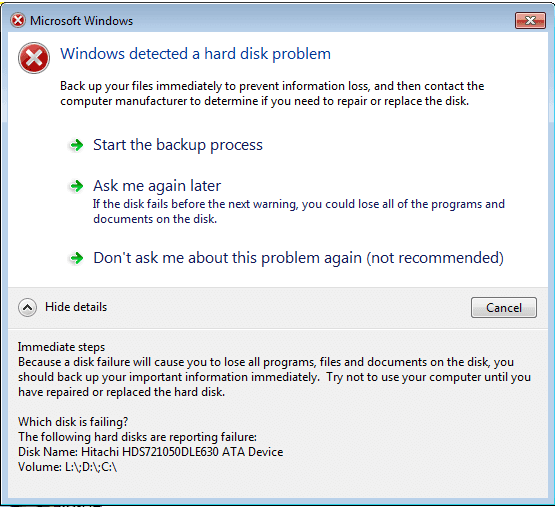
Windows detected a hard disk problem, what does it mean?
  • Your hard drive is failing and may die sooner or later.
  • You can lose all your programs, data, documents, videos, music and important images when your hard drive eventually failed.
  • You  may encounter freezes and not responding error.
  • Your Windows operating system files may become corrupted and unbootable.
What to do when you receive this message “Windows detected a hard disk problem”?
windows-detected-hard-disk-problem. Back up your files immediately to prevent information loss, and then contact the computer manufacturer to determine if you need to repair or replace the disk.
  • First, don’t panic, stay calm.
  • Take heed of the drive partition (c:/d:, etc) that are failing and the one that aren’t. To save you time and concentrate on checking the failing partitions.
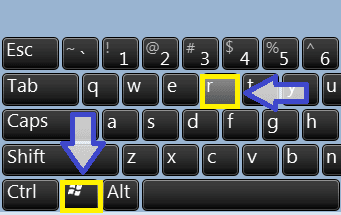
  • Do a “CHKDSK“, by pressing “windows logo + r” simultaneously to get the “run” window.
Windows-detected-hard-drive-problem
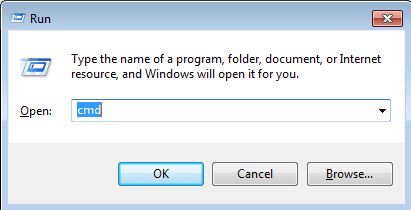
  • In the “run” window → type “cmd”.
Windows-detected-hard-disk-problem-cmd
  • Once you’re in the “command prompt” → type the drive letter you want to chkdsk (be it c:/d:/e: and so on) or leave it as is, if you want to test the default drive partition.
Windows-detected-hard-drive-problem-cmd
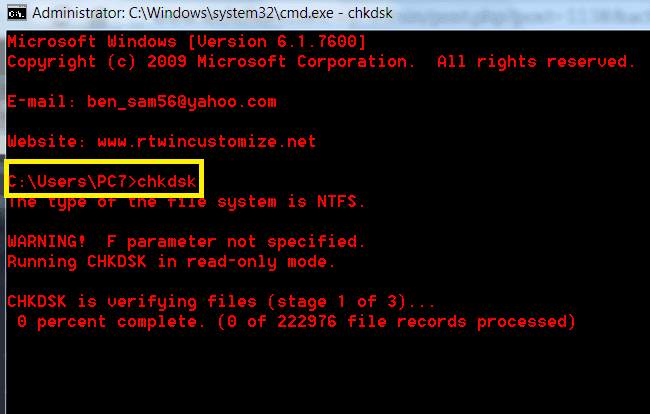
  • Then type “chkdsk” and hit “Enter” to start the “chkdsk”.
Windows-detected-hard-drive-problem-chkdsk
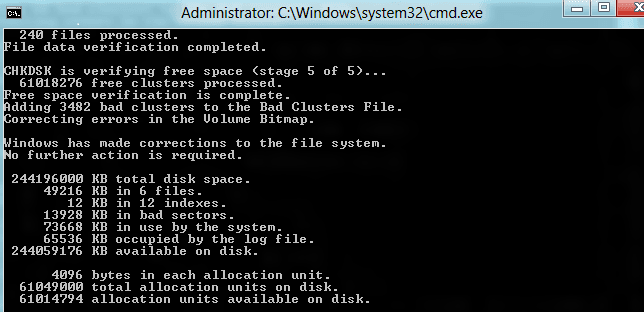
  • After Windows scan your hard disk for errors it will give you good understanding on where and what is going on with your hard drive. How many bad sectors and other useful information.
However, if you want to directly full scan your hard disk for errors and let Windows do the automatic fix of system file errors as well as bad sectors, follow this guide:
How to run chkdsk and attempt bad sectors recovery?
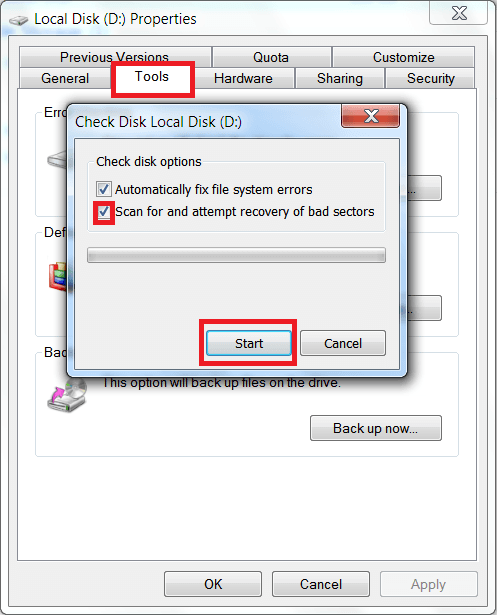
Go to: “start” → “my computer” → “select the drive letter you want to check disk” → “right-click it” → “select properties” → “tools” → “check the ‘scan for an attempt recovery of bad sectors” → “click start“.
Note: If you selected the drive that contains your Windows operating system, you will be prompted to reschedule the scan after restart.

Windows-detected-hard-drive-problem-check-disk-local-disk

Why should you perform a chkdsk on your hard drive when you encounter “Windows detected a hard disk problem“?
Someway or another “chkdsk command” may fix the error because it will mark the bad sectors and refrain from using it. Though, it is given, once this error “Windows detected a hard disk problem” keep on displaying, you’re hard disk is in extreme trouble—but sometimes it’s just the bad sectors which “chkdsk” will be of great help.
What if chkdsk command isn’t able to solve the “Windows detected a hard disk problem?
Windows dected hard disk problem chkdsk-bad-sectorsIt’s time to back-up all your important data. As what I have mentioned earlier, remember those drive partitions that aren’t reporting failures. You can use those partitions to  save your precious files. However, if your whole hard disk is failing, you need to have a new one or an old one from your old computer.
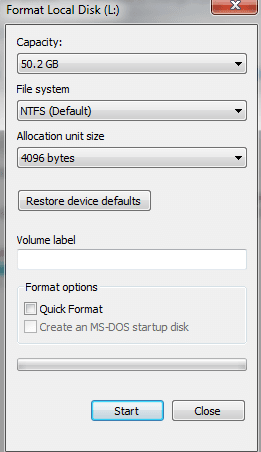
Now that you backed all your important data up, what’s next? Is your hard disk repairable?windows-detected-a-hard-disk-problem-format
There is still a big possibility that your hard drive can be repaired. How? Try to reformat your hard drive using another computer—by “right-clicking” your hard disk → select “format” → uncheck the quick format → Then, click start. You should format it without checking the “quick format”. It may take sometime, depending on your hard disk size but patience is virtue.
When you finished reformatting your hard drive, test it, re-install your operating system and observe it, if the error still appears. If there is none anymore, be glad but if it is still reporting “Windows detected a hard disk problem”—we will try another solution on my next post.

New How to Reset Window 7 Administrator password By Patricbensen


In this tutorial we will reset the administrator account password in window 7. With this method you can reset any users password in window 7. Window have a inbuilt utility Utilman.exe for disabled people. Utilman.exe allow users to configure the accessibility options like Magnifier, High contrast theme, Narrator and On Screen Keyboard before they log onto the system.
This utility was designed for disabled people who are hard of sight, hearing or mobility to log onto Windows themselves without the need of outside help. You can run this utility by pressing Window Key + U on window login screen. Or you can click on Ease of Access icon. This will load Utilman.exe application from Windows\System32\ directory. Furthermore this application run under the system account which have the highest level of privilege.
accessibility-options
You can take advantage of this utility to reset the user accounts password. You need to replace the Utilman.exe file with cmd.exe file and you will have access to the command prompt running under the SYSTEM privileges. From command prompt you can easily reset the user password.

Step by step guide on how to reset window 7 password

Our primary goal is to replace the Utilman.exe with cmd.exe. You can achieve this goal by several methods like boot system with Live disk and replace the file, boot system with recovery disk and replace the file. In this tutorial we assume that you do not have any bootable disk or live CD. We will do this without any third party software or disk.
To do this turn off the system without properly shutdown. Repeat this until you get Windows Error Recovery message on start up. Select Launch Startup Repair (recommended) and press Enter Key
launch-startup-repair
Window will load necessary files for recovery
window-load-files
Window will automatically try to fix the problems. This process usually take long time so stay cool, you need to do nothing here.
start-up-recovery-running
After a long wait [ around five to ten minutes ] you will receive following message
Windows cannot repair the this computer automatically.
Click view problem details
view-problem-details
It will open problem details in message box. Scroll the message to bottom, at the end of message it contain hyperlinked privacy statement, click it.
problem-details-file
Privacy statement will appear in notepad, Click Open option from File menu item
privacy-file
Click Computer to show all drive
privacy-file-computer-drive
You have to check each drive for Window. Drive letter showing here will be different from the drive letter you see in My computer while system normally boot. Open each drive and find out the partition which contain the windows installation files.
Open Windows folder
window-files
Open system32 folder
window-folder
Change file type to all
file-type-all
Select Utilman file and do Right click and click Copy
utilman-copy
Paste the copied file
utilman-paste
Select the copied file and do right click and click Rename
utilman-rename
We will change it with some descriptive name
window-rename-utilman-type
Set it to Utilman-org
utilman-org
We have taken the backup of original file. Now delete the original file. Select the Utilman file and do right click and click Delete
utilman-delete
Confirm delete operation
utilman-delete-confirm
Now select the cmd file and do right click and click Copy
cmd-file
Paste the copied file
cmd-paste
Select the copied file do right click and click Rename
cmd-copy-right-click
Rename it with Utilman
cmd-rename-utilman
We have replaced the Utilman.exe with cmd.exe
utilman-cmd-verfiy
That's all we need to do here. Close the dialog box, close the file, and close the Startup repair box and Click finish
startup-finish
System will be shutdown. Turn on the system again, let the window boot normally this time on login screen click Ease of Access icon. We have replaced Utilman.exe with cmd.exe so it will launch command prompt instead of accessibility options dialog box.
command-prompt-at-login-screen
Type following command and press Enter
net user administrator *
net userCommand
administratorUser name [ Replace it with user name if changing other users password ]
*Set new password
net-user-command
Type the new password / Retype the password to confirm it. Be aware you will not see any asterisks [*] sign here when you type in your password.
net-user-command-password
Close the command prompt and use the new password to sing in
login-screen
Wow we have successfully changed the users password now it's time to revert the change which we have made during the process. Open My Computer and open the window partition
window-partiton
Open System32 folder and select the replaced Utilman file
window-replaced-utilman-file
Do right click and click Delete option
window-utilman-delete-option
Confirm delete operation
window-utilman-delete-confirm
Select the Utilman-org file and do right click and click Rename
window-utilman-org-right-click
Rename Utilman-org to Utilman
window-rename-utilman-type
We have restored the original file.
window-utilman-restored
We have restored original window utility. To confirm it restart the system and click Ease of Access icon, this time it would launch original Utilman.exe
accessibility-options
Congratulations you have successfully reset the users password without harming any window files or using any third party tools.