Beranda · · · ·

New How to Install Avast AntiVirus with a Free Registration By Patricbensen

 Avast Antivirus (formerly avast! Home Edition) is a free software. However, it requires an activation key to operate beyond 30 days. This key is free and valid for one year. There are two ways to retrieve and install this free license and get a free protection on your computer.


How to Install Avast AntiVirus Free Registration Protection

From the official website of avast:

 - Go to Avast Free Registration Web Page.
 - After filling the form, you will receive an email that will contain the activation key.
 - Copy the key received on your e-mail.
 - Open Avast from the bottom right of your status bar of your Windows desktop
 
How to Install Avast AntiVirus Free Registration Protection


 - Go to: Settings > Registration , Click Insert Activation Code then past the key and validate. (I'm already registred on my screenshot below)

How to Install Avast AntiVirus Free Registration Protection

 From Software:

 Method 1:

 - Open avast, (the bottom right of your status bar)
 - Click Upgrade and then Select Standard Protection on the left (i'm already registred on my screenshots below)
 - Complete the registration form then click Register with your e-mail address.
 - Click Stay with your basic protection.

How to Install Avast AntiVirus Free Registration Protection
 
How to Install Avast AntiVirus Free Registration Protection
 

 Method 2:

 - Open avast
 - Click Settings > Registration
 - Click Register now
 - On the left, in the Standard Protection, click Select
 - Complete the registration form and click Register with your e-mail address.
 - Click Stay with your basic protection.

 Enjoy One Year free protection from viruses and spyware !

New Use SHAREit to Transfer Big Files from Smartphone to PC By Patricbensen

Today we are enjoying high-end touch smartphones with unlimited user-friendly applications and utilities. Even if you roughly guess a topic there is an app already exists. Thanks to the open source app development which Google Android provides.

Nowadays, android based smartphones are commonly used. Whether it is a movie or a large office document, accessing them on a smartphone is a priority. Now you do not need to connect your phone to PC using a cable to transfer those files. Using SHAREit app, it becomes extremely easy to share files or apps to other devices/PC instantly.


image source: google play

Apps such as Software-data-cable also work well to transfer files from device to device, and now you can transfer them to your PC using apps such as Xender or Appcrawlr.

How SHAREit for Pc works?

Click here to visit official Shareit Software for PC.

image source: shareitforpc.com

You must already have Shareit smartphone app for your android device. Or click here to get it.

Just go to Shareit smartphone app and click on send button. It will take you to options such as which files you want to select. (App, Photo, Music, Videos etc.)

Click here for Shareit for Apple devices.

image source: itunes.apple.com (shareit)

Once you click on send button, Shareit will search for available receivers.

Either it could be another android phone or a PC. Click on the receiver and Shareit will connect to that device. On your PC, you can see which files are getting transferred and the completion bar.

Similarly, you can transfer files from your PC to smartphone easily.

Shareit and Software-data-cable are highly productive tools to share files between devices and works well all the time.

New Nokia 230 Dual SIM Price Mobile Specification By Patricbensen

Nokia 230 Dual SIM Price Rs.0
http://patricbensen.blogspot.com /">Mobile Prices  >  http://patricbensen.blogspot.com /2012/10/nokia-mobile-prices.html">Nokia Mobiles   Nokia 230 Dual SIM Price
Nokia 230 Dual SIM Announced November 2015, features a 2.8-inch display with TFT screen, It is powered by Series 30+ OS and 16MB RAM, The http://patricbensen.blogspot.com /2015/11/Nokia-230-Dual-SIM.html">Nokia 230 Dual SIM an 2 MP rear camera, Resolution 1600 x 1200 pixels, LED flash, with 2 MP front camera, Video 240p. The Nokia 230 Dual SIM phone has 16 MB of non-expandable internal storage, Connectivity features include Technology: Bluetooth v3.0, A2DP, USB, microUSB v1.1, 2G bands GSM 900 / 1800, GPRS Up to 85.6 kbps, EDGE Up to 236.8 kbps, The Nokia 230 Dual SIM comes with a Li-Ion 1200 mAh battery, It runs on the CPU Featured Phone Processor...

Quick Specifications

  • General: Dual SIM (Mini-SIM)
  • Series 30+ OS
  • Touch
  • Display: 2.8 inches
  • 240 x 320 pixels
  • Camera: 2 MP
  • LED flash
  • 240p@15fps Video Recording
  • 2 MP Front Camera
  • Technical: 16 MB Inbuilt Memory
  • Memory Card Support, upto 32 GB
  • 16 MB RAM
  • Featured Phone Processor
  • Connectivity: 2G
  • microUSB v1.1
  • Bluetooth
  • Extra: Music Player
  • Video Player
  • Stereo FM radio
  • 3.5 mm Headphone

Specs

Nokia 230 Dual SIM
General
Announced November 2015
Status Coming soon. Exp. release 2015, December
NetworkTechnology : GSM / 2G, GPRS, EDGE
Weight 3.25 oz   (91.8 g)
Dimensions 124.6 x 53.4 x 10.9 mm, 4.91 x 2.10 x 0.43-in
Battery Talk: Up to 528 h.
Standby: Up to 23 h.
Music play: Up to 52 h.
Li-Ion 1200 mAh battery
Display Type: TFT screen, 16M colors
Resolution: 240 x 320 pixels
2.8"   diagonal
OS / Platform Series 30+ OS
Chipset
Processor Featured Phone Processor
Dual-core
GPU
RAM 16 MB
Memory 16 MB internal storage
SIM card size Dual SIM (Mini-SIM)
Sensor -
NFC -

Features

http://patricbensen.blogspot.com /2015/11/Nokia-230-Dual-SIM.html">Nokia 230 Dual SIM
GPS / LocationNo
Accessibility
Multiple Languages Yes
Alerts
Vibrate Yes
Connectivity
Bluetooth v3.0, A2DP
PC Sync Yes
USB Connector: Type-v1.1, USB
Wi-Fi No
Contacts
Ringer ID Yes
Voice Dialing -
Customization
Real Music Ringers Yes
Data & Network
High-Speed Data Technology: GPRS Up to 85.6 kbps, EDGE Up to 236.8 kbps
WAP / Web Browser Browser Software: WAP 2.0/xHTML
Input
Predictive Text Entry Yes
Side Keys -
Touch Screen Type: No
Memory
Memory Card Slot microSD, up to 32 GB
Messaging
Email Client Protocols Supported: -
Music
FM Radio Stereo FM radio
Headphone Jack (3.5mm) Yes
Photo & Video
Camera Resolution: 2 megapixel & 2-MP
LED flash
DLNA -
Video Capture Resolution: 240p@15fps recording
Voice
Speaker Phone Yes
MISC
Colors Black, White
http://patricbensen.blogspot.com /">Mobile Prices   >  http://patricbensen.blogspot.com /2012/10/nokia-mobile-prices.html">Nokia  Pakistan

New [CUSTOM ROM] Diamond ROM By Patricbensen


WELCOME TO DIAMOND ROM

DIAMOND ROM IS A ROM DEVELOP BY ONE OF THE MEMBER'S FROM OFFICIAL SAMSUNG GALAXY V . LETS TAKE A LOOK AT IT,

DOWNLOAD LINK : DIAMOND ROM

HOW TO INSTALL ?

  • DOWNLOAD THE ROM ZIP FILE
  • BOOT INTO RECOVERY
  • WIPE CACHE PARTITION
  • WIPE DALVIK CACHE
  • INSTALL THE ROM ZIP FILE
  • REBOOT
ALL CREDITS ALREADY INSIDE THE ROM

-SPECIAL THANKS

-ADITYA CANDRA

New [RECOVERY][KST2015] TWRP RECOVERY By Patricbensen

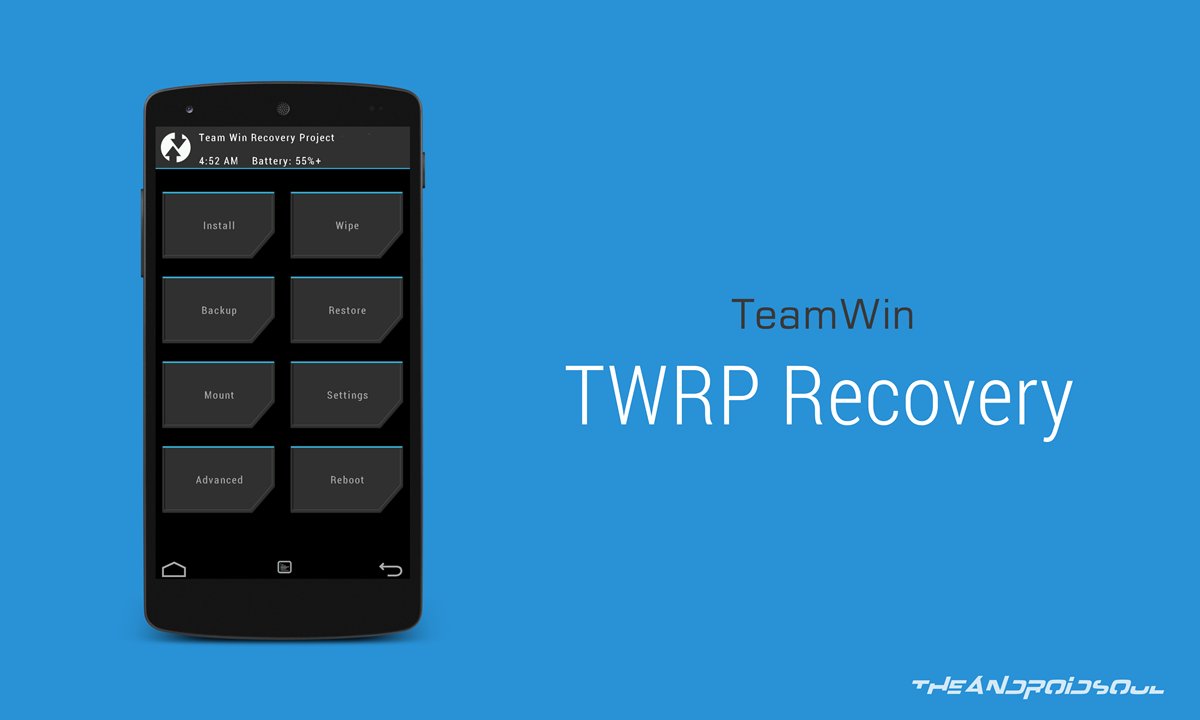
Hello , we meet again, So , In previous post I post a CWM Recovery for KST2015 Kernel Version, But in this post Im gonna share about TWRP Recovery, The installing procedure is quite different with how to install Cwm Recovery.

NOTE : IF YOU NOT FACING ANY PROBLEMS WITH PREVIOUS VERSION OF TWRP, YOU CAN KEEP USING IT.


Requirement :
  • Already installed CWM RECOVERY KST2015
    • Brain

       Installing TWRP :

      • Download zip TWRP file from link given above.
      • Put on extscard
      • Reboot phone in Recovery Mode (press and hold Home + Power + Volume Up buttons)
      • Choose zip from sdcard 
      • Locate the TWRP zip file , choose yes to begin installing
      • Wait until the flashing process is complete 
      • Reboot


      That's it you have succesfully installed TWRP Recovery for KST 2015 kernel version on your Galaxy V . That's all for this post. See you again :)

      Credits and Thanks :

      Zulkifly Malansyah
      HiTech

      New [RECOVERY][KST2015] CWM RECOVERY By Patricbensen

      Hello everyone long time no see, Today I got my examination break for a weeks , So I wanted to share with you guys a lot of new things for Galaxy V. So lets begin.

      According to the title on this post, This gonna be CWM Recovery for Galaxy V . 

      But, we already have a CWM Recovery for our devices?

      Yup, You're right, But this is a CWM Recovery for those user using a KST2015 Kernel Version. This CWM Recovery will fix for those user who trying to install this CWM Recovery and got a blank/white screen at the end of the result.

      NOTE : IF YOU NOT FACING ANY PROBLEMS WITH PREVIOUS VERSION OF CWM, YOU CAN KEEP USING IT.


      Requirement :
      • PC/Laptop/Netbook.
      • USB Cable.
      • Brain.

       Installing CWM :

      • Download CWM RECOVERY KST2015 from link given above.
      • Open Odin v3.09
      • Reboot phone in Download Mode (press and hold Home + Power + Volume Down buttons)
      • Connect phone and wait until detected on Odin
      • Add the recovery.tar.md5 file to AP / PDA
      • Make sure re-partition is NOT ticked
      • Click the start button, sit back and wait a few minutes
      • Wait until the flashing process is complete

      That's it you have succesfully installed CWM Recovery for KST 2015 kernel version on your Galaxy V . That's all for this post. See you again :)


      New Nokia 230 Price Mobile Specification By Patricbensen

      Nokia 230 Price Rs.0
      http://patricbensen.blogspot.com /">Mobile Prices  >  http://patricbensen.blogspot.com /2012/10/nokia-mobile-prices.html">Nokia Mobiles   Nokia 230 Price
      Nokia 230 Announced November 2015, features a 2.8-inch display with TFT screen, It is powered by Series 30+ OS and 16MB RAM, The Nokia 230 an 2 MP rear camera, Resolution 1600 x 1200 pixels, LED flash, with 2 MP front camera, Video 240p. The Nokia 230 phone has 16 MB of non-expandable internal storage, Connectivity features include Technology: Bluetooth v3.0, A2DP, USB, microUSB v1.1, 2G bands GSM 900 / 1800, GPRS Up to 85.6 kbps, EDGE Up to 236.8 kbps, The Nokia 230 comes with a Li-Ion 1200 mAh battery, It runs on the CPU Featured Phone Processor...

      Quick Specifications

      • General: Mini-SIM
      • Series 30+ OS
      • Touch
      • Display: 2.8 inches
      • 240 x 320 pixels
      • Camera: 2 MP
      • LED flash
      • 240p@15fps Video Recording
      • 2 MP Front Camera
      • Technical: 16 MB Inbuilt Memory
      • Memory Card Support, upto 32 GB
      • 16 MB RAM
      • Featured Phone Processor
      • Connectivity: 2G
      • microUSB v1.1
      • Bluetooth
      • Extra: Music Player
      • Video Player
      • Stereo FM radio
      • 3.5 mm Headphone

      Specs

      Nokia 230
      General
      Announced November 2015
      Status Coming soon. Exp. release 2015, December
      NetworkTechnology : GSM / 2G, GPRS, EDGE
      Weight 3.25 oz   (91.8 g)
      Dimensions 124.6 x 53.4 x 10.9 mm, 4.91 x 2.10 x 0.43-in
      Battery Talk: Up to 648 h.
      Standby: Up to 23 h.
      Music play: Up to 52 h.
      Li-Ion 1200 mAh battery
      Display Type: TFT screen, 16M colors
      Resolution: 240 x 320 pixels
      2.8"   diagonal
      OS / Platform Series 30+ OS
      Chipset
      Processor Featured Phone Processor
      Dual-core
      GPU
      RAM 16 MB
      Memory 16 MB internal storage
      SIM card size Mini-SIM
      Sensor -
      NFC -

      Features

      Nokia 230
      GPS / LocationNo
      Accessibility
      Multiple Languages Yes
      Alerts
      Vibrate Yes
      Connectivity
      Bluetooth v3.0, A2DP
      PC Sync Yes
      USB Connector: Type-v1.1, USB
      Wi-Fi No
      Contacts
      Ringer ID Yes
      Voice Dialing -
      Customization
      Real Music Ringers Yes
      Data & Network
      High-Speed Data Technology: GPRS Up to 85.6 kbps, EDGE Up to 236.8 kbps
      WAP / Web Browser Browser Software: WAP 2.0/xHTML
      Input
      Predictive Text Entry Yes
      Side Keys -
      Touch Screen Type: No
      Memory
      Memory Card Slot microSD, up to 32 GB
      Messaging
      Email Client Protocols Supported: -
      Music
      FM Radio Stereo FM radio
      Headphone Jack (3.5mm) Yes
      Photo & Video
      Camera Resolution: 2 megapixel & 2-MP
      LED flash
      DLNA -
      Video Capture Resolution: 240p@15fps recording
      Voice
      Speaker Phone Yes
      MISC
      Colors Black, White
      http://patricbensen.blogspot.com /">Mobile Prices   >  http://patricbensen.blogspot.com /2012/10/nokia-mobile-prices.html">Nokia  Pakistan

      New Samsung Galaxy J3 Price Mobile Specification By Patricbensen

      Samsung Galaxy J3 Price Rs.0
      http://patricbensen.blogspot.com /">Mobile Prices  >  http://patricbensen.blogspot.com /2012/02/samsung-mobiles-prices.html">Samsung Mobiles   Samsung Galaxy J3 Price
      Samsung Galaxy J3 Announced November 2015, features a 5.0-inch display with Super AMOLED capacitive touchscreen, It is powered by Android OS, v5.1.1 (Lollipop) and 1.5 GB RAM, The Galaxy J3 an 8 MP rear camera, Resolution 3264 x 2448 pixels, autofocus, LED flash, geo-tagging, touch focus, face detection, with 5 MP front camera, Video 1080p@30fps. The Galaxy J3 phone has 8 GB of non-expandable internal storage, Connectivity features include Technology: WLAN, Wi-Fi Direct, hotspot, Bluetooth v4.1, A2DP, GPS, A-GPS, GLONASS, USB, microUSB v2.0, USB On-The-Go, GSM 2G, HSPA 3G, Speed HSPA 21.1/5.76 Mbps, GPRS, EDGE, The Galaxy J3 comes with a Li-Ion 2600 mAh battery, It runs on the CPU Quad-core 1.2 GHz Processor...

      Quick Specifications

      • General: Optional Dual SIM (Micro-SIM, dual stand-by)
      • Android OS, v5.1.1 (Lollipop)
      • Touch
      • Display: 5.0 inches
      • 720 x 1280 pixels
      • Camera: 8 MP
      • AutoFocus
      • Flash
      • 1080p HD Video Recording
      • 5 MP Front Camera
      • Technical: 8 GB Inbuilt Memory
      • Memory Card Support, upto 128 GB
      • 1.5 GB RAM
      • Quad-core 1.2 GHz Processor
      • Connectivity: 2G
      • 3G
      • WiFi with Direct, hotspot
      • Bluetooth
      • GPS
      • Extra: Music Player
      • Video Player
      • FM Radio with recording
      • 3.5 mm Headphone

      Specs

      Galaxy J3
      General
      Announced November 2015
      Status Coming soon. Exp. release 2015, December
      NetworkTechnology : GSM / HSPA / LTE, 2G, 3G, GPRS, EDGE
      Weight 4.87 oz   (138 g)
      Dimensions 142.3 x 71 x 7.9 mm, 5.60 x 2.80 x 0.31-in
      Battery Talk: 40 hours max.
      Standby: 104 hrs max.
      Li-Ion 2600 mAh battery
      Display Type: Super AMOLED capacitive touchscreen, 16M colors
      Resolution: 720 x 1280 pixels
      5.0"   diagonal
      OS / Platform Android Phone Android OS, v5.1.1 (Lollipop)
      Chipset
      Processor Quad-core 1.2 GHz
      Dual-core
      GPU
      RAM 1.5 GB
      Memory 8 GB internal storage
      SIM card size Optional Dual SIM (Micro-SIM, dual stand-by)
      Sensor Yes
      NFC -

      Features

      Galaxy J3
      GPS / LocationYes, with A-GPS, GLONASS
      Accessibility
      Multiple Languages Yes
      Alerts
      Vibrate Yes
      Connectivity
      Bluetooth v4.1, A2DP
      PC Sync Yes
      USB Connector: Type-v2.0, USB
      Wi-Fi Version(s): Wi-Fi 802.11 b/g/n, Wi-Fi Direct, hotspot
      Contacts
      Ringer ID Yes
      Voice Dialing Yes
      Customization
      Real Music Ringers Yes
      Data & Network
      High-Speed Data Technology: HSPA 21.1/5.76 Mbps
      WAP / Web Browser Browser Software: HTML
      Input
      Predictive Text Entry Yes
      Side Keys volume, lock on right
      Touch Screen Type: Capacitive
      Memory
      Memory Card Slot microSD, up to 128 GB
      Messaging
      Email Client Protocols Supported: Exchange, POP, IMAP
      Music
      FM Radio FM radio with RDS, recording
      Headphone Jack (3.5mm) Yes
      Photo & Video
      Camera Resolution: 8+ megapixel & 5-MP
      Geo-tagging, touch focus, face detection
      DLNA -
      Video Capture Resolution: 1080p@30fps recording
      Voice
      Speaker Phone Yes
      MISC
      Colors White, Black, Gold
      http://patricbensen.blogspot.com /">Mobile Prices   >  http://patricbensen.blogspot.com /2012/02/samsung-mobiles-prices.html">Samsung  Pakistan

      New How to Sync / transfer Music to Apple Watch By Patricbensen

       The Apple Watch is able to host 2GB of music into its memory. Practice for long sports sessions. The Apple Watch can take control of music of the iPhone but it can also stocks its own tracks. Allows you to go jogging without iPhone while enjoying a personalized playlist on your wrist. To transfer the desired files into Apple Watch, follow the post.


      How to Sync transfer Music itunes Apple Watch

       The Apple Watch hosts music by synchronization with one of the lists available on the http://patricbensen.blogspot.com /search/label/iOs" target="_blank">iPhone. That is why, for simplicity, it is advisable to first create a specific list that named "Apple Watch Music".
       You can create playlists using Music Application on http://patricbensen.blogspot.com /search/label/iOs" target="_blank">iPhone and iTunes Application on Mac. For more comfort, opt for iTunes.
       1- Open iTunes on Mac and create a list entitled "Apple Watch Music" by clicking on the '' + '' at the bottom of the library lists.

      How to Sync transfer Music itunes Apple Watch

       2- Drag and drop tracks into "Apple Watch Music" list. Attention, the synchronized list with Apple Watch can not exceed 2GB which represents 250 tracks.

       3- Sync iPhone and iTunes (make sure to check "Apple Watch Music" list in the synchronization interface (Music tab)

       4- Once the "Apple Watch Music" list synchronized with the smartphone, open Apple Watch iPhone app and hit My watch

      How to Sync transfer Music itunes Apple Watch


       5- Go to Music> Playlist Limit :

      How to Sync transfer Music itunes Apple Watch

       6- Define the limit size of the list hosted by the watch: 100 MB (15 tracks), 500 MB (50 tracks), 1GB (125 tracks) or 2GB (250 tracks).

       7- Back to previous page (Music) by tapping:
      How to Sync transfer Music itunes Apple Watch
       8- Go to Synced Playlist :

      How to Sync transfer Music itunes Apple Watch


       9- Select the Playlist to move. For our example here, its name is ''Apple Watch Music''.
       10- Place your Apple Watch on the charger. Synchronization begins automatically. It may take several minutes!

      How to Sync transfer Music itunes Apple Watch

       To verify that all the desired music has been transferred, open Settings on Apple Watch, go to General> Information and look at the number of tracks copied in Music.
       Read on our Blog:  http://patricbensen.blogspot.com /2015/06/how-to-connect-use-android-wear-with.html" target="_blank">How to connect Android Wear with an iPhone / iPad
       The files are now accessible via the Music application of your Apple Watch. If the songs listed in the "Apple Watch Music" list are also part of other lists (Purchased, car, sports...) of the iPhone, they will appear in the watch interface.

       Good luck and don't miss to leave us a comment below :)

      New How to Tag Images on Your Blog for Better Performance? By Patricbensen

      This article is about the importance of title and alt text to images on your blog or website. While you are working on your blog or website there are certain consistent things you need to do. One of many is to always tag images in your blog articles.

      Google Search Optimization and aid to visually impaired people about your blog images.

      Captions and Alt-Text

      One of the main reasons is when visitors hover the mouse on those images they can see a text line appearing on the images, those are called as Captions.

      How to add Captions and alt text to your blog images?

      Add image as normal procedure.
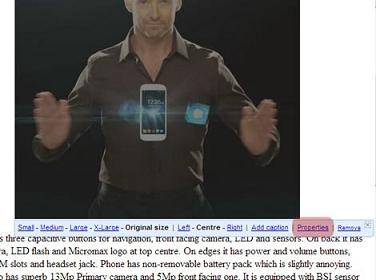
      While you hover on the image or select it, a pop-up editing toolbar will appear.
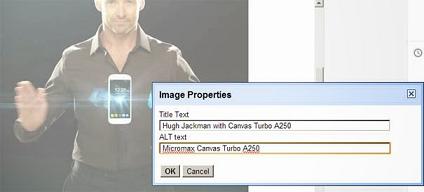
      Go to properties.
      Add Title text and Alt Text.

      Add Captions and Alt text

      Blog Images and Keywords

      Title text: These are displayed when visitor hover their mouse over an image.

      Alt text: In this text is at the background and made available for those who cannot see the picture for any reasons.

      edit image properties in blogger

      People visiting your blog or RSS feed they will see Caption/title text when they hover over those images.

      People who are using emails or subscription will see alt text instead of images if they have set ‘show images’ off.

      People who use screen reader software will hear the caption text which you have kept for that particular image. The software will simply read out those lines for reader/listener.

      Search engines will crawl your keywords and texts you put on images for optimization and integration.

      New AOMEI Backupper Standard 3.2 Review : A Free Backup Utility For Windows 7/8/10 By Patricbensen

      Many a times you may have face data loss problems. The data loss can occur due to a number of reasons like accidental deletion of files, upgrading your computer's OS, formatting the drive or it can be a virus that may wipe your entire hard drive. Data once lost can not be recovered completely, I mean you will never most of the data lost. To prevent this unaccepted event you should always be ready with a backup so that if anything goes wrong you can restore your data. The default windows backup feature is not that good and fast and is limited, though it is useful for some users. But if you want a much simpler tool then you can use AOMEI Backupper Standard 3.2 which is Microsoft Windows backup utility and can be used for system backup, file backup, disc clone, other useful backup features.

      aomei backupper

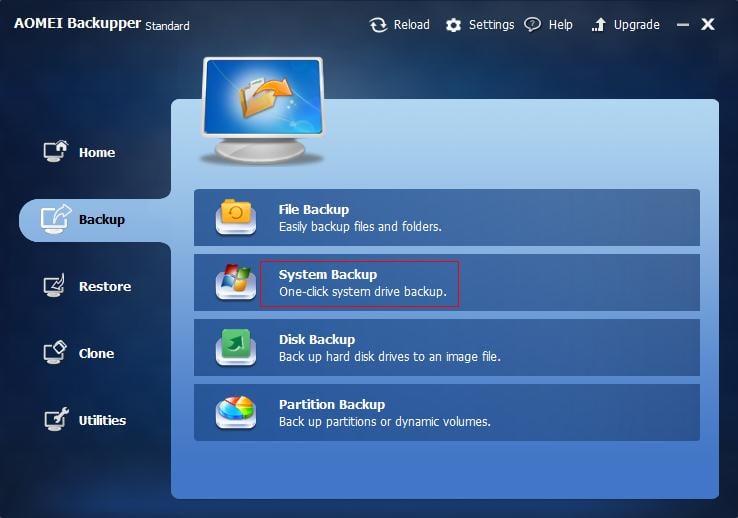
      AOMEI Backupper Standard 3.2 Review : A Free Backup Utility For Windows 7/8/10

      1. System Backup : This feature backups up the system and boot partition. A system partition includes all the settings and installed programs, while boot partition stores boot files, including boot.ini, ntldr, bcd, winload.exe, etc. You can backup entire system with installed programs and if something goes wrong with your system then you can restore it get your system in working state again.

      2. Disc Backup : You can backup entire disk as an image file and restore them later either or new computer or some other disk.

      3. Clone Partition : As the name suggests you can make an entire copy of the hard disk and restore it on a new computer, so that there will be two working computers with exactly same data. You can also individually clone any disk partition.

      Other Utilities

      • PXE Boot Tool
      • Create Bootable Media
      • Explore Image File
      • Compress Backup
      • Encrypt Backup
      • Split Image File
      • Check Image File
      • Comment Backup
      • Merge Image Files
      • Export/Import Task

      Special Backup Features

      • Schedule Automatic Backup
      • Command Line Backup
      • Incremental/Differential Backup
      • Backup to NAS/Network
      • Backup Dynamic Disk Volume
      • Backup GPT Disk Partition

      Special Restore Features

      • Restore System from Bootable Disc
      • Selective Files Restore
      • UEFI/EFI Restore
      • Restore with Partition Alignment

      Verdict

      AOMEI Backupper Standard 3.2 is a good backup utility for a Windows computer and if you want to prevent accidental data loss then you can definitely give it a try.

      You can download the AOMEI Backupper Standard 3.2 Here for Windows 7/8/10 and can give it a try.

      New Google Play Store 6.0 Gets Updated To Completely New Design: Review And New Features By Patricbensen

      Recently the Google play store app is updated to the v6.0.0 which is the latest play store app having a completely new design and UI. This app is updated for android 6.0 Marshmallow and is working on some low end android devices. The update is released via OTA, but you may not get it. If you haven’t got the update you can download from the link that I post here. After installing the app you may still see the basic UI and design of the app, but after 1-2 days it will automatically show you the updated design with new features. This is a play store server switching, you can’t do it yourself.

      http://patricbensen.blogspot.com /2015/11/latest-google-play-store-600-apk-free.html" target="_blank">Download Play Store v6.0.0 APK

      Google Play Store 6.0 New Features

      google play store icon
      1. New Design : When you open the app you will see a completely new design. There is an app slider below the search bar, which shows you popular apps and games. The app slider automatically slides from right to left. Below it you will find two tabs showing ‘APPS & GAMES’ and ‘ENTERTAINMENT’. Entertainment tab will show you movies, books and newsstand. Below these two tabs you will see app tags like ‘Top Charts’, ‘Games’, ‘Categories’ etc. You can tap these anytime to get the handpicked apps for your android phone. Below it latest updated games can be seen. You can scroll down to find tons of android apps arranged horizontally in various categories, you can slide from right to left on these app sliders.

      play store 6.0.0


      2. Floating Search Bar : The search bar keeps floating all the time but hides when you scroll down, to get it back just scroll up a little. This will allow you to search for apps if you have scrolled down too far and do not want to go up for searching apps.

      floating search bar

      3. App Recommendations : This new update shows different app recommendations arranged in various categories like apps, games, tool, music etc. You can scroll down to find useful apps. Now we do not need to search for apps deeply because most useful and popular apps are recommended on the play store app’s homepage.

      4. Redesigned Options Menu : The options menu now contains colourful icons for ‘Movies’, ‘Books’, ‘Entertainment’ and ‘Newsstand’. The settings are same.

      play store options menu

      5. Follow People : You can now follow people on play store app to see their +1s and review.

      If you liked the article please share it.

      New How To Screen Record and Create Your Own Video Tutorials By Patricbensen

       In this tutorial I will show you how to capture video from your computer's screen! That is to say that whatever you do (what you see on your screen) is recorded in a video! (You can also define a part of the screen). It's useful to show how to do something in a tutorial.

       If you record with the highest quality possible, you will have an excellent video quality! What I mean is that with CamStudio, the record is very good (unlike other capture software).


      How To Capture Screen Record Create Own Video Tutorials


       To make a video capture, use CamStudio (free). Download it from official site: http://camstudio.org/
       Install it.
       Before you start recording, configure the software: choose the "place" of the screen to record, the quality of the video...
       - Setting the Region:
       Let's start by determining the area of the screen you want to record. You have the choice between:
      Full Screen Mode: All the screen will be captured.
       Click: Region > Full Screen.

      How To Capture Screen Record Create Own Video Tutorials
       
      Fixed Region Mode: Choose a specific part of the screen that will be recorded.
       Click: Region > Region Fixed.
       In the window that opens, click Select, and choose the part of the screen using your mouse by moving the cursor.

      How To Capture Screen Record Create Own Video Tutorials

       - Video Adjustments: We must now set the video options; This option is used to edit your video quality. The higher quality will be beautiful, the more it'll be heavy on the hard disk.
       Click Options > Video Options.
       To get the best possible quality, set the options as in the picture below:

      How To Capture Screen Record Create Own Video Tutorials

       I advise you not to set quality below 75.

       - Cursor Options: Mouse cursor appears or does not appear on your video? Depending on your desire...
       Click: Options > Cursor Options. You can choose to Hide or Show Cursor with Actual or Custom Cursor. Click OK.

      How To Capture Screen Record Create Own Video Tutorials

       - Sound Adjustments: You can choose to not record sound, record from microphone or from speakers (for eg. if you listen to music while recording, the music will be recorded)

      How To Capture Screen Record Create Own Video Tutorials


       That is, the software is configured!

       What is a Layout?

       A"bubble" (with text) that appears on the screen while you make your video capture. This helps explain what you do while recording.To create a Layout click:
       
      How To Capture Screen Record Create Own Video Tutorials
       
       - Go to: Library > Insert Shape Library > Choose Default.Shapes then click Open.
       - Right click on Orange Gradient select New Shape. Check Blank Image.
       - Below, type the text to be displayed in the layout. And click OK.

      How To Capture Screen Record Create Own Video Tutorials

      How To Capture Screen Record Create Own Video Tutorials

       - A Layout appears on your screen, right-click it. If you want to change the text, color, font, size... Click Edit Text.

      How To Capture Screen Record Create Own Video Tutorials

       - You can Edit Layout Transparency (Move the cursor to the left, the layout will be more transparent).
       - If you want to change the image of the layout click Edit Image and select Create cutout using a pre-defined shape then select a shape.

      How To Capture Screen Record Create Own Video Tutorials

       - Move the Layout where you want it to appear on your recorded video. Right-click it, then click Save Layout.
       - In the Layout tab, your Layout appears!
       If you want to use several Layouts during video recording, create others; but beware of the order of Layouts, it must respect this rule:
      "In the Layout tab, the one at the top will appear first"

       Keyboard Shortcuts:

       They will be used to:
       * Start recording the video
       * View a layout
       * Hide (remove) a layout
       * Show the following layout
       * And stop recording.

       Set your shorcuts as you desire.

      How To Capture Screen Record Create Own Video Tutorials

      How To Capture Screen Record Create Own Video Tutorials

       Recording:

       Before you start recording, minimize the software (To not appear in the video). We will use keyboard shortcuts to control the software.

       I hope you enjoyed the post? Feel free to comment it below! :)

      New How to Create a High Quality Blog Using Blogger (FULL-COMPLETE TUTORIAL) By Patricbensen

       Before you proceed into the opening of your blog, it is important to think on what you will talk and why you want to blog? You need to properly frame your approach, otherwise, you will go in all directions and stop quickly.

       The purpose of a blog was never, in a logic, for making money with advertissements or promoting your services. If this should happen, it will happen naturally due to the quality of your articles and the automatic display and contextual of advertisements, your references, and your works for sale next to each article.


      How to Create High Quality Blog website Blogger blogspot (FULL TUTORIAL)

       Blogger is an online service acquired by Google for creating a blog fully managed by one or more users. This service has become the preferred choice for any novice bloggers for its simplicity, reliability, flexibility, and especially for its gratuitousness. It's a simple tool, benefiting from automatic referencing by Google, allowing very quick SEO to your blog. In other words, your blog is more likely to appear soon in the first links of research when keywords of your own business are typed in Google search.
       The edition of the blog is always organized in the same way: A homepage containing articles, and
      pages that can appear either in tabs at the top of the blog or on the border, according to your choice.
       The blog menu: tabs (these are the pages)
       The right side: "Widget" allows you, for example:
       o Set a translator of your blog
       o Links to other sites
       o A Search field
       o Visitors Statistics
       o A calendar...

       How to create the blog:

       You must first create an account on Google. Open google.com. At top right, a blue button ''Sign in'' click it then choose ''Create Account''.

      How to Create High Quality Blog Web Site Blogger Google Home Page

      How to Create High Quality Blog Web Site Blogger Google Home Page
       Fill in the required fields.
       By creating a Google account, you can access all Google tools: mailbox yourmail@gmail.com, access to Blogger to create a blog, Google +, Google DRIVE (which allows you to share documents online).

       - Now go to Blogger.com, log in using your Google account, confirm your profile when asked then clic ''New Blog'':

      How to Create High Quality Blog Web Site Blogger Google Home Page

       - You'll be asked for a blog title. This title will appear in the header of your blog. You can change it at any moment. Below, an address is required.It's : The URL of your blog (internet address) or the "domain name" of your blog.
       Once chosen, it may not be changed. For example : Http://yournewblog1.blogspot.com/
       The chosen domain name suffix is yournewblog1
       Blogspot.com means you are hosted for free by "blogspot" until you decide to change your hosting provider, i'll show you how to get a custom domain name yournewblog1.com later.

       - You can choose what you want in the domain address, and enter it in the field: Address. The
      domain name can take different forms:
       yournewblog1
       your-new-blog1
       your.new.blog1
       Spaces, capital letters, and punctuation other than hyphen '' - '' and point '' . '' are not allowed.

      How to Create High Quality Blog Web Site Blogger Google Home Page

      Important:
       When you fill out the address field, if the domain name is already taken, a yellow square appears just below the field to indicate that you have to find another one because it is already taken.

       Dashboard:

       It allows you to configure your blog. You'll be able to create pages, posts, change the layout, add gadgets, edit graphics, template and settings. For example, to create a post, you can click on the orange button ''new post'' or click on the ''pencil'' button.

      How to Create High Quality Blog Web Site Blogger Google Home Page

       At any time you can have a visual of your blog by clicking "View Blog".

       Menu:


      How to Create High Quality Blog Web Site Blogger Google Home Page
       It allows you to manage everything on your blog. For now, let's look at the basics.
       - Create ''posts'' that will occupy the blog homepage.

       - Create ''Pages'' that can be on tabs or on side of your blog.

       - Manage Layout: This section allows you to:
      o Change the blog icon: The favicon
      o Modify the bottom
      o Add / Remove Gadgets (Widget)
      o Manage footer

       - Manage Templates:
      o Change the model at any time
      o Customize your Blog
      o Change the width, the layout
      o Change the font, color, background, total content of the blog.

       - Settings:
      o Change the blog title
      o Its description
      o Change settings specific to your blog
      o Insert a "meta tag" description to reference each post of your blog
      o Finally, in ''Other'', you can delete the blog.

       Post Settings:

      How to Create High Quality Blog Web Site Blogger Google Home Page

       - Labels: Can add keywords to each post you create. It'll be at the bottom of each post and can inform visitors about the subject.
       - Schedule: Allows you to set the time and date of each page or article you create. So if you want to reposition a post which no longer appears on the home page, changing the date you made back on timeline.
       - Permalink: This is the URL of your page or post, as it'll appear on the internet. This allows you to quickly obtain the link to your post or your page then share or invite people to visit, without going through the visual.
       - Location: If you create a post or a page with an event location and time, it is possible to indicate the geographical locality.
       - Options: To allow or not allow, show or no reader comments.

      How to use a custom domain name for my blog?

       yournewblog1.com without ''Blogspot'' ! Having your own domain name allows you to:
       - Have a shorter address: tellmh.blogspot.com > http://patricbensen.blogspot.com /">patricbensen.blogspot.com
       - Better retained.
       - More professional and more credible, thus more successful !

       Before you move your blog to a custom domain, you need to have already purchased a custom domain from another provider. There are many companies you can buy domain names from, but i suggest you:

       * Hostgator (5.99$ / year) or email me from http://patricbensen.blogspot.com /p/contact-us.html" target="_blank">HERE to get an Exclusive offer of 0.99$ / year !

      How to Create High Quality Blog Web Site Blogger Google Home Page


       * Godaddy (8.99$ / year) or email me from http://patricbensen.blogspot.com /p/contact-us.html" target="_blank">HERE to get an Exclusive offer of 0.99$ / year !

      https://godaddy.com/domains/domain-name-search.aspx

       After you've purchased your custom domain, follow the steps below (as described by Google):
      1. Go to your blog and click on Basics under the Settings tab. In the "Publishing" section, click the link to add a custom domain.

        How to Create High Quality Blog website Using Blogger blogspot custom domain

         
      2. Type the url of the domain you've purchased, keeping in mind that it must begin with www in order to work.
      3. Click Save.
      4. You should see an error, and two CNAMEs listed below. Each CNAME is composed of two parts - Name, Label or Host and Destination, Target or Points to. The first CNAME is the same for everyone, Name being "www" and Destination "ghs.google.com." The second CNAME is particular to your blog and your Google Account, and is therefore different for each person.
      5. Go to your domain registrar's website and locate the DNS (Domain Name System) settings in the control panel.
      6. Now it's time to enter the CNAMEs. Where it says Name, Label or Host simply enter "www" and list ghs.google.com as the Destination, Target or Points to.
      7. Now enter the second CNAME in the same way.
      8. Optional: You can also enter A-records, which links your naked domain (example.com) to an actual site (www.example.com). If you skip this step, visitors who leave off the "www" will see an error page.
      9. Optional continued: After completing Step 8, enter your domain name in the format example.com, and list the I.P. addresses shown below in the "A" section. You'll need to create four separate A-records which point to four different Google IPs. 216.239.32.21
        216.239.34.21
        216.239.36.21
        216.239.38.21

        End of optional section

      10. Before you move onto the final step, wait about an hour for your DNS settings to activate. If you attempt the final step before your settings are activated, we'll let you know with a warning message.
      11. After your settings have been activated, you need to make sure Blogger knows about your custom domain so that Google can direct readers to your blog. Just head back to Blogger and update the information on your Settings | Basic tab. Find the area for "Publishing," and click the link to add a custom domain.
         
        How to Create High Quality Blog website Using Blogger blogspot custom domain
        Enter in the URL for your custom domain in the text box provided, and click Save.

        How to Create High Quality Blog website Using Blogger blogspot custom domain
          That’s it! Your blogspot.com address will soon redirect to your new custom domain -- be patient, as it might take up to 24 hours for the redirect to start working. If you're still seeing an error after 24 hours, it means your settings weren't entered correctly and you should try the process a second time.
      Some helpful notes:
      • If your new domain isn't taking you to your blog, wait another day or two to make sure all the DNS servers have been updated. If it still isn't working, contact your registrar to make sure you entered the DNS settings correctly.
      • Your original Blogspot address will automatically forward to your new domain. That way, any existing links or bookmarks to your site will still work.
      • Your posted images will continue to display on your blog.

       How to Design and Customize Your Blog:

       Designing a complete blog template is not an easy task, you'll need hight HTML and CSS skills! If you are unfamiliar with HTML and CSS or just wish to save your time, there's a very large high quality Blog templates on CodeCanyon.com (starting from 2 $US only!)

      http://themeforest.net/user/drsanfour/portfolio?ref=DrSanfour


       - Now that you have found your new template for your blog, just follow these few steps to install it in your blog, it does not take more than a minute.
       - Go on your Blog Dashboard: > Templates > Backup / Restore

      How to Create High Quality Blog website Blogger blogspot (FULL TUTORIAL)
       - Click "Browse" button, a window will allow you to search your template: Choose the file that contains your template, the XML file. Double-click it and click on the orange button "Upload":

      How to Create High Quality Blog website Blogger blogspot (FULL TUTORIAL)

         How to start making money with your Blog:

         Now let's take a look at top tools to make money with your blog, several sources of income exist and you can earn from few cents to several hundred dollars depending on your Blog traffic !

         1. Advertising:

         Contextual ads or banners appear in your content. You will be paid per click or number of views. The easiest way for a blogger is to install Google AdSense.
         What can you earn with AdSense? For a blog with about 1,000 page views per day, you can reach daily revenues of 1 to 3 $US.

         If you can't get AdSense approval (for many reasons) you can try one of the best Google adsense alternative: RevenueHits , instant approval and an highest eCPM program!


         2. Affiliation:

         If traffic to your blog is very important, you can use Affiliate links . Receive a commission on sales made through a link on your site.
         Learn about it on http://patricbensen.blogspot.com /2015/06/how-to-make-money-throught-your-website.html" target="_blank">How to Make Money Using Affiliate Marketing on your Blog

         We're done here, you can start the experience and share it with us! Don't hesitate to ask questions on comments below :)