Beranda · · · ·

New 'Touch To Search' Missing In Chrome For Android: Quick Tip To Get It Back By Patricbensen

Recently many android phone users have reported that the 'Touch to search' option is missing from their chrome browser. The 'Touch to search' option allows anyone to search for a word, phrase or a sentence by just long tapping it. This can be done without closing the current tab. This feature was present in chrome for android since March 2015 but recently it has disappeared from many android phones. It is still working on some phones. Nexus smartphone owners have also reported on their phones.

How To Get Back 'Touch To Search' In Chrome For Android

If you are unable to see this useful feature on your chrome browser then following the tips below will solve the problem.
  • Open chrome and type 'chrome://flags/#contextual-search'.
  • You will see 'Enable Contextual Search' highlighted in yellow color.


  • Tap 'Default' and select 'Enabled'. Then tap 'RELAUNCH NOW'.
  • Now go to 'Settings>Privacy', scroll down a little bit and check that 'Touch to search' should be 'On'

    touch to search chrome android

  • This trick will work on chrome beta, standard and developer versions.
If you liked the article then please share it.

New Android Fix: Unexpectedly removed External Storage By Patricbensen


After the latest system update my Android phone started getting the SDCard has been unexpectedly removed error or "External Storage suddenly removed" notification. This issue causes external SDCard to unmount itself constantly and randomly .  A reboot fixes the problem temporarily. The device at first detects the SDCard and displays a notification that says "SDCard or External Storage inserted", but after few minutes or hours, you suddenly get the "SDCard has been removed" error, and this cycle just repeats. After doing some research I have found a solution that have worked very well for my Zenfone 2. Here are the easy steps to fix SDCard Unexpectedly Removed or Unmounted error on Android smartphones and tablets:

How to fix SDCard unexpectedly removed error on Android devices


  1. First go to Settings >> storage >> scroll down and select “Unmount”
  2. After unmounting your sdcard remove your sdcard from the device
  3. Now turn off your smartphone
  4. Insert SD card and then Turn it back on
  5. Again, go to settings >> storage >> unmount external storage
  6. Now click “mount external storage”

Now the SD Card Unexpectedly removed error should be solved. If your SDCard is still unmouting or removing by itself, simply repeat the above steps one more time. If nothing works, check if you have recently updated your system. In that case, a factory reset should fix the issue.


New Modify Blog Widths, For Old and New Blogger Templates By Patricbensen

Learn to change your blog’s widths by various methods to suits your template.

Basically, there are two types of codes written for blogger templates

Blogger Template Widths

Simple Codes
If your template is in regular codes then following lines need alteration.
Fixed Width Templates

#header-wrapper {
#outer-wrapper {
#main-wrapper {
#sidebar-wrapper {
#footer {

You will see different width values below each of above codes.
To change above values

Log in to your blogger
Select the blog for editing
Click on the template on the very left corner of the blogger dashboard
Click on Edit HTML
Press CTRL+F inside the code box and type #header-wrapper {

Change the values as per your requirements, make sure different resolutions are used everywhere, so do not modify too much higher limits unnecessarily.

Try to alter values looking above self-explaining the image, while doing changes you will automatically learn what is happening. Keep in mind that Post Section, Side Bar, Outer Wrapper are co-related.

Variable Codes
Some templates are made to fit automatically into different browsers and monitor resolutions. Much of new blogger support this type of codes.

It can be done in two ways.

Template designer/ Template Editor
For Custom Templates

To do this go to your blog's Dashboard
Click Design > Template Designer > Adjust Widths

You can easily change the values and also see the preview of your blog at the bottom. The difficulty is it just allows up to 1000px value. If you want to edit for more values then you need to edit template’s codes. Also, note only some layouts have this facility.

Altering template’s HTML Codes (It's Simple!)
Fluid width or Stretch templates

Be careful to backup your template every time you try changes.
Again Click on Edit HTML in Template option
Note: If you do not see Expand Widgets option, then click each arrow inside the code box (Near code line numbers) to ensure your search do not miss codes.

Search for "<b:template-skin>"

You will see below line of codes

<b:template-skin>
      <b:variable default='986px' name='content.width' type='length' value='986px'/>
      <b:variable default='0' name='main.column.left.width' type='length' value='0px'/>
      <b:variable default='310px' name='main.column.right.width' type='length' value='310px'/>

Change main "Post Section" width by altering value 986 to say 1100. Accordingly you may need to change main column right width to fit on the page. You can always save and see the changes in blog's preview in a new page.

Do not go away from the blog's main edit page. Often try to right down values on a notepad to ensure you do not miss original values and do not require template restore.

Note: Main Wrapper + Side Wrapper + Margin = Outer Wrapper

How to change blog’s Content Width?
Solution:
Go to blogger Dashboard
Go to Template
Click on Edit HTML
Press CTRL+F

/*-----------Container Style---------------*/
#container
{ float: left;
margin: 0;
overflow: hidden;
padding: 15px 20px 15px 25px;
width: 640px;
word-wrap: break-word;
}

Adjust width according to by altering the width px.

New How to Transfer Music from iOS Device to Android? By Patricbensen

Transferring music from iOS device/ iTunes to Android could be a tedious task. But what if you have recently shifted from iPhone or iPad to Android smartphone?

Most of the music files in iOS are DRMed (copyright protected). The same file cannot be played outside the iOS device even if you try to export.


Click on song file in iTunes, Right Click and select Get Info. This will confirm whether the song file is DRMed or not. Not all files purchased from iTunes store are DRMed. Such files have M4A extension and can be played on supported operating system. (E.g. Android smartphone)

It shows two types of files which include Purchased and Protected ACC audio file.

Learn the most common methods to convert DRMed music files to the normal format.

A. There are free softwares available to remove DRM protection from iTunes music files.
SoundTaxi 3, Tunebite 6

This involves re-recording of DRM protected files, to convert them in to DRMed format.

Limitations: Loss of quality, long process,

B. FairUse4MW or freeme2+drmdbg, these two utilities can quickly remove DRM from those iTunes music files. These gives great quality output.

Burn and RIP
C. Burn and RIP DRM-based music files using programs like Noteburner 2, AppleMacSoft Converter 2 using CD-RW ROMs.


Burn and RIP may crash in the middle of nowhere and not a 100% assured method.

Using Hook
D. Using Hook, you can try some DRMed files which are very fast compared to above methods but again they do not support all files. This process is complicated and not a universal method.

E. DRM Media is great software to legally remove DRM from iTunes music files.

Using freeware sometimes causes quality issues and may not convert all files but you can always try to solve your immediate purpose.

Tunebite is used all over nowadays and it gives excellent results with minimum quality loss. It works with all types of DRMed files.


Best known software:
DoubleTwist
This is a free two-part application which is very to use and newbie and non-tech people. It automatically syncs your device and populates the libraries.


You can go to Library and import iTunes playlists and sync to Android device.

AirBind
Again a free app which can work directly on a smartphone which syncs your iTunes library to Android device through Wi-Fi. But you can do it with Non-DRMed music files only.


Isyncr and PlayerPro Music Player (Works together)
Isyncr and PlayerPro Music Player costs approx 4$, which is Android based app and capable of syncing both devices and can transfer music files easily. You can Google the app and get the procedure to work on transferring files.

Google Music
Using cloud storage you can now sync all your music files on Google Music cloud account. With a cloud, you can access these files on Android device over the net. Get free Music manager in Google cloud and upload all songs to your device using the net.


Direct Transfer
You can even directly copy and paste on-DRMed music files from iTunes to Android device's (while connected in mass storage mode) Use Ctrl+c and Ctrl+v method.


Other Softwares: Wondershare MobileGo   
               

New What are the Crawl Errors in Google Webmaster Tools (GWT) By Patricbensen

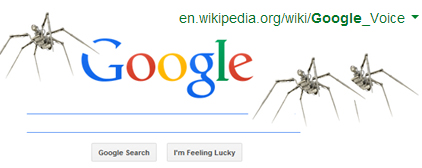
Crawlers are the Google Spiders who keep on searching your website's pages/links at certain intervals for search engine indexing and try to match their relevance for best possible Ads.

When Crawler does not get any link working, the error message has appeared in the report page with all those links. These are not permanent and Crawler keeps on rectifying search results to suit Ad types. If your website has a lot of non-working or broken links, it will be displayed as very poor in Crawler report.

Google Crawlers and Bots

This report certainly will not affect your account or content but drastically reduce your site's rating as users won't find the links working and will reach to a dead page.

Robots.txt
This file contains the 'don't' list. These are the content to be excluded from Crawler search. Such content may not be as per Google's policy and hence not suitable for indexing.

As an Author of a website, you must be keen about fixing broken links as it reflects its bad behavior. This will certainly harm your site's overall reputation.

Worst effects of this could be, as soon as a bad link is clicked, chances of a user closing the site is high which is a loss to the website. Poor web design and flaws may also cause Crawl Errors and can again be rectified in simple ways.

In the Google Webmaster Tools, you can verify your site by uploading a verification file. For Bloggers, they need to add a unique Meta verification tag. You will need to create XML sitemap and submit Sitemap URL in GWT.

How To modify SEO for content?
Just remember if you are linking any external page through a link on your blog, clicked destination page will be crawled and indexed.

A ‘Nofollow’ tag suggests search engines "Not to follow this particular page or link". By adding simple Meta tag and attribution to a web page, it can be achieved easily.

There are several types...
If you don’t want a web page to be crawled, you can put it in 'robots.txt'. This way it will not be indexed.

Using 'nonindex' Meta tag in web page header, the page will be excluded from indexing.

'Noindex.Nofollow' Meta tag suggests Google not to index in search results, also don't crawl the content (That is stopping Google bots crawling your page), and simply vice versa with 'Noindex.follow'

'rel=nofollow' attribute suggests, "Don't pass the page through PageRank or endorse this page to my viewers'. E.g. If you are linking external 'B' page on your 'A' website through a link, with a rel=nofollow attribute, 'B' page will be excluded from PageRanking with this tag.

Different Types of Crawl Errors
Not Found, URLs not followed, URLs restricted by robots.txt, URLs timed out, HTTP errors, URL unreachable, Soft 404s (page does not exist anymore).

New Motorola Moto G 2015 Is Getting The Android 6.0 Marshmallow Update In North America And Canada By Patricbensen

It seems that Motorola is giving a Christmas gift to the users of Moto G (3rd Gen) by rolling out the android 6.0 Marshmallow update. The update has been released to the unlocked version of Moto G 2015 XT1540 in North America and Canada. The new software version is '24.11.25.en.US' and the update weighs nearly 460 MB which is not a big deal to download over Wi-Fi. However currently we are not posting the release notes but once they are available we will notify you. Currently, we can only show you the glimpse of what will be the new features in the android 6.0 Marshmallow for the Moto G (3rd Gen).

moto g 2015 android 6.0 24.11.25.en.US

What's New In Android 6.0 For The Moto G 2015

You will get all the features of android M after installing it on your http://patricbensen.blogspot.com /2015/12/motorola-moto-g-3rd-generation-vs-moto-g-turbo-edition.html" target="_blank">Moto G 2015. The most interesting features of this new OS include the ability to use the external sd cards as internal storage. It is a useful feature that is also very useful for the users of the 8 GB Moto G3 model. The second feature is the 'Permission Control'. Now you can control the app permissions by simply disabling them for apps. This will increase your security and prevent the apps from unnecessarily accessing your personal data and phone's hardware resources.

Moto G 3rd gen android 6.0 marshmallow update

You will not find the 'Motorola Assist' and 'Motorola Migrate' apps on your phone after updating because Motorola has already confirmed the retirement of these apps with the launch of android Marshmallow. Other features include the 'Doze Mode', 'Now on Tap', 'Android Pay', 'Direct Share' and 'Simpler Volume Controls'.


Warning:

Before updating make sure to enable 'Allow OEM unlocking' in 'Developer Options'. Because we can't say whether after updating your phone Google will trip 72-hour lockout or not. If 'Developer Options' is not visible then go to 'Settings>About phone' and tap on 'Build number' 10 times to unlock it. Read more about http://patricbensen.blogspot.com /2015/12/what-is-factory-reset-protection-google-72-hour-lockout-android-lollipop.html" target="_blank">factory reset protection. After updating to android 6.0 you can disable this 'OEM unlock' to enable factory reset protection.

How To Update

If you live in North America and Canada then you can get this update. Just go to 'Settings>About device>System updates'. If the update is available then you will receive a notification. Tap 'YES, I'M IN' and follow the instructions to download the OTA. Make sure you have a Wi-Fi connection.


Check http://patricbensen.blogspot.com /2015/12/motorola-moto-g-3rd-generation-tips-tricks-hidden-secrets.html">Moto G 2015 Tips and Tricks

New Sync/ Transfer iOS Contacts to Android using Gmail or iCloud By Patricbensen

iOS to Android

Backing up Smartphone’s contacts could be an annoying and tedious task. Earlier times we used to type names and numbers manually into our new phones and digital diaries. Whether noting them on PC or rewriting them on paper everything is still clumsy. Even in today’s hi-end gadgets era, many of us are getting confused while doing this task.

There are many ways and apps are available to back up your phones including data and contacts. While looking for the simplest way, syncing contacts through Google is a very simple method.

Apple's iOS and Google's Android operating systems work on a totally different platform. While shifting files from one device to other proper file formats must be transferred.

Learn how to transfer an iOS contacts to an Android Device using Gmail account.
This will involve transferring contacts from iOS device to Google account, then syncing it to Android device again.

Follow these simple self-explanatory steps:

Method 1: iTunes

iTunes: iOS devices work well with iTunes, it has the option to sync contacts to your registered Google account.

Open iTunes- connect your device via USB cable. Select your device in iTunes, Go to Contacts - Select Sync Contacts with Google Contacts option on top.

The system will prompt you to enter your Gmail credentials, just input your username and password.

Login to Gmail - Contacts.

Now you must see the whole list of added contacts from your iTunes into your Gmail contacts list.

Merge Duplicates Contacts in Gmail Contacts, Google contacts have options "Find & Merge duplicates" in More tab. It will show the list of duplicate contacts. Select them and Merge them manually.

Restore Contacts to Android Device

Go to Menu> Settings> Accounts and Sync. Select Add Account and select Google. Sign in with your Gmail account details. Select 'Sync Contacts' and click Finish to complete the process.

Your contacts must be copied to your Android device now. This is the easiest way to transfer contacts.

Method 2: iCloud

You need to have an iCloud account to sync your data to the online cloud database. Create it if you do not have one.

Go into contacts tab, Select all contacts and on Setting button select "Export vCard..." A vCard file will be saved on your computer. Make sure to save it on a desktop or at a known place.

Go to Gmail> Contacts, Select Import Contacts and Import using a vCard file. All the contacts now must be present in your Gmail contacts account.

Merge them again properly repeating previous steps and your contacts are now safe forever. Merging in Google account is the fastest way to delete repeat contacts rather than doing it manually in your phone. 

All your contacts are now safe with your devices and online Gmail account.

New How To Install Android 6.0 Beta On Samsung Galaxy S6 And Galaxy S6 Edge By Patricbensen

Samsung has released the android 6.0 beta for the Galaxy S6 and the Galaxy S6 Edge. This firmware is not the final release and is in the testing phase. Samsung UK is sending invites to Galaxy S6 and S6 Edge users to get their new android 6.0 tested. If you want to become an android 6.0 beta tester then you should install the android 6.0 beta firmware on your Galaxy S6. As per the guidelines, this beta firmware testing program is only available in the UK. But don't worry if you reside outside UK then we have an alternative procedure for you which will make you the official tester of the android 6.0 beta firmware for Galaxy S6 and Galaxy S6 Edge.

Before you begin installing the firmware. However, this is an official update so you will not lose any data. But you should take a backup of your data because you don't want to lose it. Well, the process is pretty easy, you have to install an app and fill out the registration details. Within 24 hours you may get the update if Samsung selects you.

This tutorial employs the use of ODIN flashing tool. So you should be aware of using it. Make sure that your phone is charged to at least 60%. You can read this tutorial about http://patricbensen.blogspot.com /2015/06/manually-update-us-cellular-galaxy-s6-to-android-5111-lollipop.html" target="_blank">using ODIN.

How To Install Android 6.0 Beta On Samsung Galaxy S6 And Galaxy S6 Edge


For UK Users Only

  1. Make sure that your device's model should be SM-G920F or SM-G925F
  2. Your phone's firmware should have a BTU product code otherwise you will not get the update. You can install this app to check the BTU code.
  3. Now after checking the BTU code, download and install the Galaxy Care app from the play store.
  4. Open the app and follow the on-screen instructions.
  5. Keep swiping until you see "Participate Galaxy Beta Program" and tap 'Join'.


  6. Finally tap the 'Registration' button at the bottom and agree to license terms.
  7. That's it, you may receive the android 6.0 beta OTA on your phone within the next 24 hours.

For Non-UK Users

If you live outside of UK or your Galaxy device doesn't have the BTU code then you have to first flash the BTU file on your phone before you can get the android 6.0 beta.
  • Your phone model should be SM-G920F or SM-G925F and it should be unlocked.
  • Download the BTU code for Galaxy S6 and Galaxy S6 Edge.
  • Flash the file using ODIN.
  • Now follow the 'Step 3' and onwards in the 'UK Users Only' section above.
  • You can get the android 6.0 beta OTA update within 24 hours.

If you do not get the android 6.0 beta update even after following this tutorial then Samsung may not have chosen you. But you should try the above tutorial to become a beta tester for Samsung.

New Motorola Moto G 3rd Generation Tips, Tricks And Hidden Secrets By Patricbensen

Motorola Moto G 3rd Generation is a budget android smartphone. Motorola has already started to roll out the android 6.0 Marshmallow update for Moto G (3rd Gen) in North America and Canada. The phone features a quad-core CPU, Adreno 306 GPU and 2 GB RAM. Overall the Moto G3 is a good phone with some unique features like water resistance and a gesture activated LED torch. You can read http://patricbensen.blogspot.com /2015/12/motorola-moto-g3rd-gen-2015-xt1550-review-hands-on.html" target="_blank">Moto G3 Review. This tutorial tells about some tips, tricks in Moto G3.

Motorola Moto G 3rd Generation Tips, Tricks And Hidden Secrets

Moto G 3rd Generation Tips, Tricks And Hidden Secrets

1. Karate Chop:

This is a very useful function in Moto G3 which allows us to turn ON the LED flash that can be used as a torch in the dark. This feature can be used anytime whether the phone is locked or unlocked. To turn ON the LED flash as torch just hold the phone and perform a karate chop two times. The phone will vibrate before activating the torch. It can be turned off by again performing a karate chop.

2. Twist For Quick Capture:

This action launches the camera quickly. You don’t have to push any button or unlock the phone. At any instant hold the phone and twist your wrist twice so that the phone’s screen should face in an upward direction. This launches the rear camera. A reverse action will launch the front camera. You can even capture photos and record videos when the phone is locked.

3. Take Screenshots:

Taking screenshots on Moto G3 is very simple. At any instant simultaneously press the ‘Power’ and ‘Volume Down’ button. Go to gallery app to view the captured screenshot.

4. Create New Home screens:

Creating new home screens in Moto G 3rd Generation is rather tricky than easy because there is no direct option to create one. By default, you have 2 home screens the third one is for the Google app. To create a new home screen just open the app drawer and long tap any app and drag it to the extreme right to the phone’s screen. This is new home screen just drop the app here. A home screen is automatically removed when all apps, widgets and shortcuts are removed from it.

5. Make App Folder:

App folders can only be created on home screen. App folders are useful to keep one kind of apps at same location such as Google Apps. To create app folder, you should have at least one app on the home screen. Now open the app drawer, long tap any app and drag it over to the other app on home screen. The folder will be automatically created. Tap the folder then tap ‘unnamed folder’ to rename it.

6. Enable Screen Notifications:

Motorola Moto G 2015 doesn’t have an LED notification light. But Moto G3’s screen notifications beat the LED notification in every aspect. Whenever a notification arrives it appears as interactive icons on the screen. To check the notifications, you just have to shake the phone once without pressing any button or unlocking the screen. To enable screen notifications, go to ‘Settings>Display>Screen notifications’. Here select ‘Moto Display’.

7. Enable Adaptive Brightness:

When adaptive brightness is enabled then the screen’s brightness will automatically adjust itself by getting data from the light sensor. This feature saves battery in indoor and outdoor locations. To enable it go to ‘Settings>Display>Adaptive brightness’.

8. Enter Recovery Mode:

To enter recovery mode on Moto G 3rd Generation please http://patricbensen.blogspot.com /2015/11/how-to-enter-recovery-mode-on-motorola-moto-g-2015.html" target="_blank">read this article.

9. Enable Vibration During Calls:

To make your phone vibrate during incoming calls go to ‘Settings>Sound & notification’. Scroll down and enable ‘Also vibrate for calls’.

10. Mount USB OTG Drive:

Moto G 2015 has OTG support. You can connect USB storage devices to it for file transfer. You should have an OTG cable or an OTG USB drive. Just connect it to the phone and start copying or transferring files. Use ES file explorer.

moto g3 otg cable

11. Enable Battery Saver:

Moto G3’s battery saver extends battery life by disabling Wi-Fi, vibration for calls and background data. It also limits phone’s performance. However, Moto G 2015 has a 2470 mAh which is capable of powering it for a full one day so using the battery saver is not necessary. But if your battery goes below 15% then you should activate it. Scroll down the notifications slider with two fingers and tap the battery icon. Now tap the ‘3 vertical dots’ on the top right and select battery saver. Now turn it on, then tap ‘Turn on automatically’ and select ‘at 15% battery’. Now you can turn it off it will automatically activate when the battery percent reaches 15%. When the battery saver is enabled then the upper and lower part of the screen turns orange.

12. Block App Notifications:

You can block app notifications from various apps like Whatsapp, Facebook, Google+ apps. So that no one can see them. When notifications are blocked then they won’t appear on the screen. To do this go to ‘Settings>Sound & notification’. Here scroll down and tap ‘App notifications’. You will see the list of all apps here. Tap any app to block the notifications including ‘Priority’ and ‘Sensitive’ notifications.

13. Disable Cellular Data:

By default the mobile data is enabled. So it may cost you money because apps keep syncing in the background. To disable it just slide down the notifications panel and touch any of the SIM. Now in SIM settings, you will find ‘Cellular Data’. Disable it.

14. Music Player For Moto G3:

The default music player on Moto G 2015 is the Google Play Music which is not much good. You can try the http://patricbensen.blogspot.com /2015/10/download-sony-walkman-music-player-for-moto-g-2015.html" target="_blank">Walkman Music Player For Moto G3.

15. Video Player For Moto G 2015:

Similarly the default video player of Moto G is limited. You can download http://patricbensen.blogspot.com /2015/10/download-sony-movies-best-video-player-for-moto-g-3rd-gen.html" target="_blank">Sony Movies App.

16. Save Contacts To Phone Storage:

To save contacts to phone storage you have to manually import them from the vCard file. You should backup your contacts on the old phone as a vCard file and then transfer it to Moto G3 in the internal storage’s root directory. Now go to ‘Contacts>Settings>Import/Export’. Choose ‘Import from storage’. Locate the file to import the contacts to phone storage. They will not be saved to Gmail account. Another option is to keep the contacts always stored in the SIM.

17. Enable/Disable Factory Reset Protection:

Factory Reset Protection is a special security feature in which Google locks your phone for 72-hours after a factory reset in recovery mode. However, resetting the phone from ‘Settings’ menu is completely safe. Please read about http://patricbensen.blogspot.com /2015/12/what-is-factory-reset-protection-google-72-hour-lockout-android-lollipop.html" target="_blank">Factory Reset Protection.

18. Change Camera Resolution:

By default camera resolution is set to 9.7 MP. You can change it to 13 MP. Open the camera then open its settings by swiping on the left side of the screen. Find the ‘L’ icon and change the resolution. See the image below.

change moto g3 camera resolution

19. Play Retro Games On Moto G3:

You can play retro games by using their emulator apps on Moto G3. The tutorial list is given below.

  • http://patricbensen.blogspot.com /2013/01/how-to-play-nes-games-on-android.html" target="_blank">NES Games
  • http://patricbensen.blogspot.com /2014/02/how-to-play-snes-games-on-android.html" target="_blank">SNES Games
  • http://patricbensen.blogspot.com /2013/01/how-to-play-playstation-ps1-psx-games-on-android.html" target="_blank">Playstation Games On Moto G3
  • http://patricbensen.blogspot.com /2013/03/how-to-play-dos-games-on-android.html" target="_blank">DOS Games
  • http://patricbensen.blogspot.com /2012/07/how-to-play-mame-and-cps1-games-on.html" target="_blank">MAME/CPS1
  • http://patricbensen.blogspot.com /2014/02/how-to-play-sega-genesis-mega-drive-games-on-android.html" target="_blank">Sega Genesis
  • http://patricbensen.blogspot.com /2013/04/how-to-play-neogeo-games-on-android.html" target="_blank">NeoGeo Games
  • http://patricbensen.blogspot.com /2014/02/how-to-play-cps2-games-on-android.html" target="_blank">CPS2

20. Save Webpages As PDF In Google Chrome:

The chrome browser in Moto G3 has an ability to save web pages as PDF files without special extensions. http://patricbensen.blogspot.com /2015/11/how-to-save-webpages-as-pdf-in-google-chrome-android.html">Read this article.

21. Quickly Uninstall Apps

To quickly uninstall apps just open the app drawer and long tap the desired app. Now you will see two options on home screen. Drag the app to the 'Uninstall' option and tap 'OK'. App will be uninstalled within few seconds

There were 21 tips and tricks for the Motorola Moto G 3rd Generation. More tips are coming soon. Please share the article if you liked it.

New LG G Pad II 8.3 LTE Price Mobile Specification By Patricbensen


Rs. 28,500
http://patricbensen.blogspot.com /">Mobile Prices  >  http://patricbensen.blogspot.com /2012/02/lg-mobiles-prices.html">LG Mobiles   http://patricbensen.blogspot.com /2015/12/lg-g-pad-ii-8-3-lte.html">LG G Pad II 8.3 LTE Price
LG G Pad II 8.3 LTE Price Announced December 2015, features a 8.3-inch display with IPS LCD capacitive touchscreen, It is powered by Android OS, v5.1.1 (Lollipop) and 2 GB RAM, The LG G Pad II 8.3 LTE an 8 MP rear camera, Geo-tagging, touch focus, panorama, HDR, autofocus, with 2 MP front camera, The LG G Pad II 8.3 LTE phone has 16 GB of non-expandable internal storage, Connectivity features include Technology: WLAN, Wi-Fi, Bluetooth, GPS,USB, microUSB, GSM 2G, HSPA 3G, 4G LTE, Speed HSPA, LTE, The LG G Pad II 8.3 LTE comes with a Non-removable Li-Po 4800 mAh battery, It runs on the Quad-core 1.5 GHz Processor...

Quick Specifications

  • General: Platform (Lollipop)
  • Touch
  • Display: 8.3 inches
  • Camera: 8 MP
  • AutoFocus
  • 1080p@30fps Video Recording
  • 2 MP Front Camera
  • Technical: 16 GB Inbuilt Memory
  • 2 GB RAM
  • Quad-core 1.5 GHz Processor
  • Connectivity: 2G
  • 3G
  • 4G
  • WiFi
  • Bluetooth
  • GPS
  • NFC
  • Extra: Music Player
  • Video Player
  • FM Radio
  • 3.5 mm Headphone

Specs

LG G Pad II 8.3 LTE
General
Announced December 2015
Status Available. Coming soon. Exp. release 2015, December 23
NetworkTechnology : GSM / HSPA / LTE, 2G, 3G, 4G, GPRS, EDGE
Weight 12.91 oz   (366 g)
Dimensions 216.8 x 126.5 x 8.8 mm, 8.54 x 4.98 x 0.35-in
Battery Talk: Up to 19 h (3G) max.
Standby: Up to 288 h (3G) max.
Music play: Up to 75 h max.
Non-removable Li-Po 4800 mAh battery
Display Type: IPS LCD capacitive touchscreen, 16M colors
Resolution: 1200 x 1920 pixels
5.7"   diagonal
OS / Platform Android OS, v5.1.1 (Lollipop)
Chipset Qualcomm MSM8939 Snapdragon 615
Processor Quad-core 1.5 GHz Cortex-A53 & quad-core 1.0 GHz Cortex-A53
GPU Adreno 405
RAM 2 GB
Memory 16 GB internal storage
SIM card size Yes
Sensor Accelerometer, gyro, compass
NFC -

Features

LG G Pad II 8.3 LTE
GPS / LocationYes, A-GPS, GLONASS
Accessibility
Multiple Languages Yes
Alerts
Vibrate Yes
Connectivity
Bluetooth v4.1, A2DP
PC Sync Yes
USB Connector: Type-USB v2.0 connector
Wi-Fi Version(s): Wi-Fi 802.11 a/b/g/n, dual-band, hotspot, Wi-Fi Direct, DLNA
Contacts
Ringer ID Yes
Voice Dialing Yes
Customization
Real Music Ringers Yes
Data & Network
High-Speed Data Technology: HSPA, LTE
WAP / Web Browser Browser Software: HTML5
Input
Predictive Text Entry Yes
Side Keys volume, lock on right
Touch Screen Type: Capacitive
Memory
Memory Card Slot microSD, up to 200 GB
Messaging
Email Client Protocols Supported: Exchange, POP, IMAP
Music
Radio No
Headphone Jack (3.5mm) Yes
Photo & Video
Camera Resolution: 8 megapixel & 2-MP
autofocus, Features Geo-tagging, touch focus, panorama, HDR
DLNA Yes
Video Capture Resolution: 1080p@30fps recording
Voice
Speaker Phone Yes
MISC
Colors Brown Gold
http://patricbensen.blogspot.com /">Mobile Prices   >  http://patricbensen.blogspot.com /2012/02/lg-mobiles-prices.html">LG  Pakistan

New Do You Really Need An Antivirus App For Android Phones? By Patricbensen

Android antivirus apps are available in the play store since the launch of the android cupcake. Most of these antivirus apps are free, but some are trialware. These antivirus apps scan your phone and installed apps for security risks like malware and viruses. But installing any antivirus app today on your phone is of no use. These apps are only limited to scanning apps and provide a bunch of useless tools like remote tracking and wiping. These antivirus apps run in background and waste battery performance.

Do You Really Need An Antivirus App For Android Phones?

android antivirus app

Google itself checks the android apps for malware and viruses before launching them in play store. Also, the Google Play Services scans the installed apps on your phone on a regular basis. This scan is done to check whether the app is safe or not. If Google finds any malicious app installed on your phone then it may ask you to remove it immediately. With android device manager, you can lock, track and wipe your lost phone.

The same features are being provided by many popular antivirus apps, but Google's android device manager is much reliable. In android 5.1.1 Lollipop and above you will find a powerful security feature known as Factory Reset Protection. It is a security feature which automatically locks your android phone if someone performs an unauthorized factory reset from recovery mode. Please read more about http://patricbensen.blogspot.com /2015/12/what-is-factory-reset-protection-google-72-hour-lockout-android-lollipop.html" target="_blank">Factory Reset Protection.

Android Antivirus Apps Are Not Hard Reset Proof, But Your Google Account Is

So once a hard reset is done the phone is completely wiped which also removes the antivirus apps. But Google account is still there and it will protect your phone from unknown access. Now you can track this phone with android device manager. So android antivirus apps are a failure in this case. You can enable the malware detection function in 'Google Settings' app. Just open the app and head to 'Security'. Here make sure that 'Scan device for security threats' and 'Improve harmful app detection' is enabled. Also make sure that 'Unknown sources' is disabled in 'Settings'.

Android Antivirus Apps Doesn’t Provide Permission Controls

When the above-mentioned functions are enabled then Google will automatically check your installed apps for security threats. Google has given more control to the user in its latest android 6.0 Marshmallow. In android 6.0 a user can disable certain or all permissions required by any android app. Most android apps like to read your contacts, see you photos/videos and access the camera without notifying you. I have seen many apps like 'Clean Master' which access your photos. You can disable all these permissions and make your data more secure. An android antivirus app does not provide such functionality.

Downloading Apps From Play Store Is Safe

If you download android apps only from the Google Play Store then you should not worry much. Because Google only publishes apps that are safe to install and are completely free from malware. So installing an android antivirus app will only cost some of your phone's battery life. Instead of these apps, you should install VPN apps that allow you to browse anonymously, you can http://patricbensen.blogspot.com /2015/08/hide-my-ip-best-vpn-android-app-to-anonymize-ip.html" target="_blank">check one here.

Verdict

Android antivirus apps are just normal apps. They just read/scan your apps and provide some tracking and wiping tools. Such apps are of no use if you mostly use Play Store to download apps. Google is already providing more sophisticated security features which are no match for these antivirus apps. All you need to do is to know about this security features.

Have any questions? Ask via comments.

New Motorola Moto G 3rd Generation vs Moto G Turbo Edition: Which Should You Buy? By Patricbensen

Motorola Moto G Turbo is the upgraded version of the Moto G 3rd Generation android smartphone. Moto G 2015 was launched in July 2015 while the Turbo Edition has been recently launched on 10th Dec 2015. Both these android smartphones are exactly same in appearance and most hardware specs. The Moto G Turbo now packs an octa-core CPU with turbocharging support. The device can be charged to give 6 hours of backup in just 15 minutes as said by Motorola. With the launch of Moto G Turbo edition, Motorola has left many android users in a confusing state. They are unable to decide which phone to choose between the two. This post will tell you whether you should buy or upgrade to Moto G Turbo edition or not.

Moto G 3rd Generation vs Moto G Turbo Edition

Moto G 3rd Generation vs Moto G Turbo Edition: Which Should You Buy?

  1. Processor: The Moto G 2015 has a 1.4 GHz quad-core Qualcomm processor while Moto G Turbo Edition has an octa-core CPU. I have found the regular Moto G processor fast enough which is capable of running heavy apps and games without lags. App multitasking is very smooth. So, using an octa-core CPU in place of a quad-core is only beneficial if you are going to run heavy games and multiple apps simultaneously.
  2. GPU: Moto G Turbo is backed by a Qualcomm snapdragon MSM8939 chipset which features the Adreno 405 GPU. Adreno 405 GPU is better than Adreno 306 which is the graphics processor in Moto G 3rd Generation. So, you will get good 3D graphics and smooth gaming experience on Moto G Turbo edition.
  3. RAM/Memory: Both the latest version of these smartphones have exactly 2 GB of RAM. So, there is almost no difference.

Conclusion: -

Well gaming on the Moto G Turbo is definitely better than regular model. But gaming on the Moto G 2015 is also very good. You can use any of the two and see that there are no lags in gaming. Moto G 3rd generation is capable of running any android game without lags. So only consider the newer Turbo Edition if you are a hardcore gamer and want slightly good performance in android gaming.

Upgrading from the regular version to the turbo version for this reason is not at all a wise decision. The snapdragon 615 chipset features an octa-core CPU with Adreno 405 GPU, so heating issues can be felt on the screen and the back panel while gaming or using Wi-Fi for longer times.

Moto G Turbo Specs That Are Exactly The Same In Moto G3 

The regular and the turbo version of Moto G share a set of same hardware specifications that are listed below.

  1. Camera: Both smartphones have the same 13MP rear camera and 5MP selfie camera.
  2. Storage: Both the phones have 16 GB onboard storage which can be further expanded to 32 GB.
  3. Battery Capacity: Both smartphones have exactly the same 2470 mAh battery which is non-removable. Battery supports USB OTG function.
  4. Connectivity: Both these phones share a common set of connectivity options like Bluetooth, 2G/3G/4G LTE, Wi-Fi (only b/g/n), Dual SIM support, GPS and radio.
  5. Display: The display is replicated from the regular version to the turbo version of Moto G. The display is 5 inches IPS LCD touchscreen with 294 ppi. The resolution is HD 1280x720 pixels. The screen is protected by Corning Gorilla Glass 3 which is also replicated. You may want to install a tempered glass http://patricbensen.blogspot.com /2015/12/how-to-install-tempered-glass-screen-protector.html" target="_blank">see it how.
  6. Android OS: Both these android smartphones are currently running android 5.1.1 Lollipop OS. A planned upgrade to android 6.0 Marshmallow is scheduled for both of these phones in January 2016 (expected).

Which Features Make Moto G Turbo Different From Moto G 2015

The Turbo Edition model has some unique features that can not be found in the regular version. The list is stated below.

  1. IP67 Certification: Moto G Turbo is IP67 certified which means it is dust and waterproof. While Moto G3 is only water resistant. I really missed the IP67 certification in Moto G3 which I mentioned in http://patricbensen.blogspot.com /2015/07/motorola-moto-g-2015-another-budget-phone-specs-price-review-buying-tips.html" target="_blank">this post. Dust is the ultimate enemy of mobile phones. So, having a dust-proof android phone is a good choice, because your phone will repel dust and will keep itself clean.
  2. Turbocharging: The Moto G Turbo edition comes with a turbocharger which can charge it's battery really fast. 15 minutes of turbocharging can make the phone ready for 6 hours. This is Qualcomm's quick charge technology which is not supported by Moto G 3rd Generation. This feature becomes useful when you do not have enough time to charge the phone. The only disadvantage is that phone becomes hot after a quick charge. However, using a normal 5V USB charger will prevent overheating of battery. Turbocharging feature will not work with a normal 5V charger.
  3. CPU & GPU: I have already mentioned above about CPU and GPU. The Moto G Turbo has an octa-core CPU with a better Adreno 405 GPU. So gaming and multitasking are better in turbo edition than the regular Moto G. However, this is not a solid reason to buy or upgrade to Moto G Turbo Edition.

Why Should You Buy Moto G Turbo If Most Of The Specs Are Same

The only solid reason that makes me buy this phone is the not much price difference between the regular and turbo edition which is just $22 dollars (INR 1500). So, caring not much about $22 dollars, I would prefer Moto G Turbo. Because it is coming with an octa-core cpu, Adreno 405 GPU, turbocharging support and IP67 certification.

Is Turbocharging, Upgraded CPU/GPU And IP67 Certification A Reason To Buy Or Upgrade To Moto G Turbo

No, above-mentioned features are not at all solid reasons to buy this phone. You can read more below.

  1. Turbocharging: This is not a useful feature. The 2470 mAh is capable of providing a one day backup. This battery pack is capable of giving 10 hours of continuous video playback. The battery can last 2 full days if you use your phone 6 hours daily i.e 2 hours each for telephony, web browsing and video playback per day.

    So, turbocharging is only useful when you don't have much time to charge the phone. The regular Moto G3's battery take 2 hours to fully charge. It doesn't matter how busy you are in day to day life, you will definitely give this much of time to your phone to charge it.

  2. CPU/GPU: The Turbo edition packs the snapdragon 615 chipset. It has an octa-core CPU with Adreno 405 GPU. The device will heat up during heavy gaming and long Wi-Fi usage sessions. The gaming experience would be definitely better than the http://patricbensen.blogspot.com /2015/12/what-is-factory-reset-protection-google-72-hour-lockout-android-lollipop.html" target="_blank">Moto G 2015 but device overheating may encountered.

    I have personally used Moto G 3rd Generation and played most heavy games without lags. So, this is also not a solid reason, but totally depends on user needs.

  3. IP67 Certification: Having a phone which is dust and waterproof is good. But it is also not a solid reason to buy this phone. Since water damages are accidental so you are assured that your phone won't be damaged by water. The regular version and the turbo version both are waterproof phones if the back cover is properly installed.

    Moto G Turbo is dust-proof also. You can make your older Moto G3 dust-proof by buying a phone cover. A phone cover will protect your phone from dust and shocks. Both these phones have Gorilla Glass 3.0 protection which is also dust-proof. So this is also not a solid reason. But it is really a good feature for the people who want to keep their phones dust free.

Should You Upgrade From Moto G 3rd Generation To Moto G Turbo Edition

If you are the owner of a regular Moto G3 and planning to upgrade to Moto G Turbo then this is not a wise decision. Because Moto G Turbo is just another Moto G3 with mild changes. It doesn't have full HD display, a 5GHz Wi-Fi support, an upgraded battery, nearly all hardware specs are same except the CPU and GPU. The turbocharging and dust resistance feature are not much useful for an advanced user.

Verdict

Moto G Turbo Edition is overall a good phone with an upgraded Snapdragon 615 chipset, turbocharging and IP67 certification. So, if this phone is going to be your new phone then spending additional $22 dollars, for it is a good idea. But people who are already using http://patricbensen.blogspot.com /2015/10/download-sony-movies-best-video-player-for-moto-g-3rd-gen.html">Moto G3 will not experience much difference, so it is better not to upgrade.

 If you have any questions then you can ask via comments.